Organization Details
When you click on an organization from the search results, you'll see a detailed page with comprehensive information about that specific organization. This page brings together all available data—from basic details to contact information and related tenders—so you can evaluate potential buyers, suppliers, or contracting authorities.
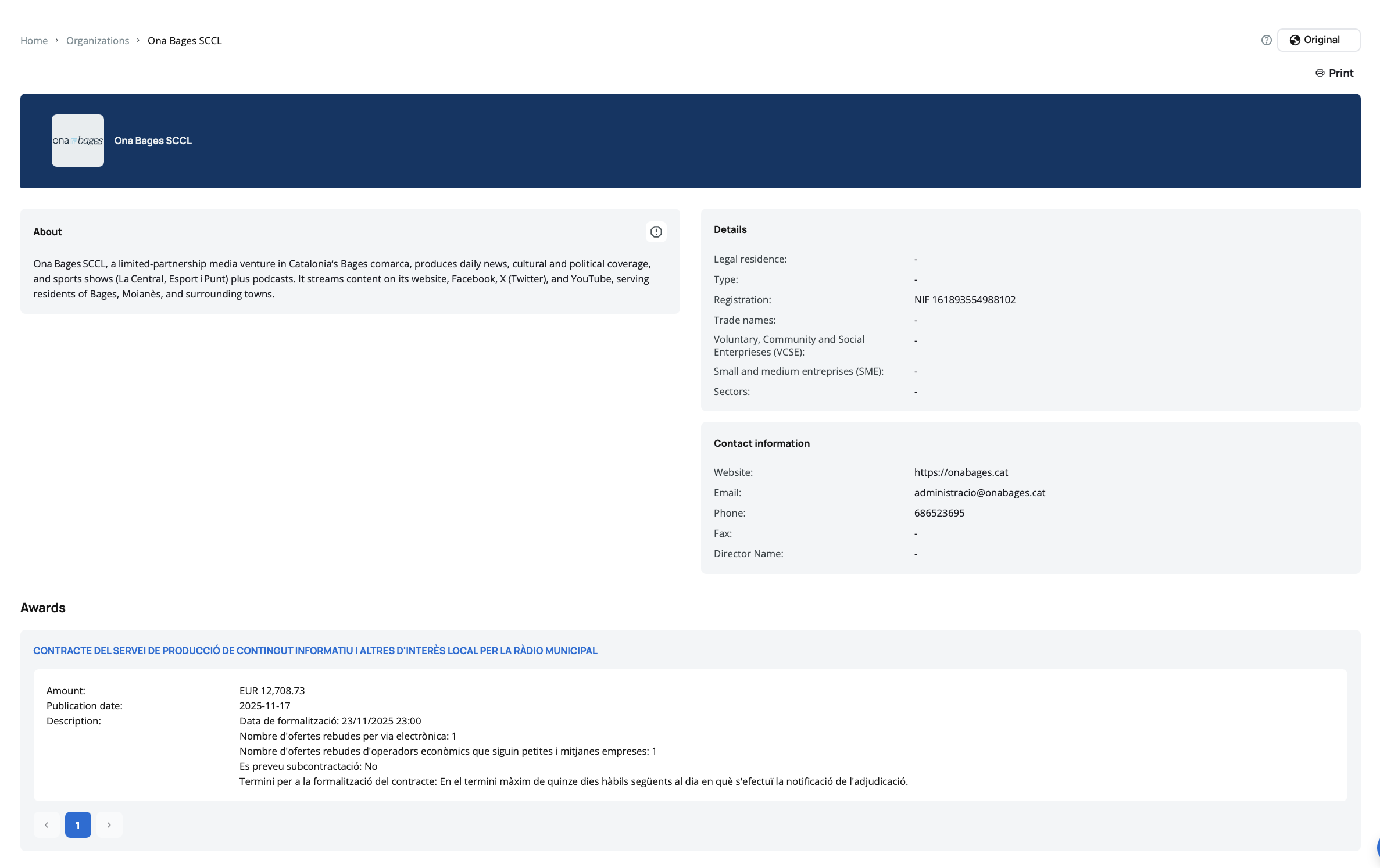
The organization details page displays all relevant information about a single organization in organized sections. The page is split into 3 tabs:
- Overview - General information about the organization, contact information and statistics.
- Published - Contains a list of tenders published by this organization.
- Awarded - Contains a list of tenders awarded to this organization.
If you notice an incorrect logo, you can click the Report  button to report incorrect data. Once submitted, the logo will be hidden and your report will be reviewed.
About
This section displays the organization description, providing context about the organization's purpose, activities, and scope.
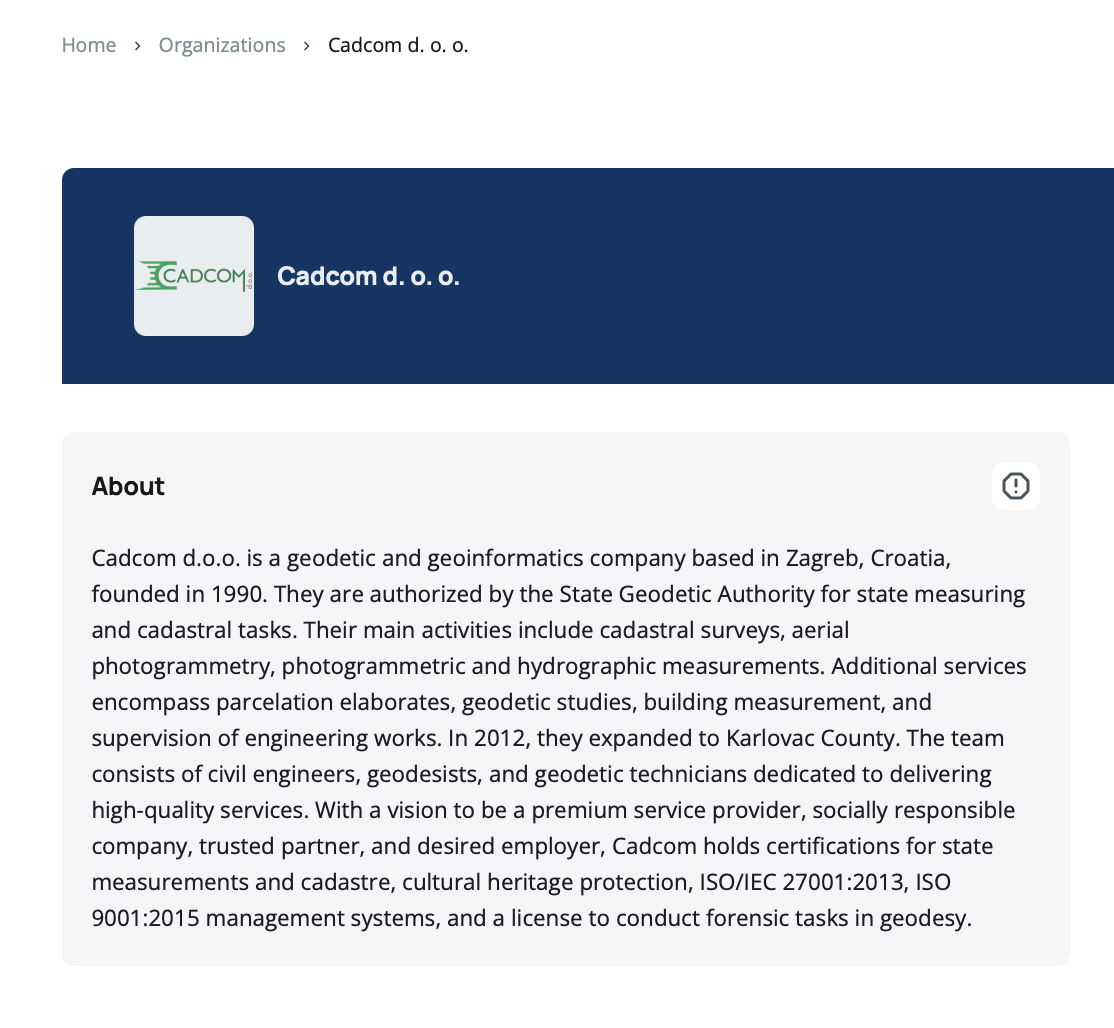
Organization Description – An overview that provides a clear summary of the organization's identity and operations.
If you notice inaccuracies in the description, you can click the Report button to report incorrect data. Once submitted, the description will be hidden and your report will be reviewed.
If no description is available, the About section appears empty rather than displaying incomplete or misleading information.
Details Section
The details section displays key information about the organization's legal status and classification:
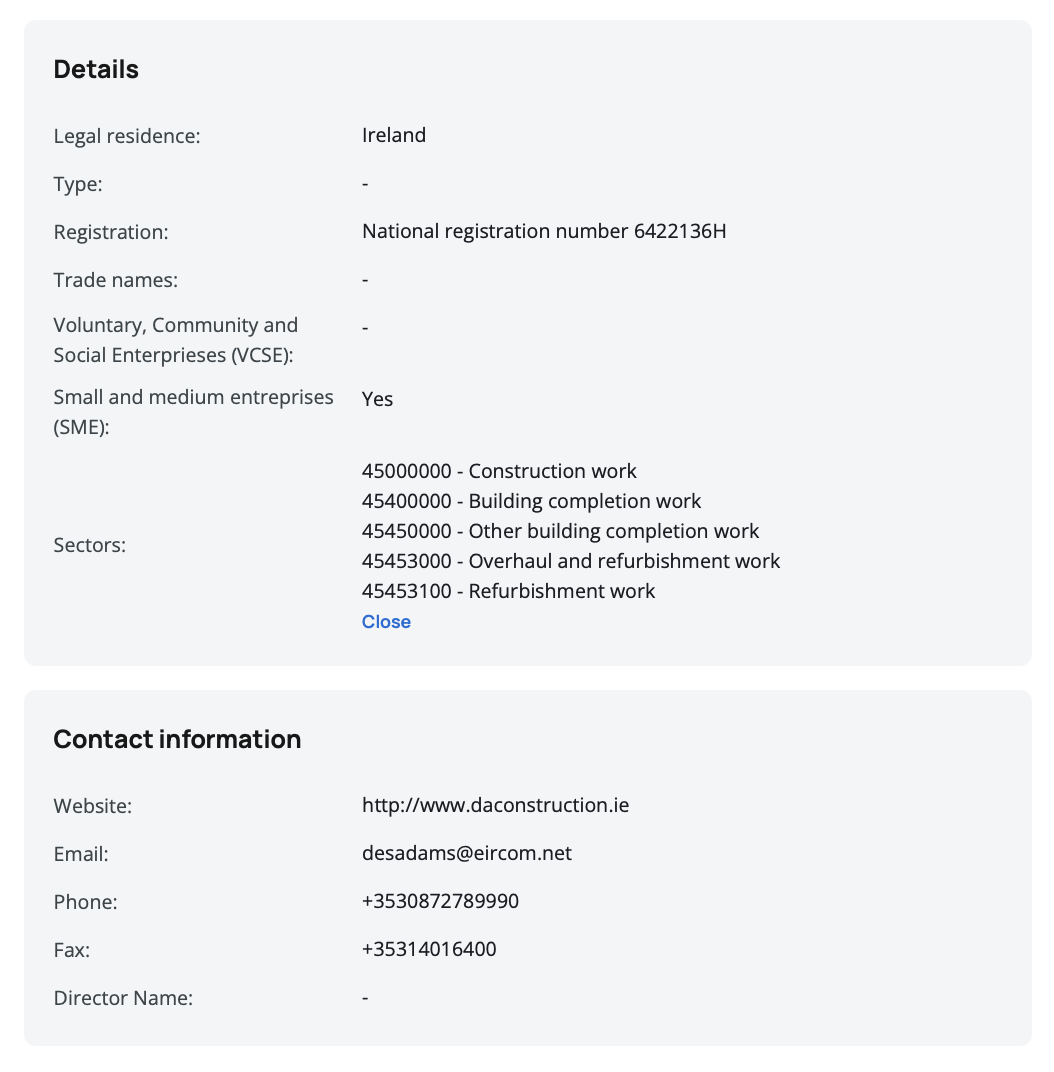
Legal Residence – Shows the full country name where the organization is legally registered (e.g., France, Spain, Germany).
Type – Displays the organization's classification, such as public entity, private company, or other organizational types.
Registration – Shows the organization's official registration information in the format: [Registration Type] [Registration Number] (e.g., NIPT K22013001U). When either the registration type or number is missing, only the available value is shown followed by a dash (-). If both values are missing, a single dash (-) appears.
Trade Names – Lists alternative names or trading names used by the organization. This helps you identify organizations that may operate under different names in various contexts.
Voluntary, Community and Social Enterprises (VCSE) – Indicates whether the organization is classified as a VCSE. Shows either "Yes" or "No" when this information is available.
Small and Medium Enterprises (SME) – Indicates whether the organization is classified as an SME. Shows either "Yes" or "No" when this information is available.
Sectors – Displays the CPV (Common Procurement Vocabulary) codes associated with the organization's related tenders. The sectors reflect the types of goods, services, or works the organization has been involved with through their tender activities. The sectors list is collapsible and expandable. By default, only the first two CPV codes are visible in the collapsed view. Click to expand the list and view all sectors associated with the organization. Each sector appears with its full description (e.g., 45432110 - Floor-laying work), helping you understand the organization's areas of operation.
The VCSE and SME indicators help you identify organizations that may qualify for specific procurement preferences or reserved contracts.
Review the sectors list to understand the organization's procurement focus. This helps you identify organizations that regularly work in your industry.
Contact Information
This section provides various ways to reach the organization:
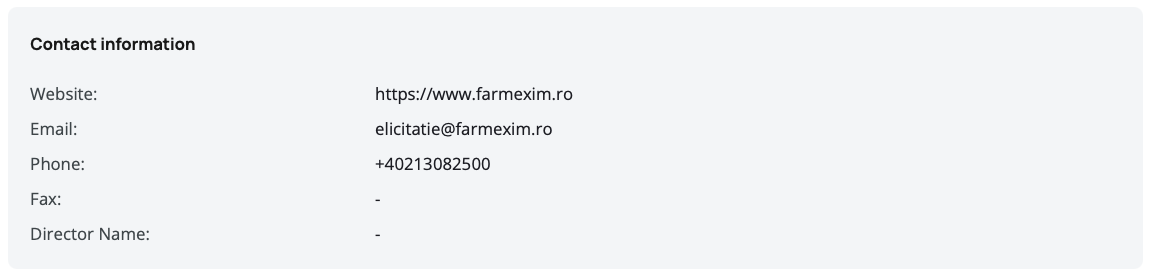
Website – The organization's official website URL. Click to open the website in a new tab.
Email – The organization's primary email address.
Phone – The organization's primary phone number.
Fax – The organization's fax number.
Director Name – The name of the organization's director or primary executive.
Save contact information for organizations you work with frequently. Having direct contact details can speed up communication during the bidding process.
Contact People
This section displays a list of all contact persons associated with the organization. Each contact entry shows:
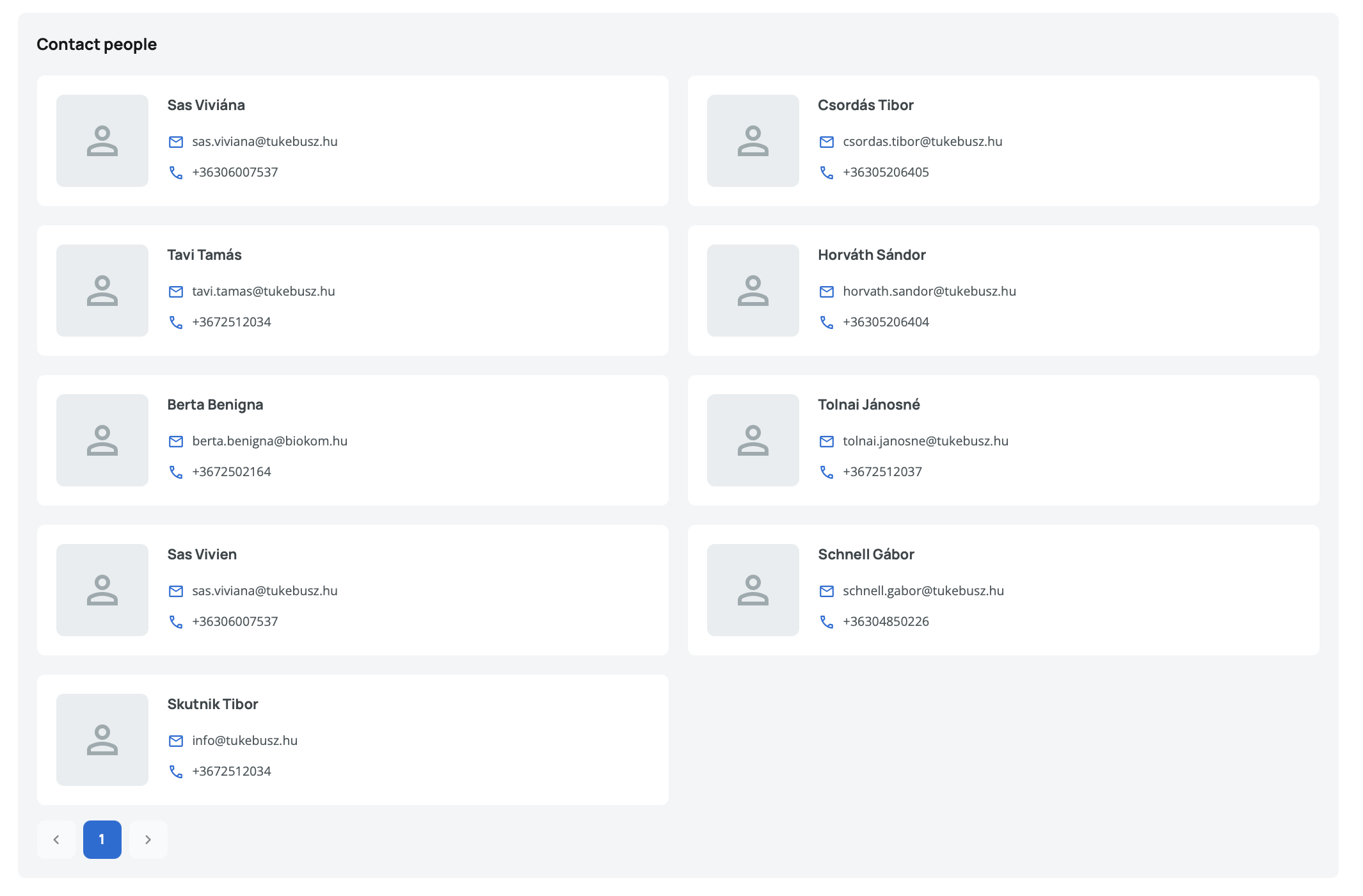
- Name – The contact person's full name
- Email – The contact person's email address
- Phone – The contact person's phone number
Pagination – When the organization has many contact people, the list is paginated for easier browsing. Use the pagination controls to navigate through all available contacts.
Note the specific contact persons for organizations you frequently engage with. Having the right contact can help you get answers faster when questions arise.
Awards Tab
This section displays all tenders where the organization has been awarded a contract as a supplier. Each award entry shows:
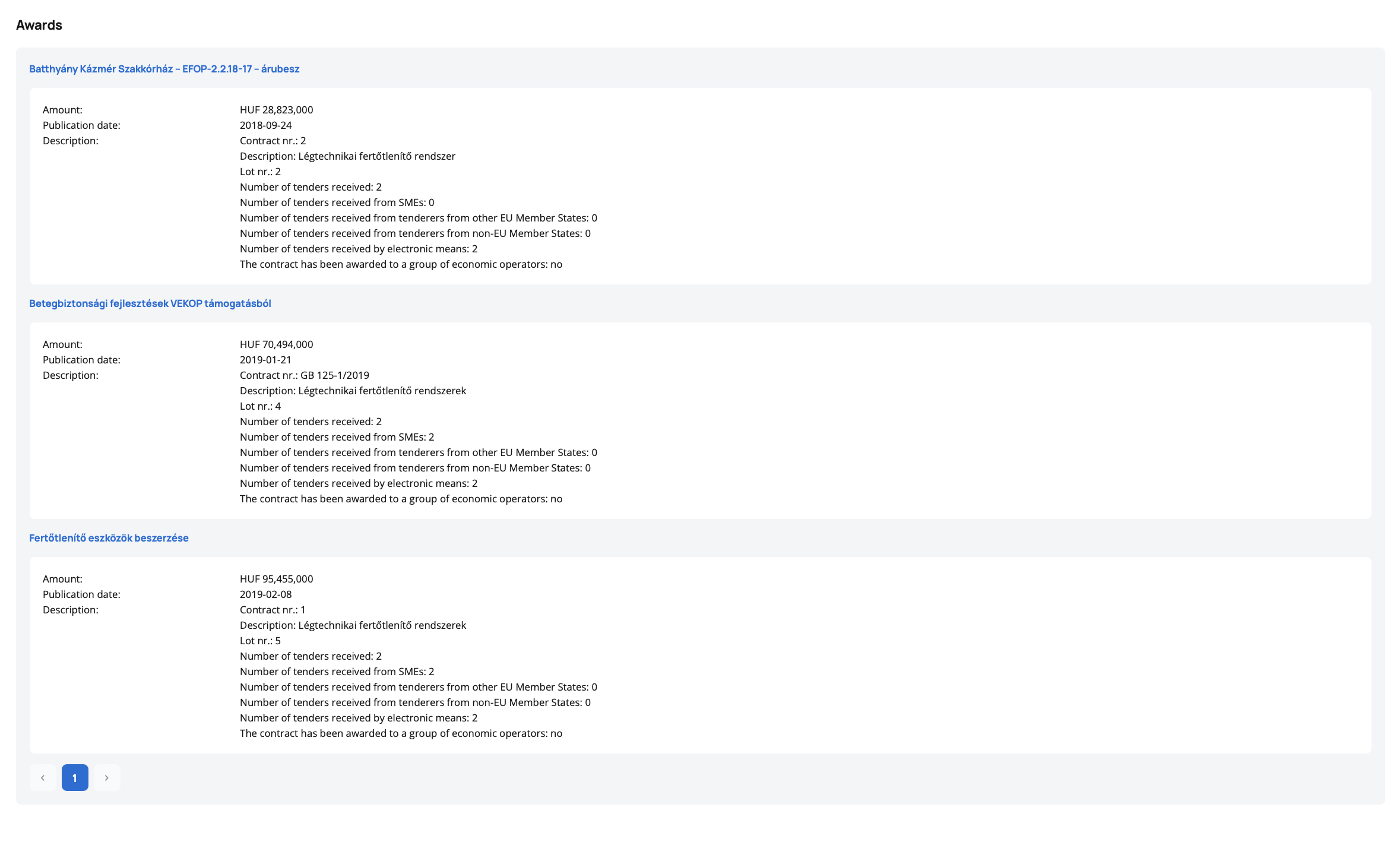
- Tender Title – The name of the awarded tender (clickable link opening in a new tab)
- Award Amount – The contract value awarded to the organization
- Award Publication Date – When the award was officially announced
- Award Description – Details about the specific award or lot
- **Number of bids" - How many offers were submitted for a particular tender or lot Pagination – When the organization has received many awards, the list is paginated for easier browsing.
You can filter awarded tenders by keywords, publication date and contract value.
Published Tab
This section displays all tenders published by the organization. Each published tender entry shows:
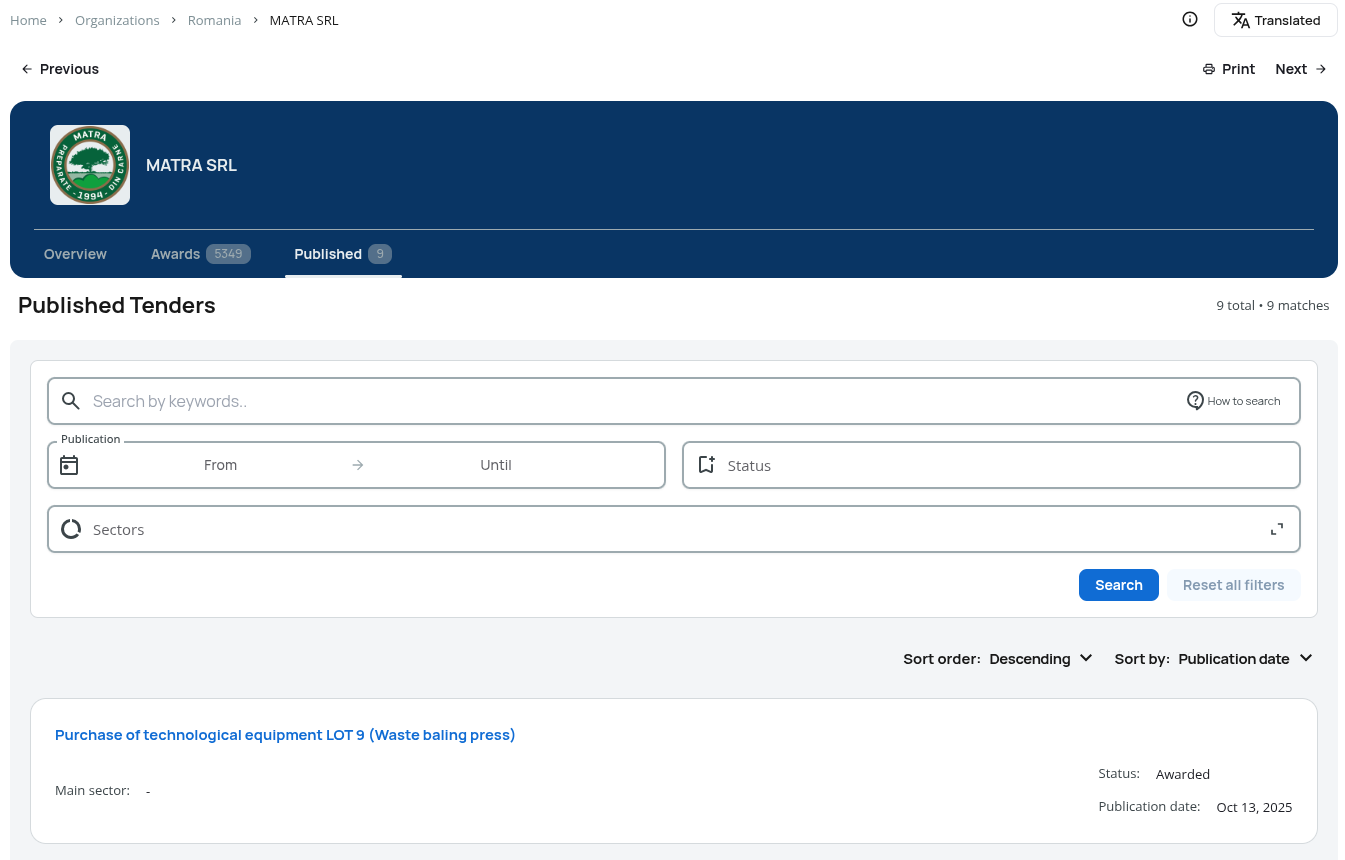
- Tender Title – The name of the published tender (clickable link opening in a new tab)
- Sector – The sector/industry (CPV) of the tender.
- Status – The status of the tender (e.g., Forecast, Open, Awarded, ...)
- Publication Date – The publication date of the tender.
Pagination – When the organization has published many tenders, the list is paginated for easier browsing.
You can filter published tenders by keywords, publication date, status and sectors.
Reviewing an organization's award and published tenders history helps you understand:
- Their success rate in winning contracts
- Types of contracts they typically win or contract for
- Their competitive positioning and pricing
- Whether they're active in your target markets
Actions
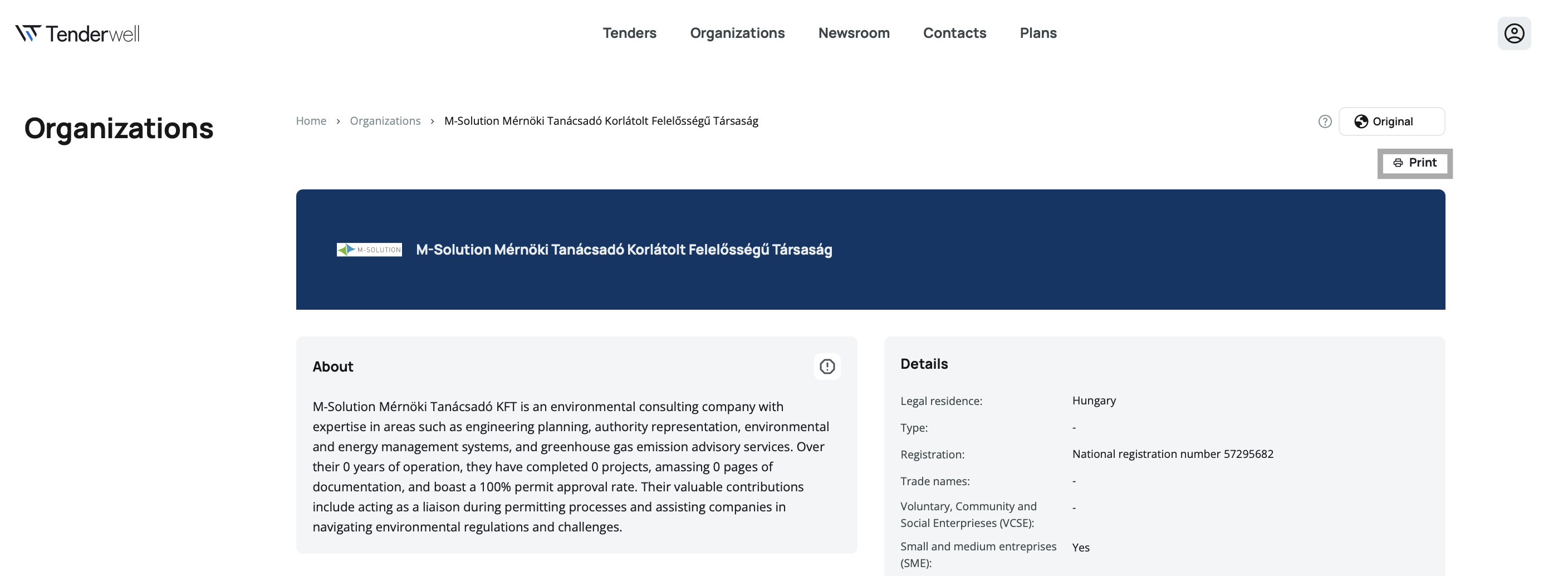
Print Organization
The Print button opens your browser's print dialog, allowing you to print the organization details or save them as a PDF through your browser's print-to-PDF feature.
Translation
The translation feature allows you to view the organization details in different languages. Use the language selector in the top-right corner of the page to select the language you want to translate to. The Original/Translated options on top of the organization page allows you to switch between the original and translated content.