Tender Search
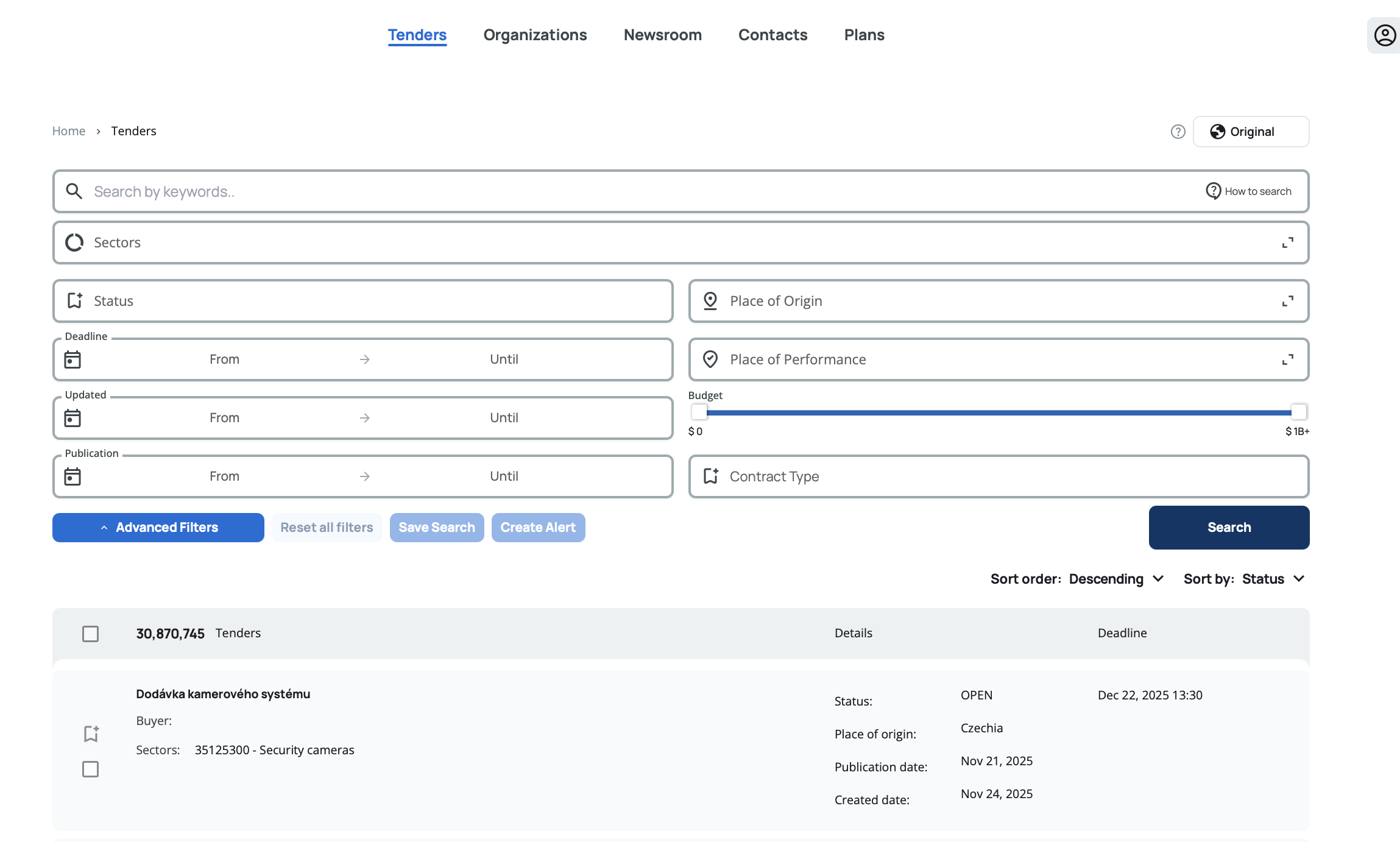
The tender search engine helps you find relevant opportunities by filtering through millions of tenders. You can search using free text, apply specific filters, or combine multiple criteria to narrow down results.
How to Search for Tenders
When you first open the tender search page, you'll see all available tenders sorted by status and creation date. You can start searching immediately using the free text search or apply filters to refine your results.
Free Text Search
The free text search box allows you to search across tender titles, descriptions, attached documents, and issuing organization names. Simply type your keywords and click Search.
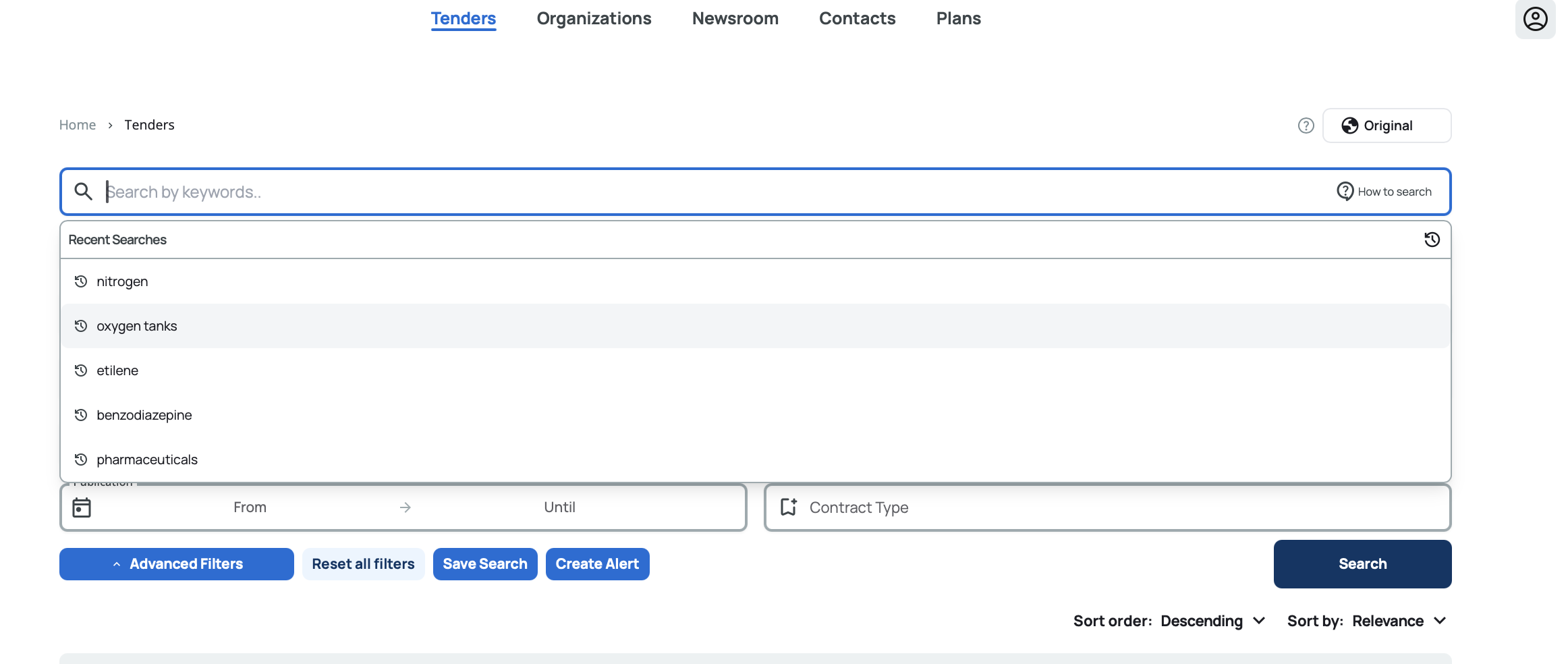
When you click on the search box, you'll see your last 5 searches as suggestions. This makes it easy to repeat previous searches without typing again.
Results using free text search are automatically sorted by relevance, showing the best matches first.
For advanced search techniques and operators (like exact phrases, wildcards, and exclusions), click the  button next to the search field.
Use specific keywords related to your industry for better results. You can enter up to 3,000 characters.
Filter Options
All filters can be combined to help you find exactly what you're looking for. After selecting your filters, click the Search button to update the results.
Sectors (CPV Codes)
Filter tenders by industry sector using CPV (Common Procurement Vocabulary) codes. Start typing in the search box and suggestions will appear after you've entered 3 letters. You can browse the full sector tree or search for specific sectors.
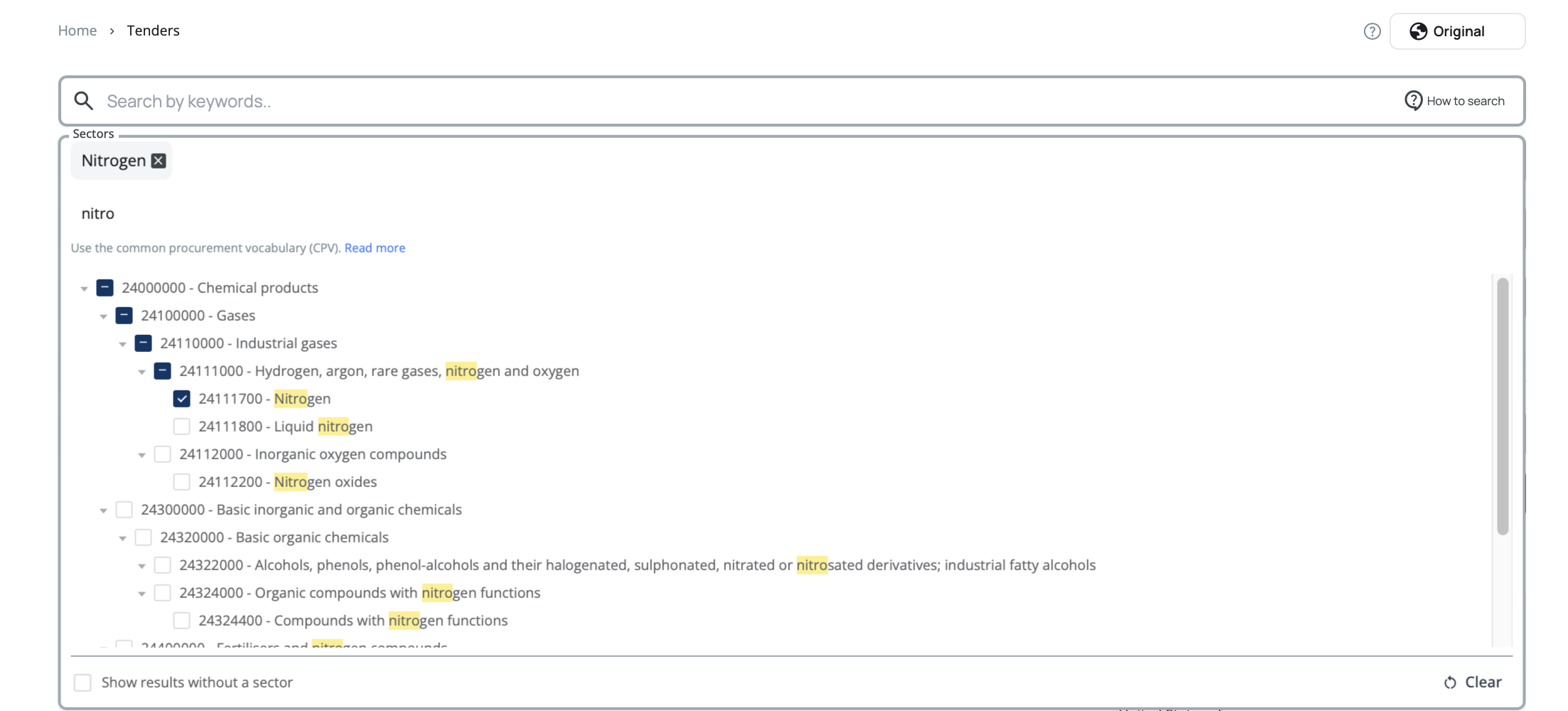
When you select a parent sector, all its sub-sectors are automatically included. Selected sectors appear as removable tags above the search field. If you remove a sub-sector, the parent is deselected but other selected sub-sectors remain active.
Some tenders don't have a sector assigned. Check the  checkbox to include tenders without a sector in your results.
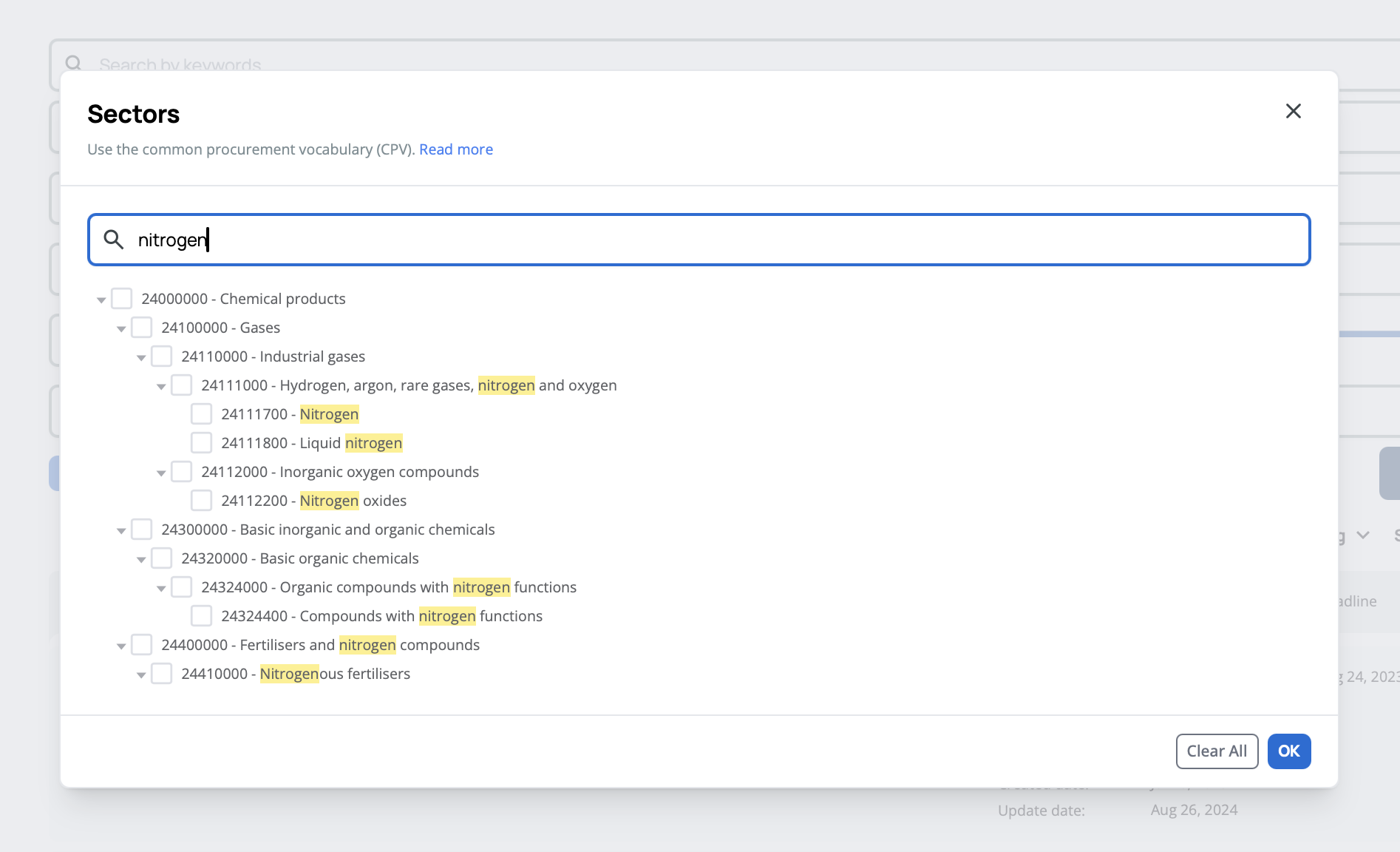
For a larger view, click the expand  button to open the sector selector in a pop-up window. The functionality remains the same with more screen space to browse.
Status
Filter by the tender's current phase using checkboxes: Open, Closed, Awarded, Cancelled, or Forecast. You can select multiple statuses at once.
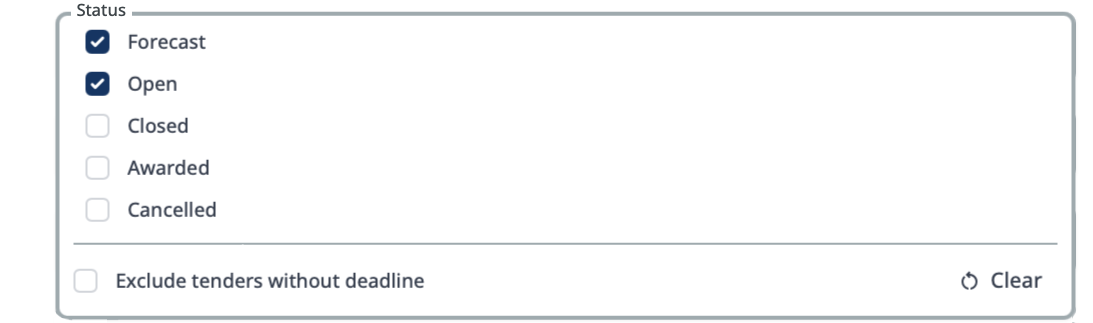
By default, all tenders are shown including those without deadlines. Some tenders may not have a deadline specified in the deadline field, but the deadline information might be available in the attached tender documentation. If you prefer to focus only on tenders with clearly stated deadlines, check the  checkbox to exclude tenders without deadlines.
Place of Origin
Filter by the country or region where the tender is issued. Start typing to search (suggestions appear after 3 letters) or scroll through the list of countries grouped by region.
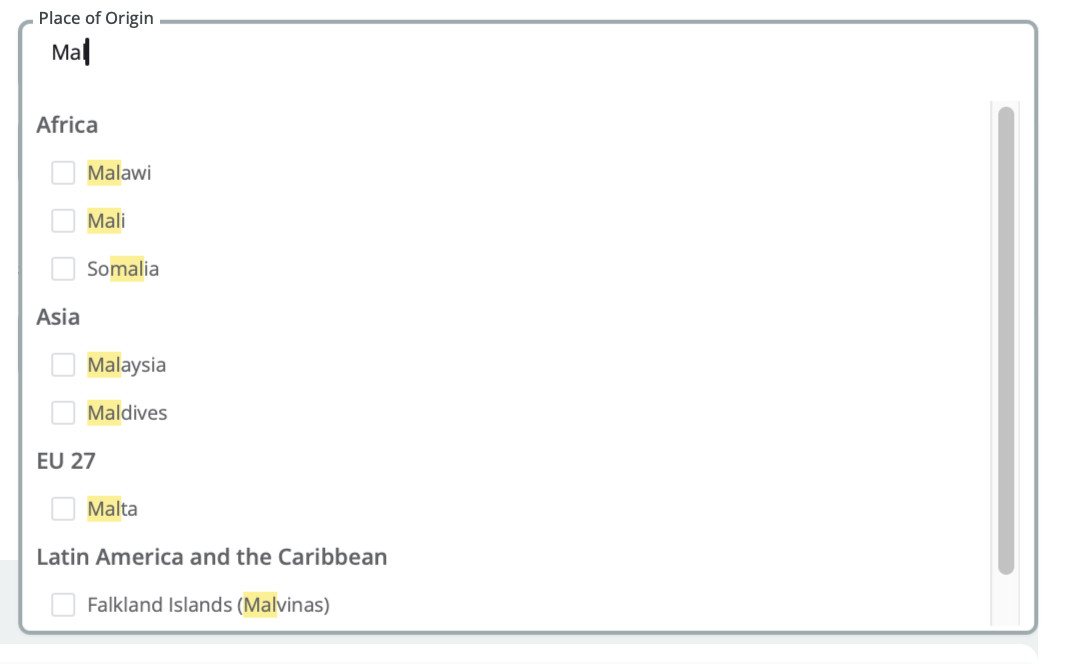
When you select a region, all countries in that region are automatically included. Selected countries appear as removable tags.
Some tenders don't have a place of origin assigned. Check the  checkbox to include tenders without a country in your results.
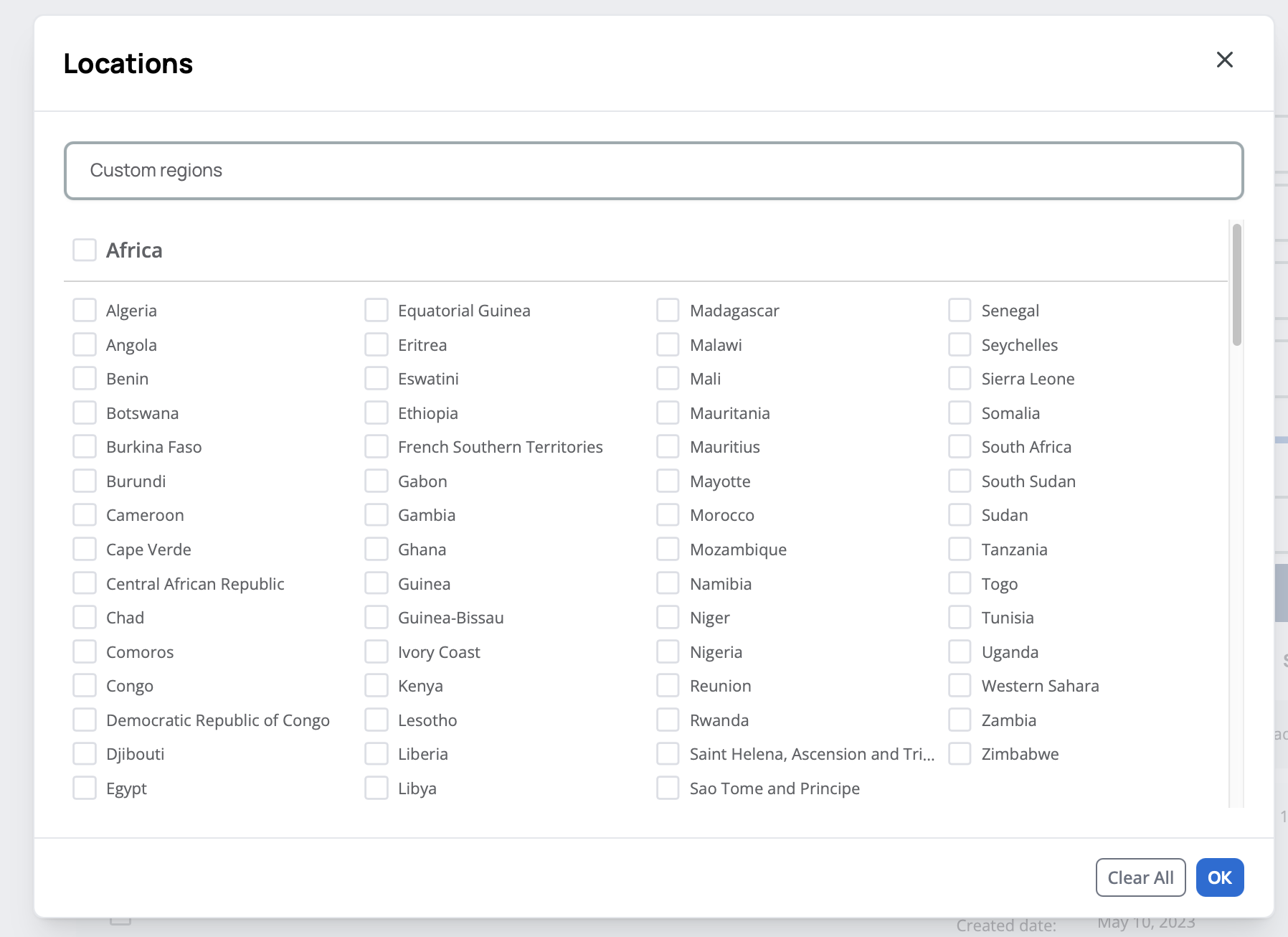
Click the expand button to view countries in a pop-up window with more space. In the expanded view, you can also select custom regions like MENA, South Asia, and others by typing in the 'Custom regions' search field or selecting from the list.
Place of Performance
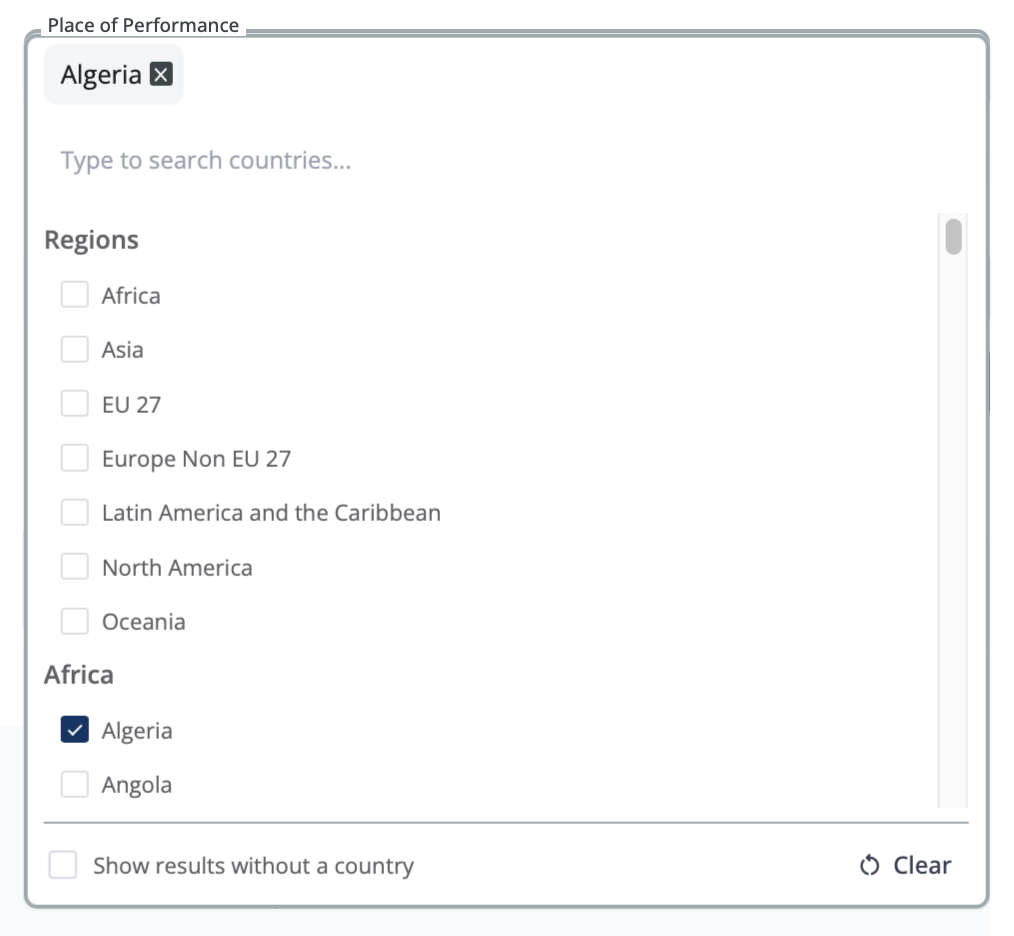
This filter works the same as Place of Origin but filters by where the work will actually be performed, which may be different from where the tender is issued.
Deadline
Filter by the tender submission deadline using the date range picker. This helps you focus on opportunities you still have time to prepare for. Click From to set the earliest deadline and Until to set the latest deadline.
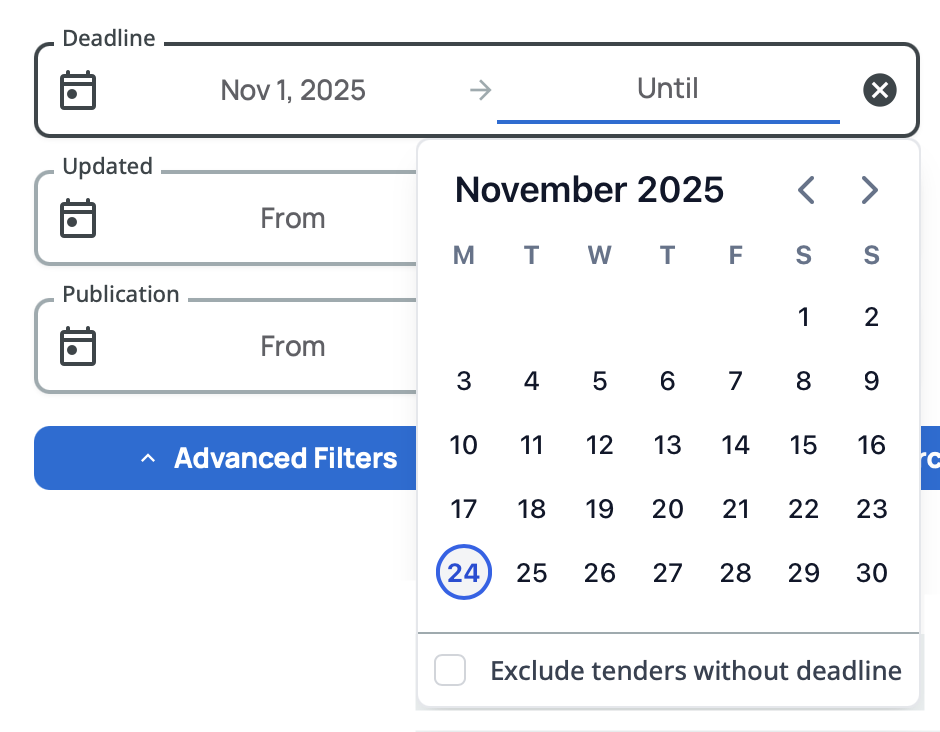
You can create flexible date ranges by leaving one end empty. For example, select only From to find all tenders with deadlines after a certain date, or select only Until to find tenders with deadlines before a specific date. To remove your date selection completely, click the clear button.
Some tenders don't have a deadline specified. Check the checkbox to include tenders without a deadline in your results.
Publication Date
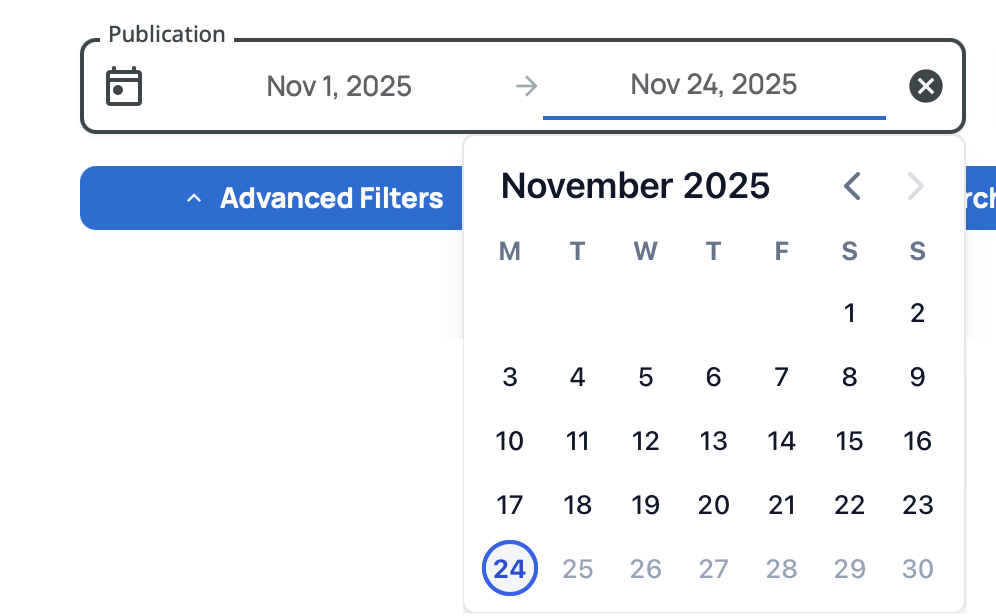
Filter by when the tender was originally published on the source platform, not on Tenderwell. This is useful if you want to track new opportunities as they appear or review tenders published within a specific time frame. Works exactly like the Deadline date picker.
Update Date
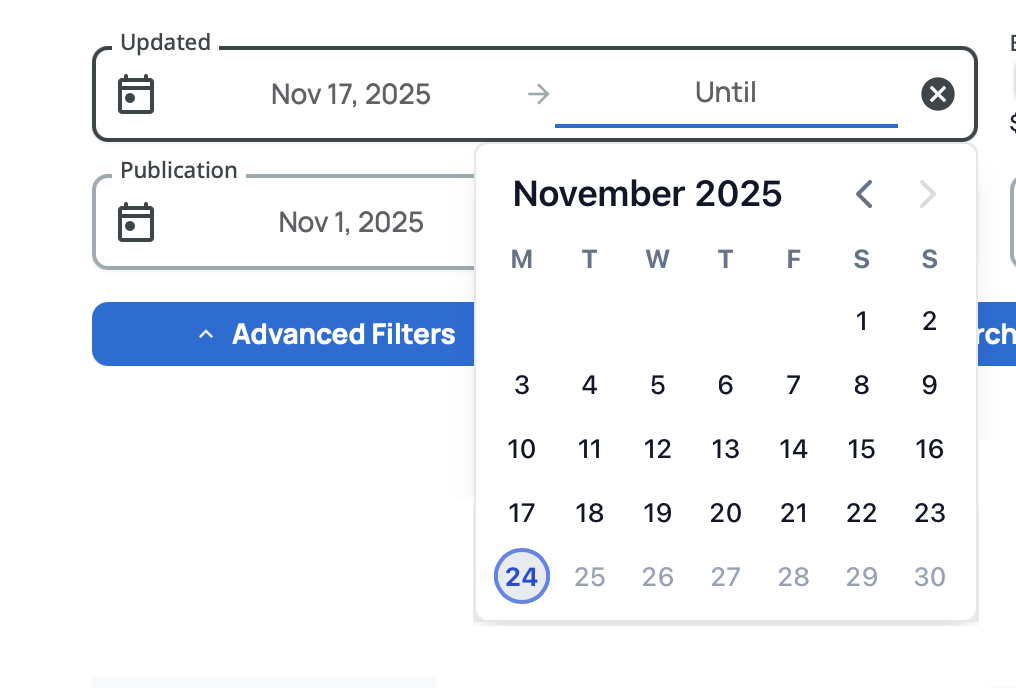
Filter by when the tender information was last updated in our system. This helps you monitor tenders that have been modified, such as deadline extensions, budget changes, or updated requirements. Works exactly like the Deadline date picker.
Budget
Filter by tender value using the budget range sliders. All amounts are converted to USD equivalent for consistent comparison. Drag the sliders to set your minimum and maximum budget range from $0 to $1 billion+.
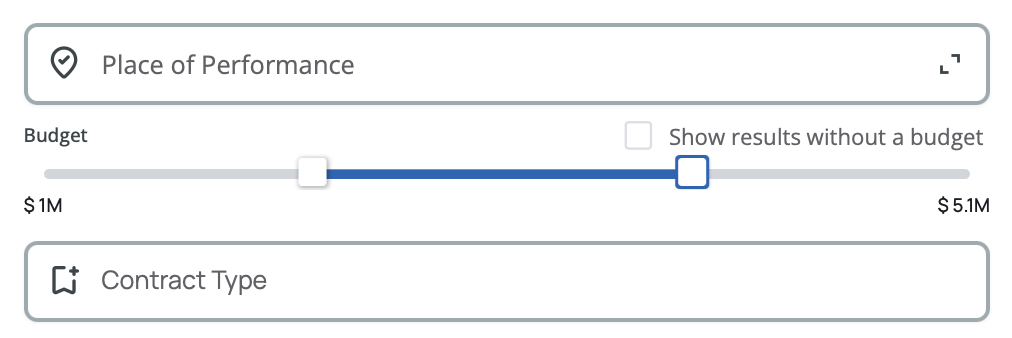
Some tenders don't have a budget specified. Check the  checkbox to include tenders without a budget in your results.
Contract Type
Filter by the type of contract: Works, Goods, Services, Construction, Consultancy, Combined, Others, or Unknown. This helps you find opportunities that match your business capabilities and expertise. Start typing to search (suggestions appear after 1 letter) and your selected type will appear as a removable tag.
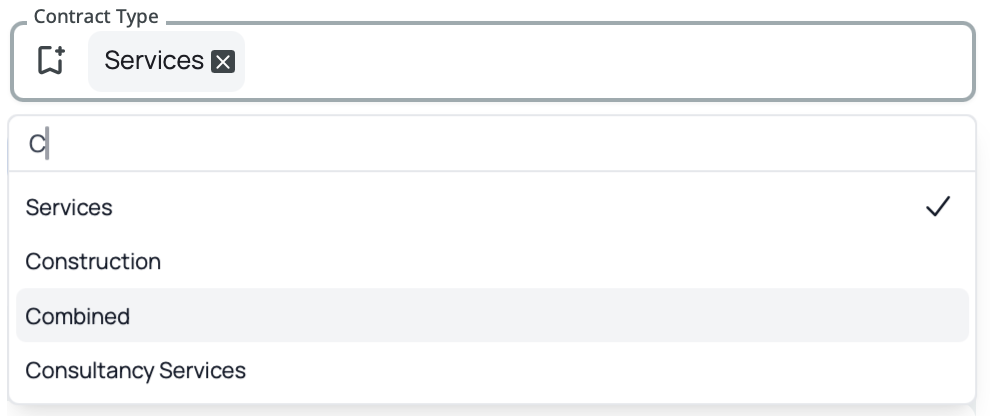
The "Unknown" option shows tenders where the contract type information is missing.
Combining Filters and Quick Actions
You can combine as many filters as you need. When you apply multiple filters, results will match all of your selected criteria. If your search returns no results, try removing some filters to broaden your search.
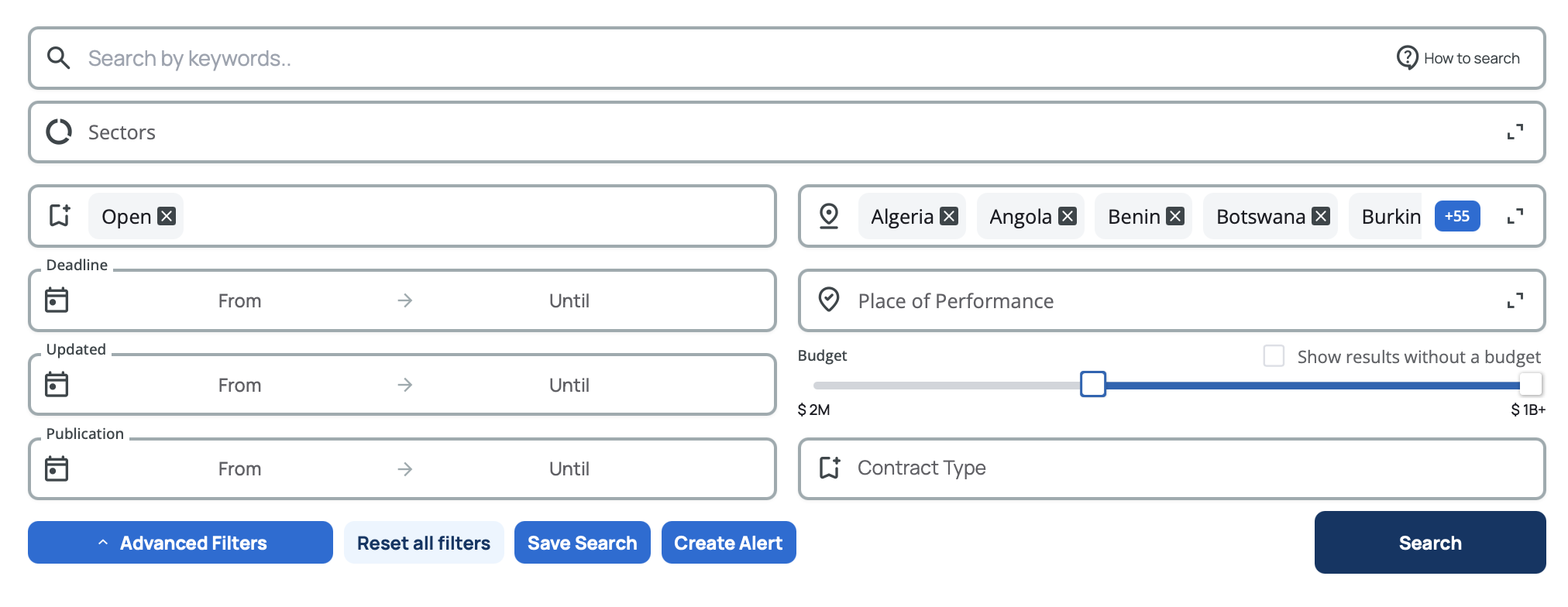
Once you've selected at least one filter, three quick action buttons become active (turn light and dark blue):
Reset all filters – Clear all your selections and return to the default view with all tenders.
Create alert – Set up email notifications for new tenders that match your current filter selection. When you click this button, a pop-up will appear with your filters already preselected.
Save search – Save your current filter combination for quick access later. A pop-up will appear with your filters preselected so you can name and save your search.
Understanding Search Results
After you search, you'll see a list of tenders matching your criteria. Each tender result displays key information to help you quickly identify relevant opportunities.
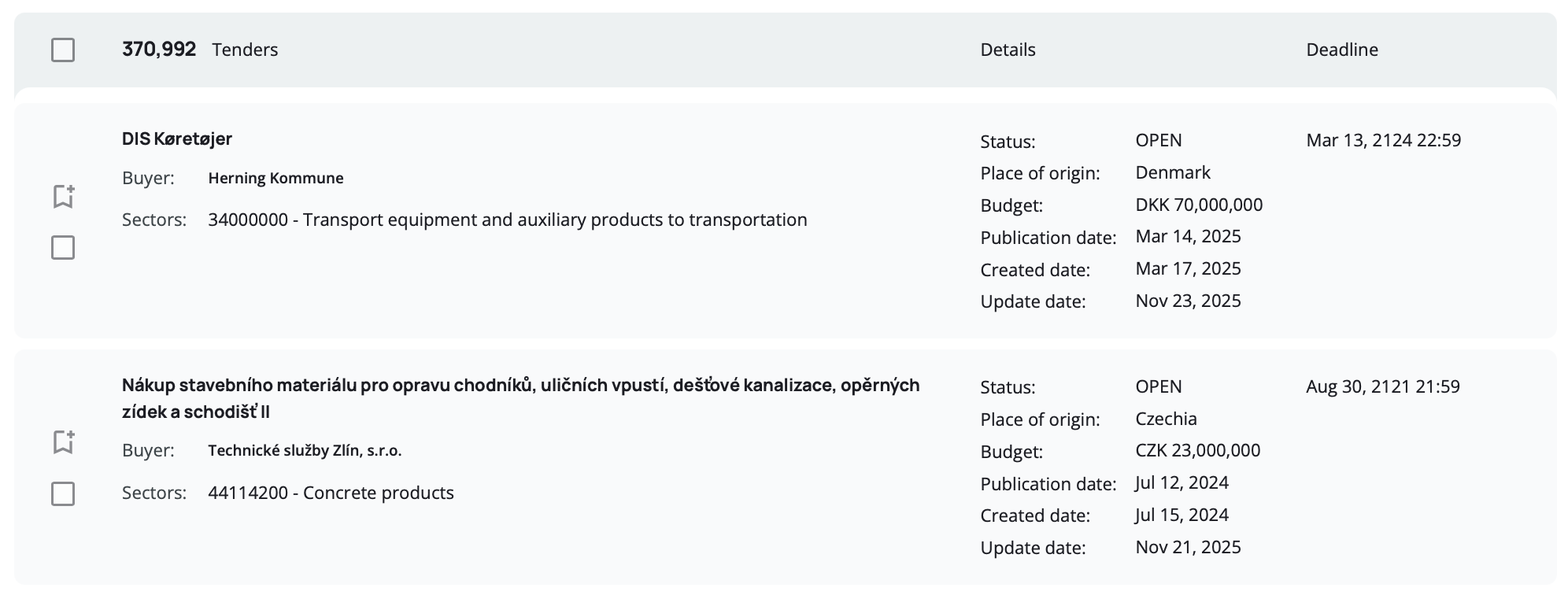
What You'll See
Title – The main tender title. Click on it to open the full tender details page.
Buyer – The organization issuing the tender. If there are multiple buyers, the first one is shown.
Sectors – The industry sector with its CPV code and name, for example: 45251100 - Construction work for power plant. If there are multiple sectors, the first one is displayed.
Status – Shows whether the tender is Open, Forecast, Closed, Cancelled, or Awarded.
Place of Origin – The country or region where the tender is issued.
Budget – The tender value with currency.
Publication Date – When the tender was originally published.
Create Date – When the tender was added to our system.
Update Date – When the tender information was last modified. This only appears if it's different from the create date.
Deadline – The submission deadline for the tender.
Some fields may be hidden or appear empty if the information isn't available.
Sorting Your Results
You can change how results are sorted by clicking on column headers or using the sort dropdown. Your sorting preference will persist throughout your session.
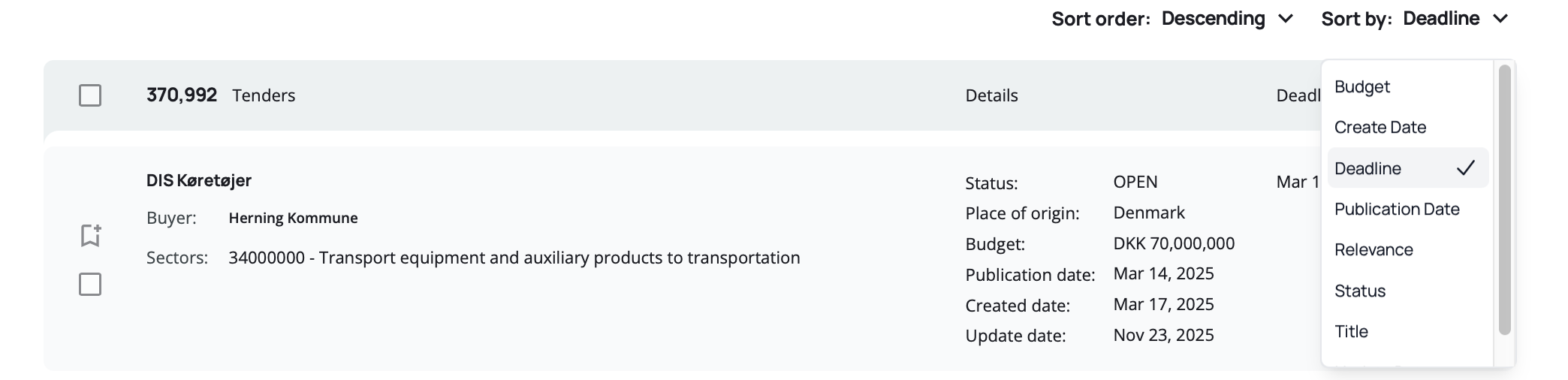
Sort Options
By Status (Default) – Sorts tenders by their phase. The default descending order shows: Open → Forecast → Closed → Cancelled → Awarded. Open tenders with the newest create date appear first.
By Budget – Sorts by tender value (converted to USD). Descending shows the highest budgets first. Ascending shows tenders without budgets first, followed by the lowest amounts.
By Create Date – Sorts by when tenders were added to our Tenderwell database. Descending shows the newest tenders first.
By Update Date – Sorts by the last modification time. Descending shows recently updated tenders first. Ascending shows tenders without updates first.
By Deadline – Sorts by submission deadline. Descending shows tenders with the furthest deadlines first. Ascending shows soonest or already expired deadlines first.
By Publication Date – Sorts by original publication date. Descending shows the most recently published tenders first. Ascending shows tenders without publication dates first.
By Relevance – Only available when using free text search. Sorts by how well each tender matches your search keywords. Descending shows the best matches first.
By Title – Sorts alphabetically. Descending goes Z to A, ascending goes A to Z.
When you include tenders with missing values using checkboxes, those records will appear at the end of your results.
When you use free text search, sorting automatically switches to relevance to show you the best matches first. Click Reset all filters to return to the default sorting.
Pagination
When your search returns many results, you can control how they're displayed across multiple pages.
Results Per Page
Choose how many tenders to display on each page: 10, 20, or 50 results. You'll find three buttons in the bottom right corner of the page. Click your preferred number and your selection will be remembered for your current session.

Navigating Pages
Use the pagination controls at the bottom of the results to move between pages. You can click page numbers directly or use the arrow buttons to go forward or backward.
