Saved Searches
Saved Searches let you store your filter combinations for quick access later. Instead of selecting the same filters repeatedly, save them once and reuse them whenever you need.
How to Save a Search
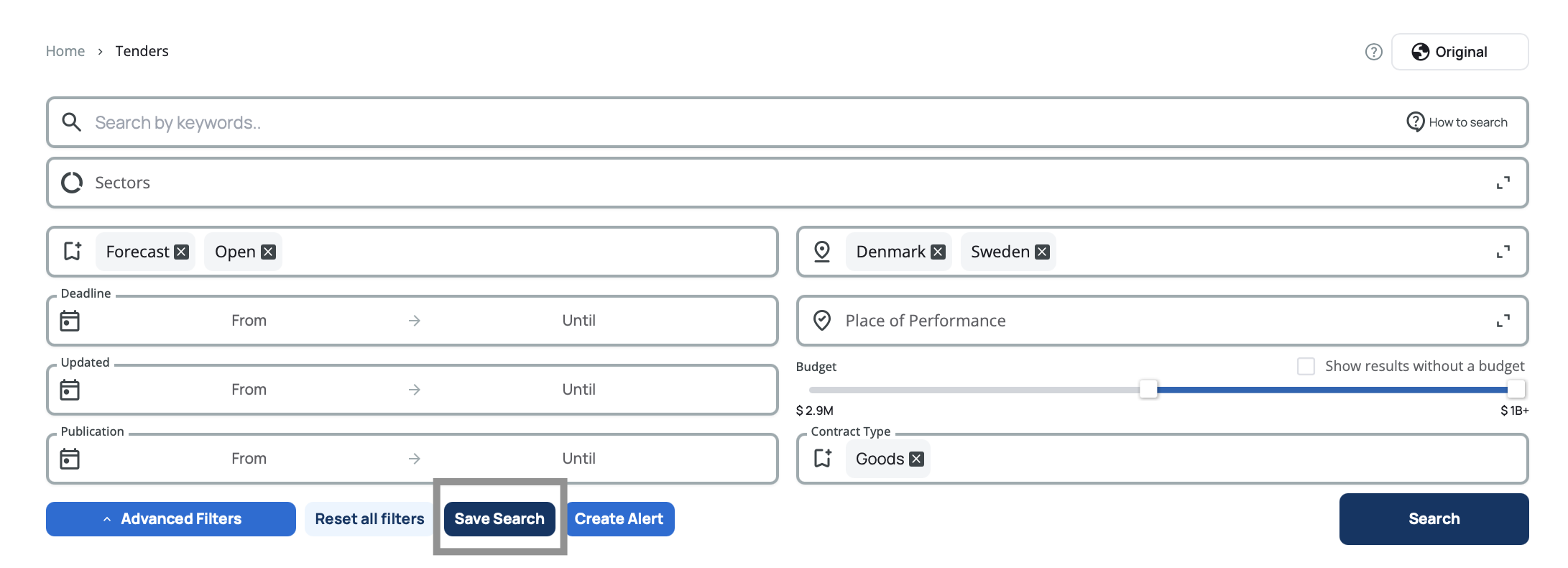
After applying filters in the tender search engine, click the Save Search button to save your current filter combination.
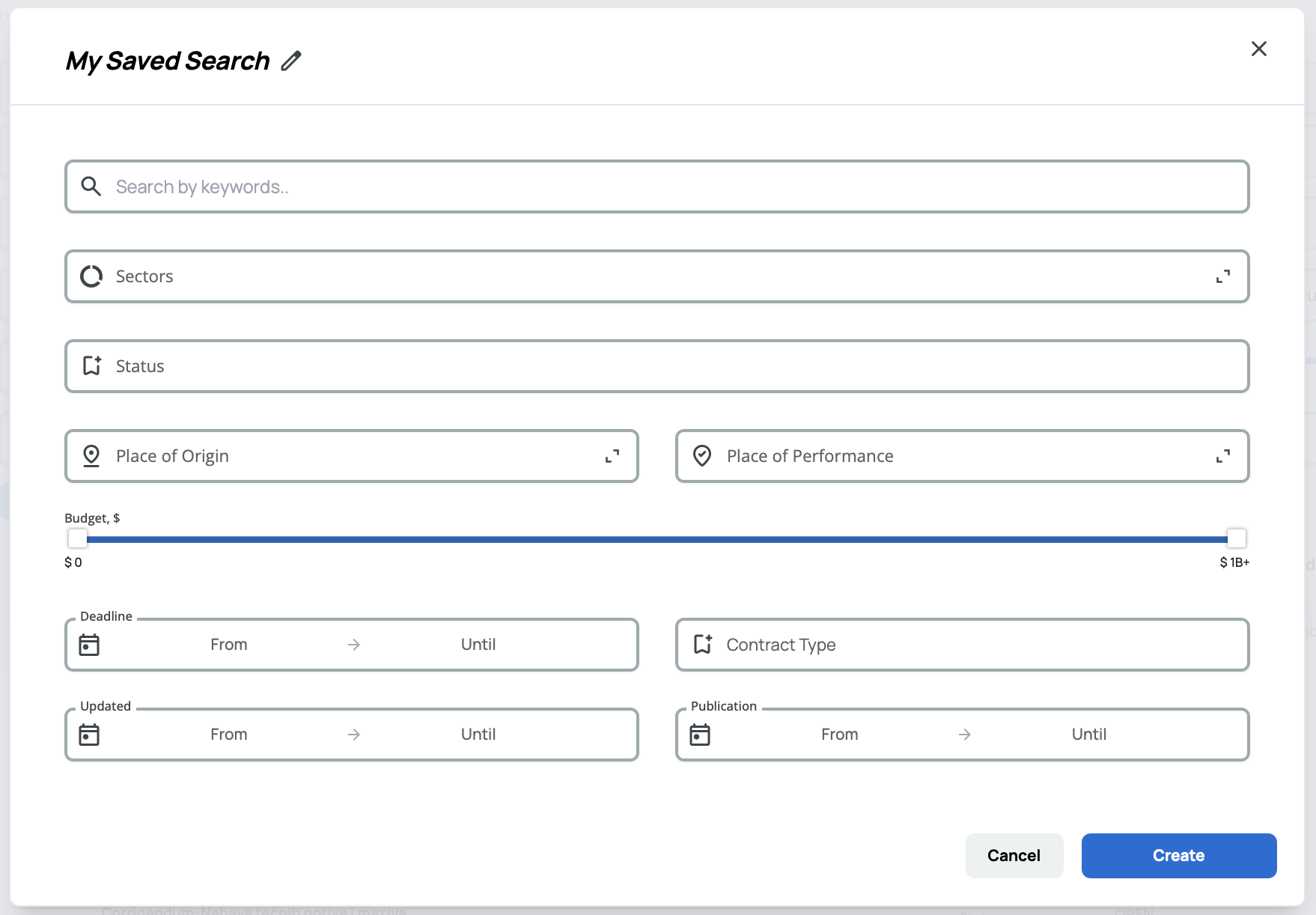
A pop-up window opens showing all available filter fields with your previously selected filters pre-filled. You can adjust any filters, add new ones, or remove existing selections before saving. Give your search a meaningful name in the title field, then click Create.
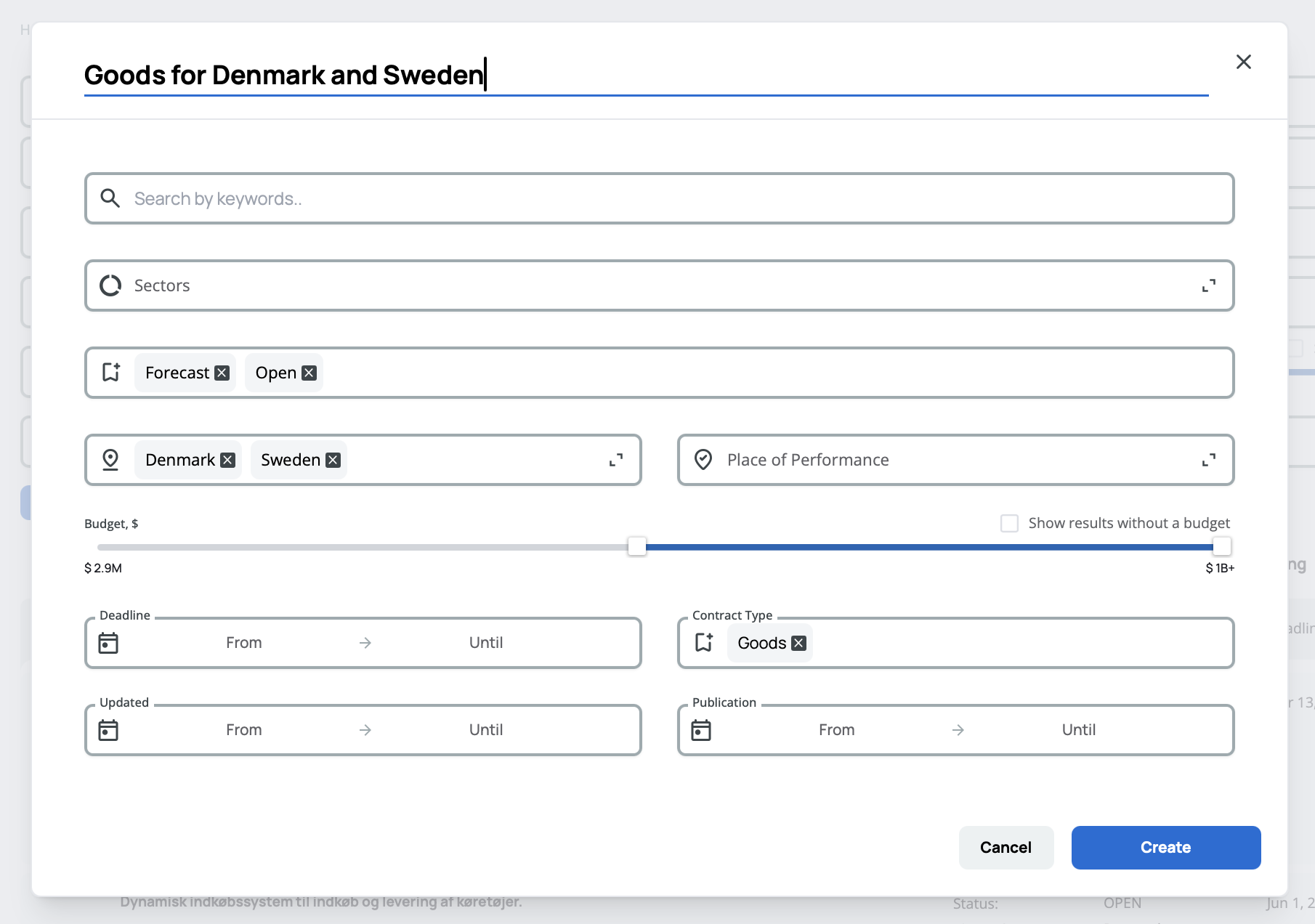
Use the save search pop-up as an opportunity to fine-tune your filters. You're not limited to what you selected in the search engine—you can modify everything before saving.
Use descriptive names for your saved searches like "Open EU Construction Tenders" or "IT Services under $100K" so you can quickly identify them later.
There is a limit to how many searches you can save according to your plan. If you reach this limit, you'll need to delete some saved searches before adding new ones.
Accessing Saved Searches
Your saved searches appear in the left panel of the tender search page, below Bookmarks and above Tender Alerts. You can also access them from your user profile.
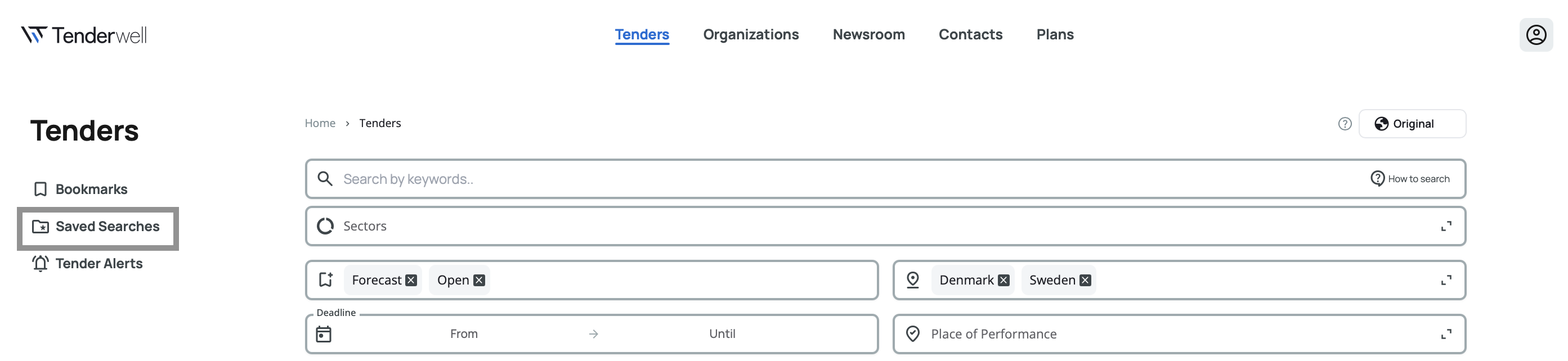
Click Saved Searches to open the full list and manage your saved searches.
Managing Saved Searches
When you click on Saved Searches, a pop-up window opens with your list of saved searches. In the top right corner, you'll find a Create button to add new searches.
Create – Opens the same filter pop-up you see when creating a search from the search engine, but with all fields empty. You can build a new saved search from scratch without leaving this view.
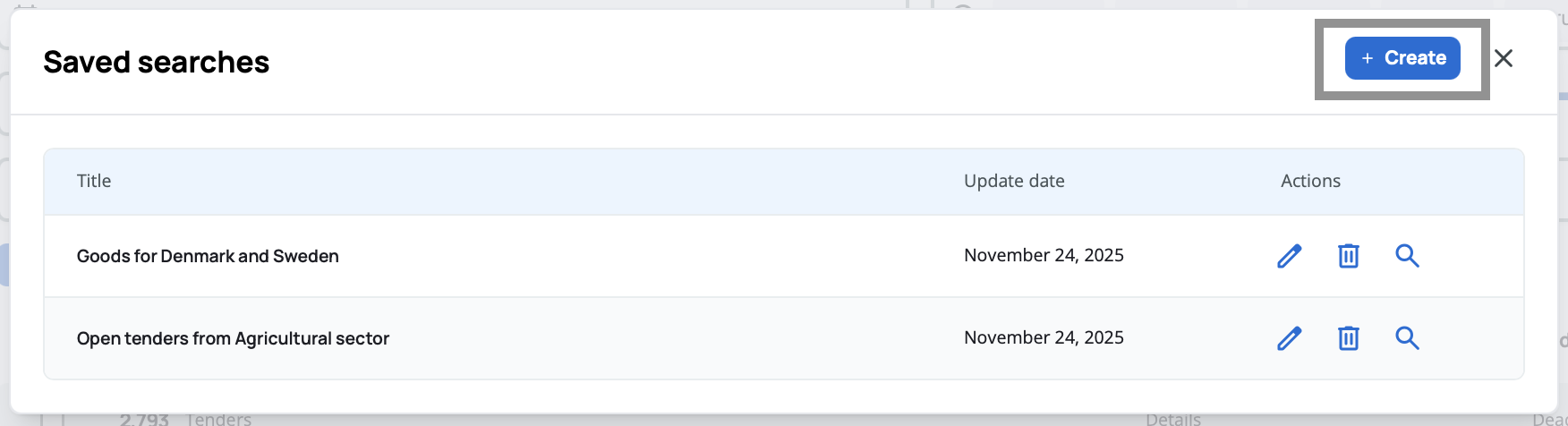
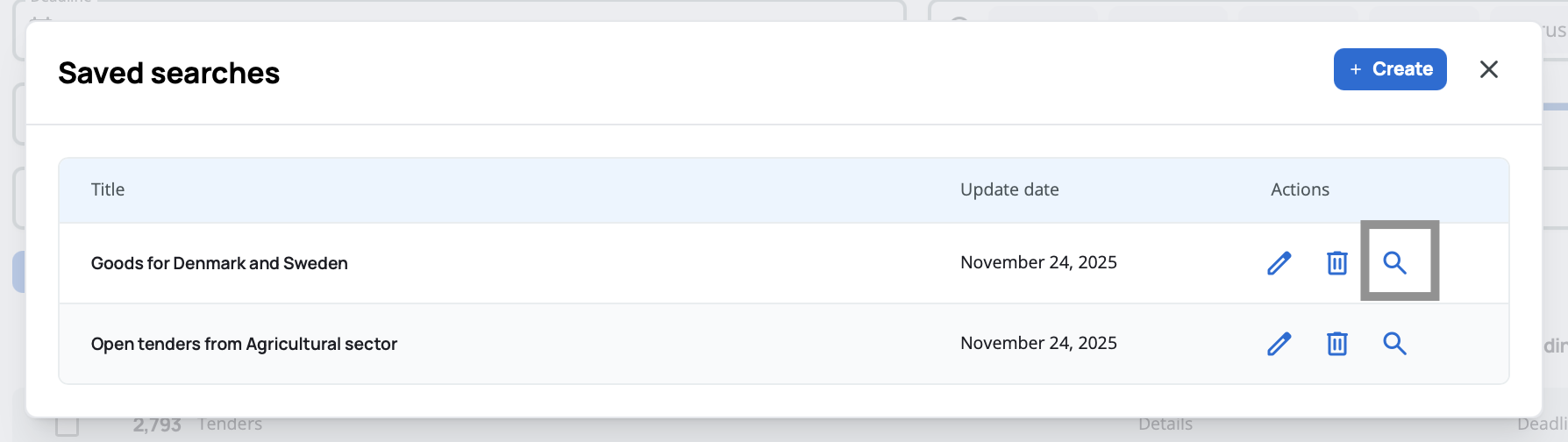
Each saved search in your list has three action options:
Perform – Applies the saved filters to the search engine immediately, showing you matching tenders.
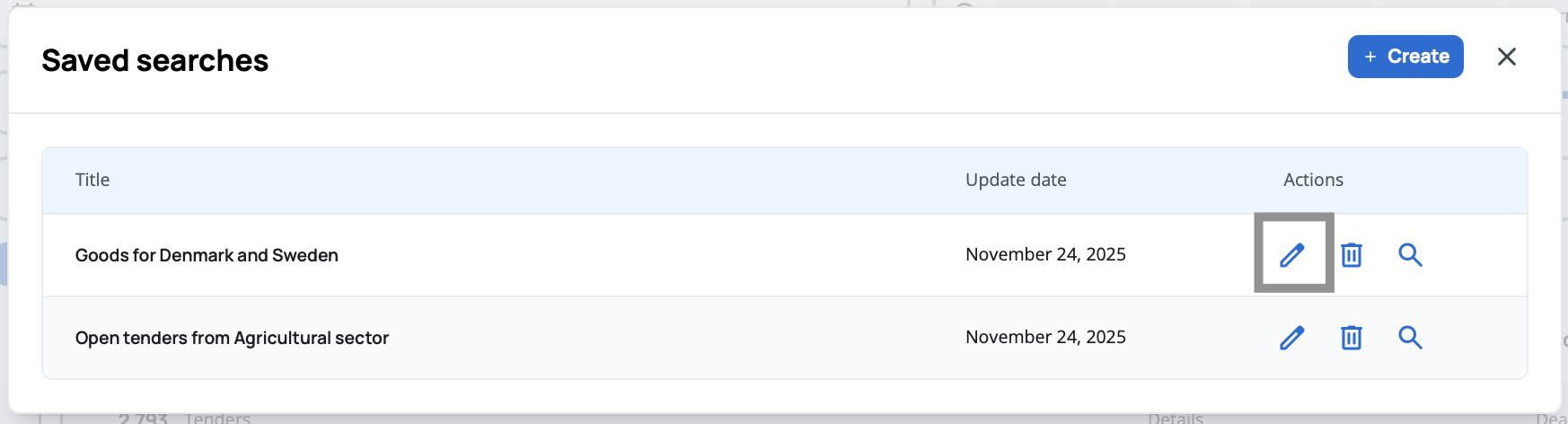
Edit – Opens a pop-up with all filters and your current selections pre-filled. You can modify any filters and save the updated search.
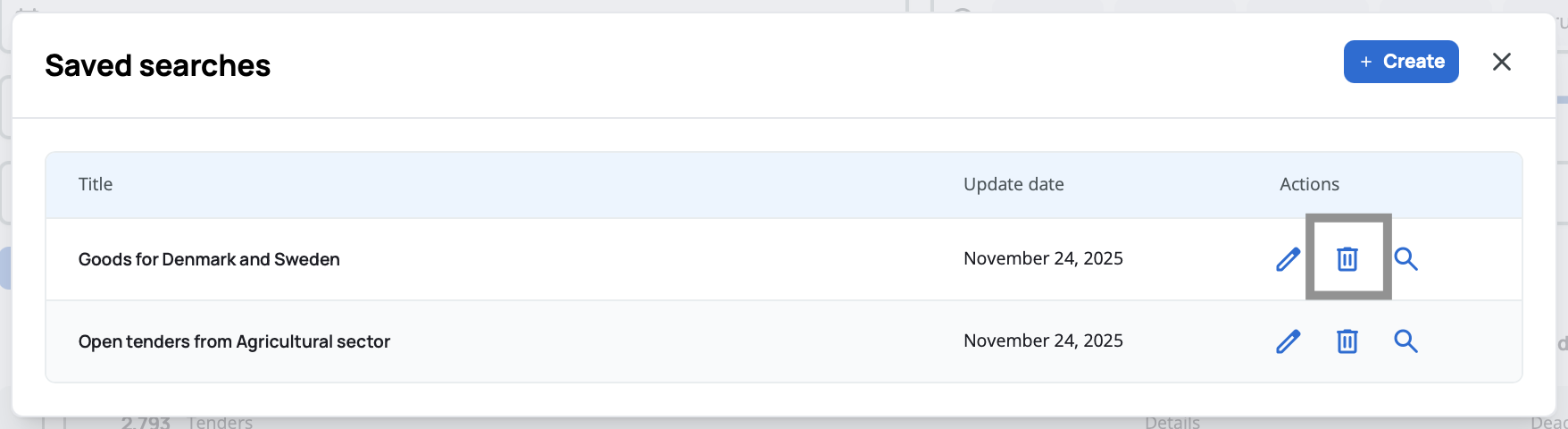
Delete – Removes the saved search from your list. A confirmation pop-up appears before deletion to prevent accidental removal.
Regularly review and update your saved searches. If you find certain filters no longer match your needs, edit them instead of creating new ones to stay within your saved search limit.
Performing a Saved Search
When you click Perform on a saved search, the system immediately applies all your saved filters to the search engine and displays matching tenders. This is the quickest way to reuse your search criteria without manually selecting filters again.
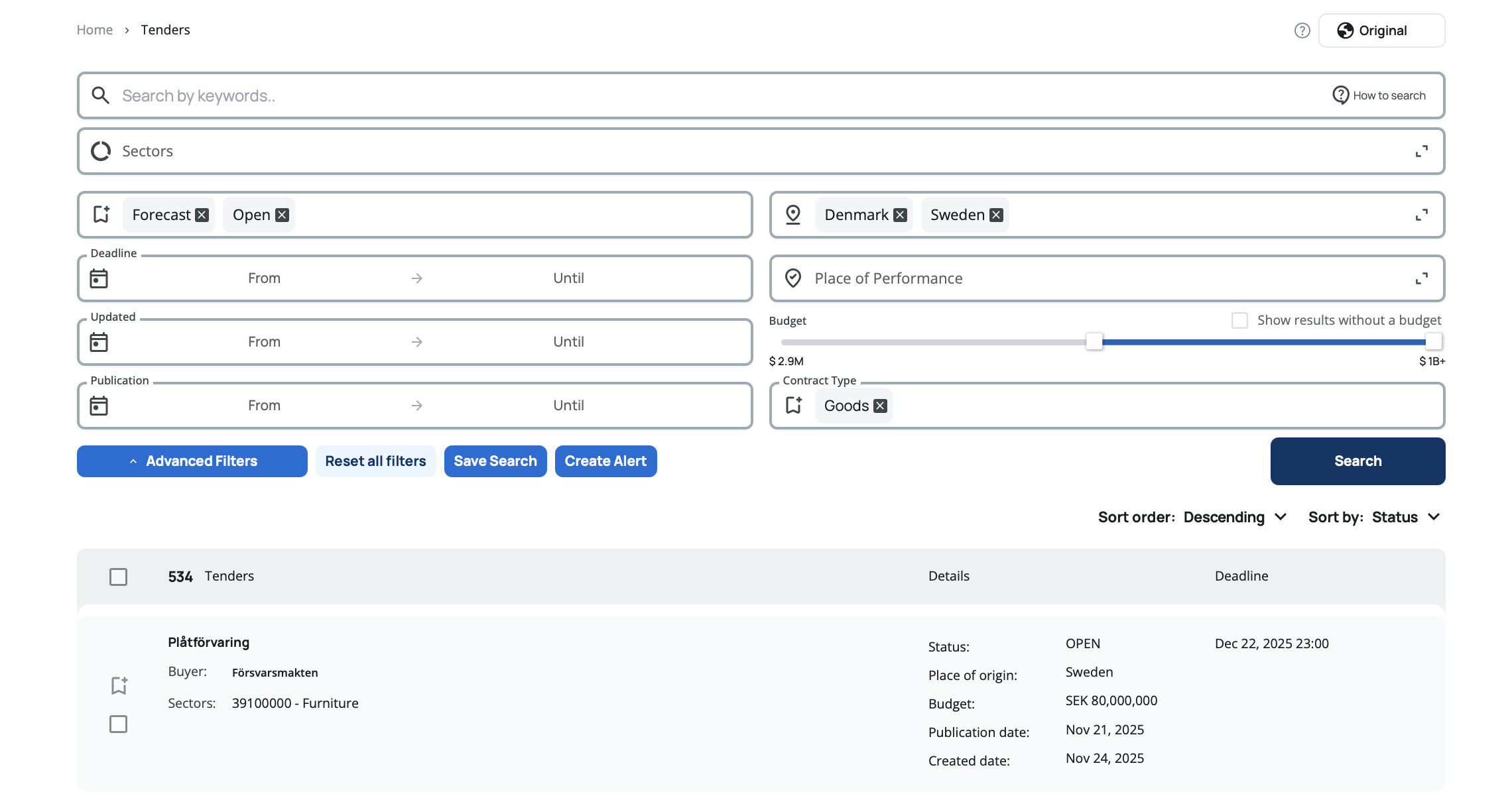
Use the Perform action to quickly run frequent searches. Your results will reflect the current tender database, so you'll always see the most up-to-date opportunities matching your saved criteria.
Editing a Saved Search
When you click Edit on a saved search, the filters pop-up opens with all your previously selected criteria already filled in. You can:
- Add or remove filters
- Adjust date ranges or budget limits
- Change sectors, countries, or contract types
- Update the search title
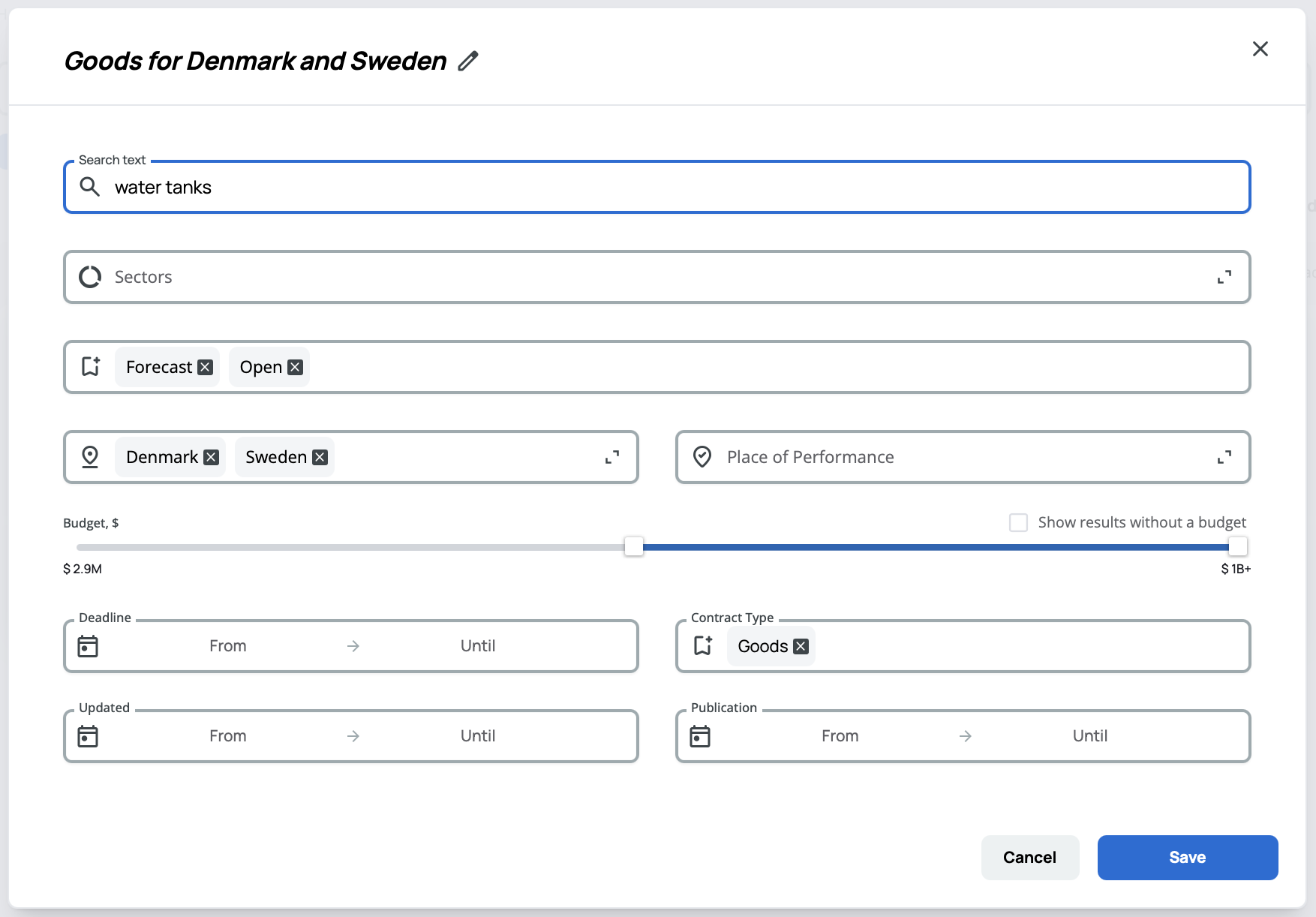
After making your changes, click Save to update the saved search.
Use the edit feature to refine your searches over time. As you learn what works best, you can fine-tune your saved filters without starting from scratch.
Deleting a Saved Search
When you click Delete on a saved search, a confirmation pop-up appears asking you to confirm the deletion. This prevents you from accidentally removing searches you still need.
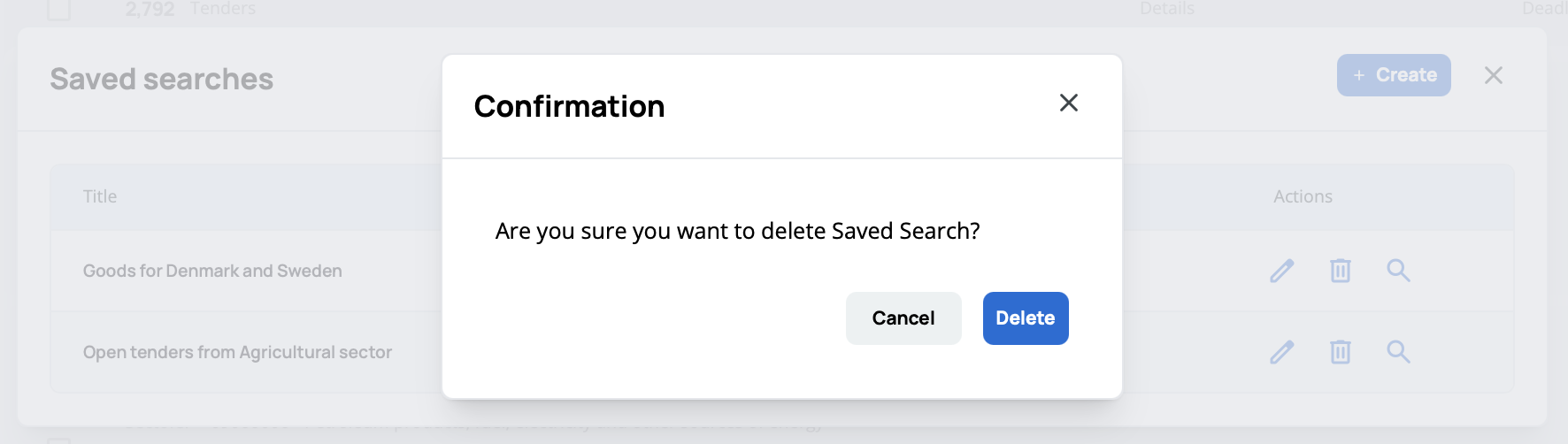
Click Delete to permanently remove the saved search, or Cancel to keep it.
Instead of deleting saved searches that are only temporarily irrelevant, consider keeping them. You might need the same filter combination again in the future.