Bulk Export
Bulk Export allows you to export multiple tenders at once from your search results to an Excel file. Instead of viewing tenders one by one, you can select multiple tenders and download them together in a single file. This makes it easy to analyze opportunities offline, share with your team, or import into your project management systems.
How to Export Tenders
Step 1: Search for Tenders
Start by searching for tenders using the Tender Search functionality. Apply filters to narrow down to the opportunities you're interested in.
Step 2: Select Tenders
Once you have your search results, you can select tenders for export in two ways:
Select All on Current Page – Click the checkbox next to the number of search results at the top. This selects all tenders displayed on the current page.
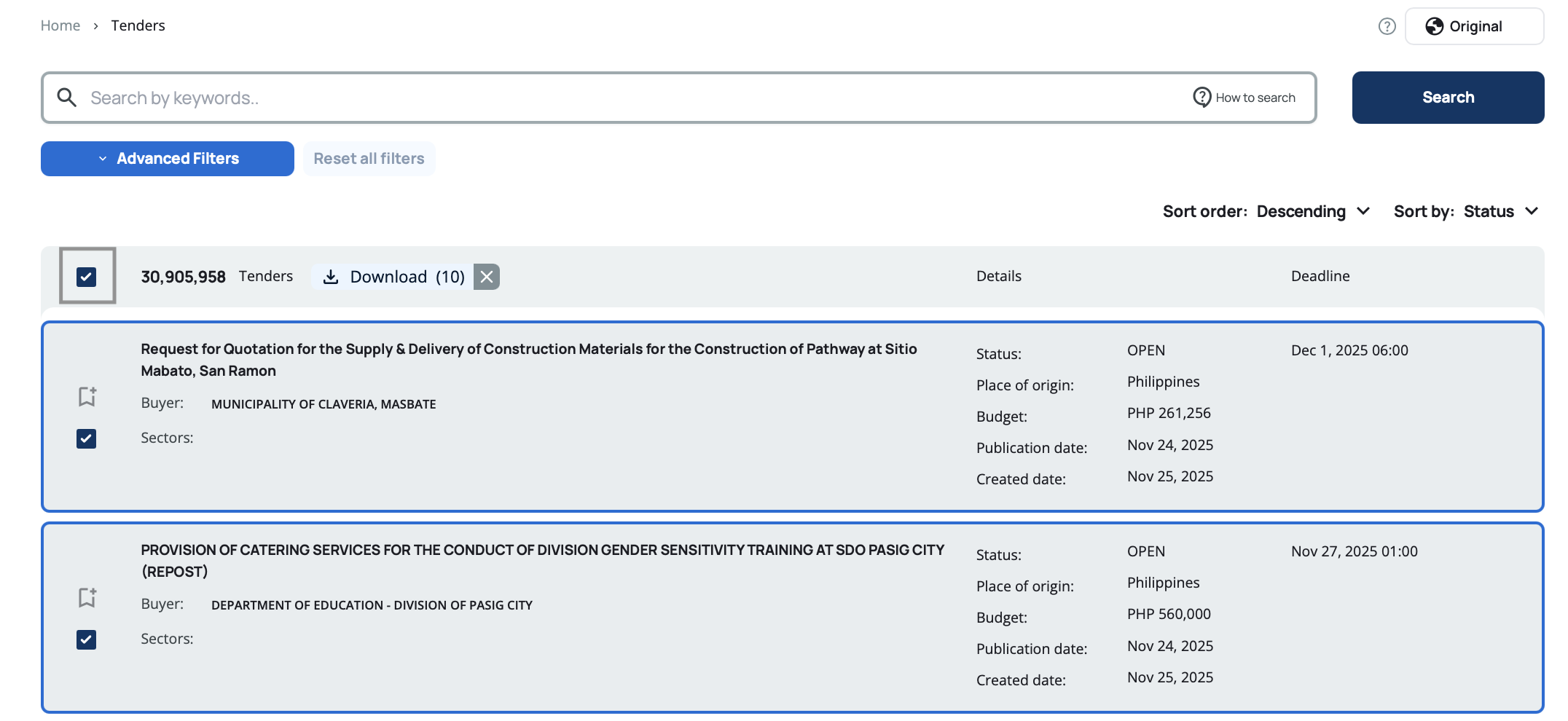
Select Individual Tenders – Click the checkbox below the bookmark icon on the left side of each tender to select it individually. You can deselect any tender by clicking its checkbox again.
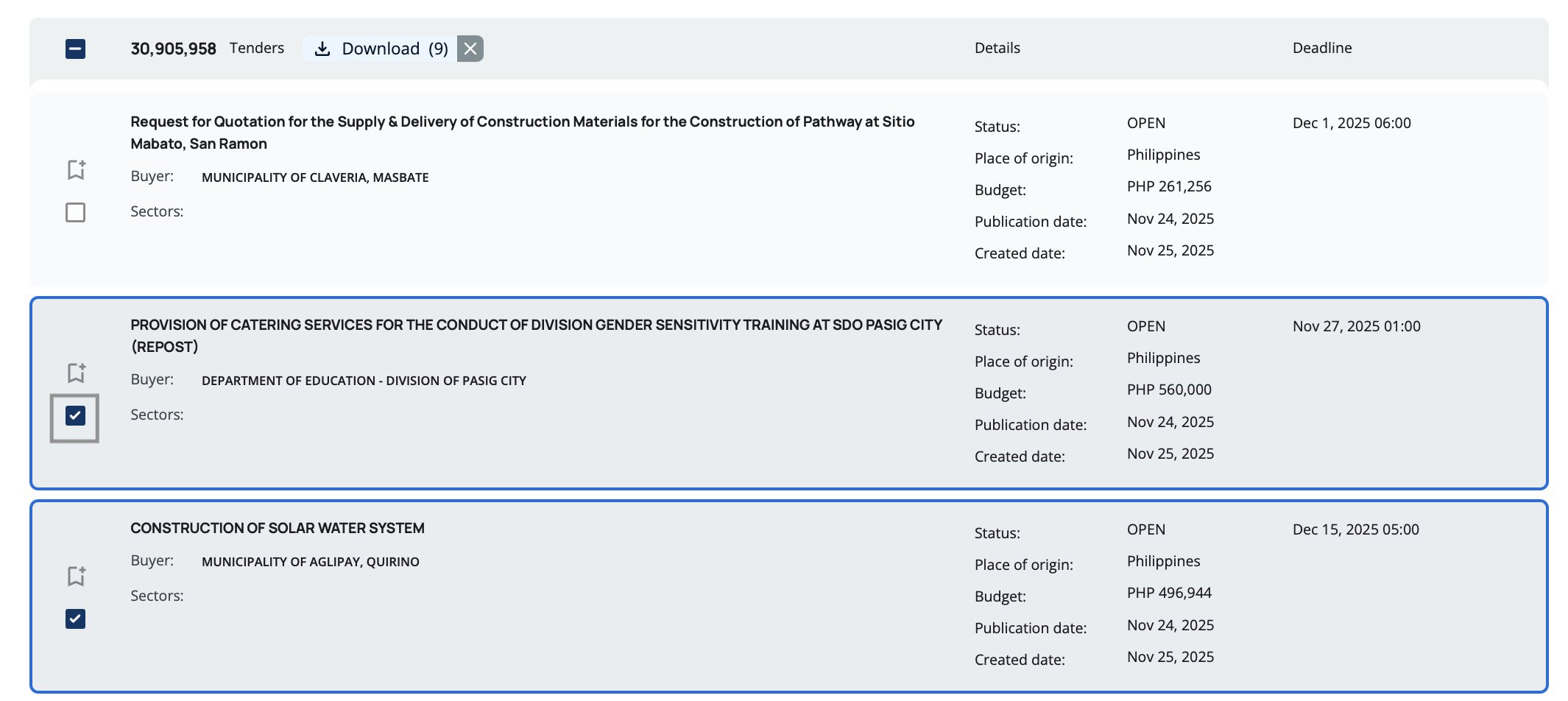
Your selection remains active when you navigate to other pages. You can continue selecting tenders across multiple pages until you reach your plan's export limit.
Step 3: Download Excel File
After selecting at least one tender, the Download  button appears inline with the search results count and selection checkbox. The button shows the number of selected tenders in brackets, for example: Download (9).
Click the Download button to generate and download your Excel file. The file will be saved to your default downloads folder.
The Download button only becomes visible after you've selected at least one tender. The export feature requires appropriate permissions based on your subscription plan.
Clearing Your Selection
If you change your mind and don't want to export anymore, or want to start fresh with a new selection, you have several options:
Clear All Selections – Click the x button on the right side of the Download button. This instantly clears all selected tenders across all pages, giving you a clean slate.
Uncheck the Select All Checkbox – Click the checkbox next to the search results count to deselect all tenders on the current page. Note that this only affects the current page if you've selected tenders across multiple pages.
Uncheck Individual Tenders – Click the checkbox on specific tenders to remove them from your selection one by one. While this works, it's not efficient if you want to clear many selections.
The quickest way to clear all selections and start over is to click the x button next to the Download button. This clears everything instantly, even if you've selected tenders across multiple pages.
Export Limits
The bulk export feature is available based on your subscription plan:
Premium Plan – You can export tenders up to the limit of the plan (1000 tenders per day), in batches of 200 per file.
Custom Plans – May include higher export limits based on your agreement.
Other Plans – Bulk export is not available. You'll need to upgrade to Premium or a custom plan to access this feature.
To check your plan or upgrade to unlock unlimited exports, visit the Plans page. For custom plan options, contact the sales team.
What's Included in the Excel Export?
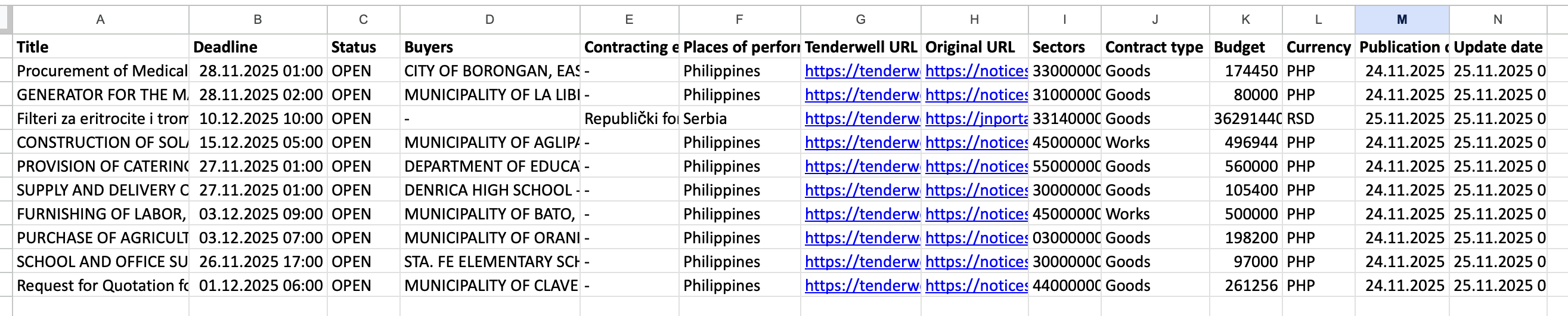
The exported Excel file includes the following columns in this order:
- Title – The tender's official title
- Deadline – Submission deadline date
- Status – Current tender status (Open, Closed, Forecast, Awarded, Cancelled)
- Buyer(s) name – Name(s) of the buying organization(s)
- Contracting entity(ies) name – Name(s) of the contracting organization(s)
- Places of performance – Country(ies) where work will be performed or goods will be delivered
- Tender link on our portal – Clickable link to view the tender on Tenderwell
- Original URL – Clickable link to the tender on its original publishing portal
- Sectors – CPV codes and sector classifications
- Contract type – Type of contract (Works, Services, Supplies, Consultancy, Construction)
- Budget – Estimated contract value with currency
- Publication date – When the tender was published
- Update date – When the tender was last updated
The Excel file is formatted for readability with clear column headers, consistent date formats, and proper capitalization. Missing or unavailable data appears as blank cells.
All tender links and original URLs in the Excel file are clickable, allowing you to quickly navigate to specific tenders directly from your spreadsheet.