Organization Search
The organization search engine helps you find buyers, contracting authorities, and suppliers across millions of organizations. You can search using free text, apply specific filters, or combine multiple criteria to narrow down results.
How to Search for Organizations
When you first open the organization search page, you'll see all available organizations sorted by update time. You can start searching immediately using the free text search or apply filters to refine your results.
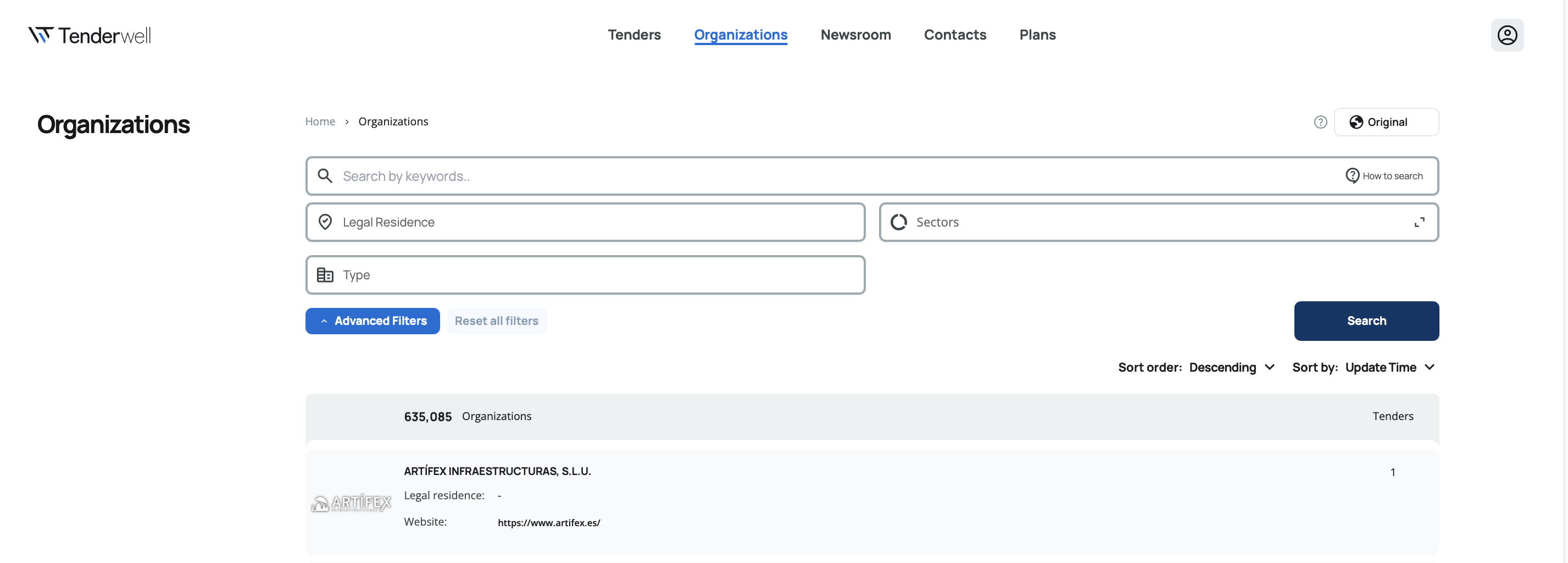
Free Text Search
The free text search box allows you to search across organization names, registration types, and registration numbers. Simply type your keywords and click Search.
When you click on the search box, you'll see your last 5 searches as suggestions. This makes it easy to repeat previous searches without typing again.
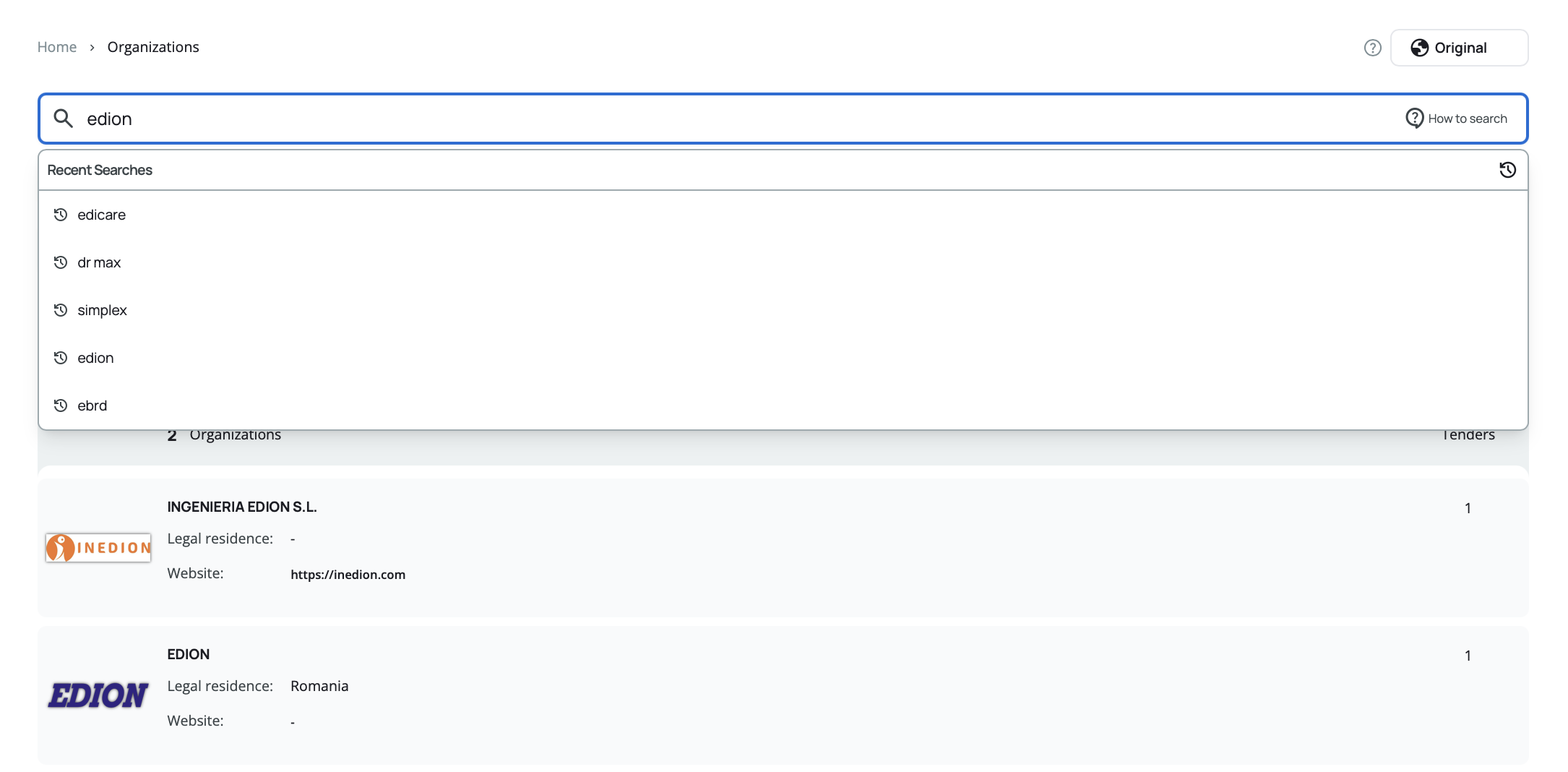
Results using free text search must contain your entered text in at least one of these fields.
For advanced search techniques and operators (like exact phrases, wildcards, and exclusions), click the  button next to the search field.
Use specific keywords like organization names or registration numbers for better results. The search looks across multiple fields to find matches.
Filter Options
All filters can be combined to help you find exactly what you're looking for. After selecting your filters, click the Search button to update the results.
Legal Residence
Filter organizations by their registered country. Start typing to search and suggestions will appear. You can select multiple countries at once.
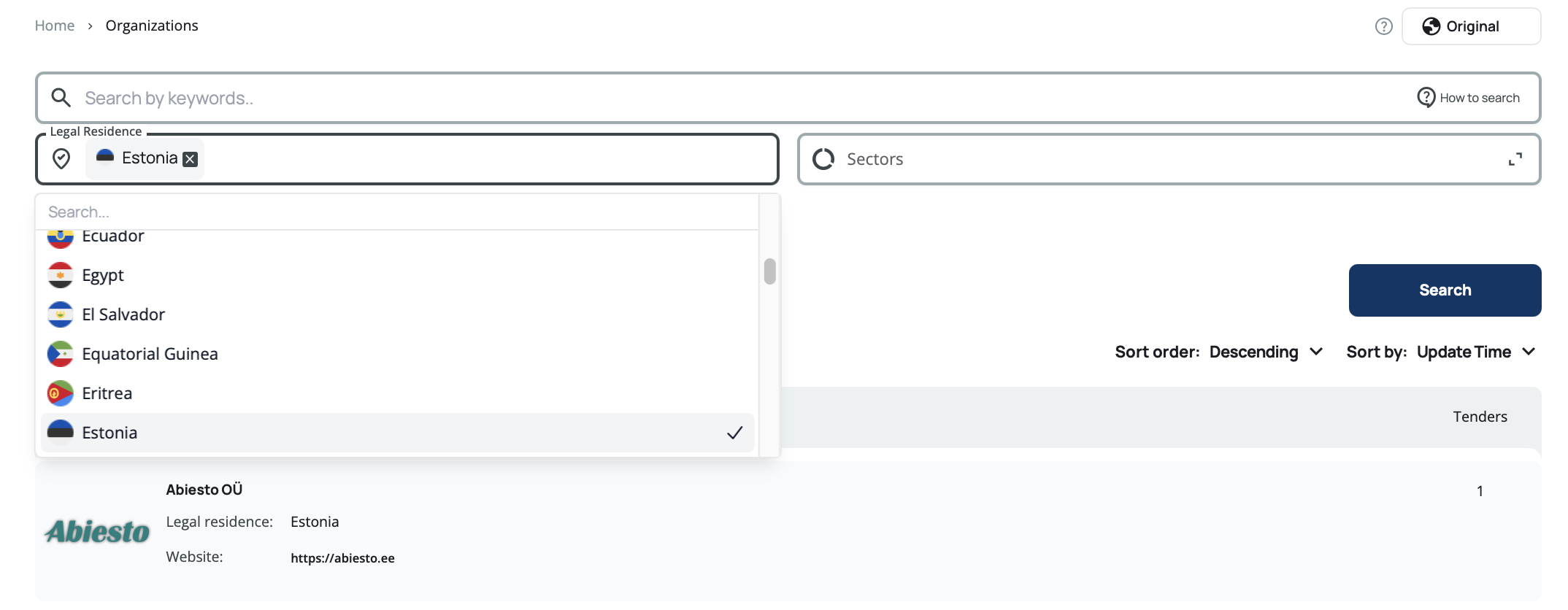
Each country selection displays with its corresponding flag for easy identification. Selected countries appear as removable tags above the search field.
Use the Legal Residence filter to find organizations operating in specific markets or regions you're targeting.
Sectors
Filter organizations by industry sector using CPV (Common Procurement Vocabulary) codes. This works the same way as the sector filter in tender search. Start typing and suggestions will appear after you've entered 3 letters.
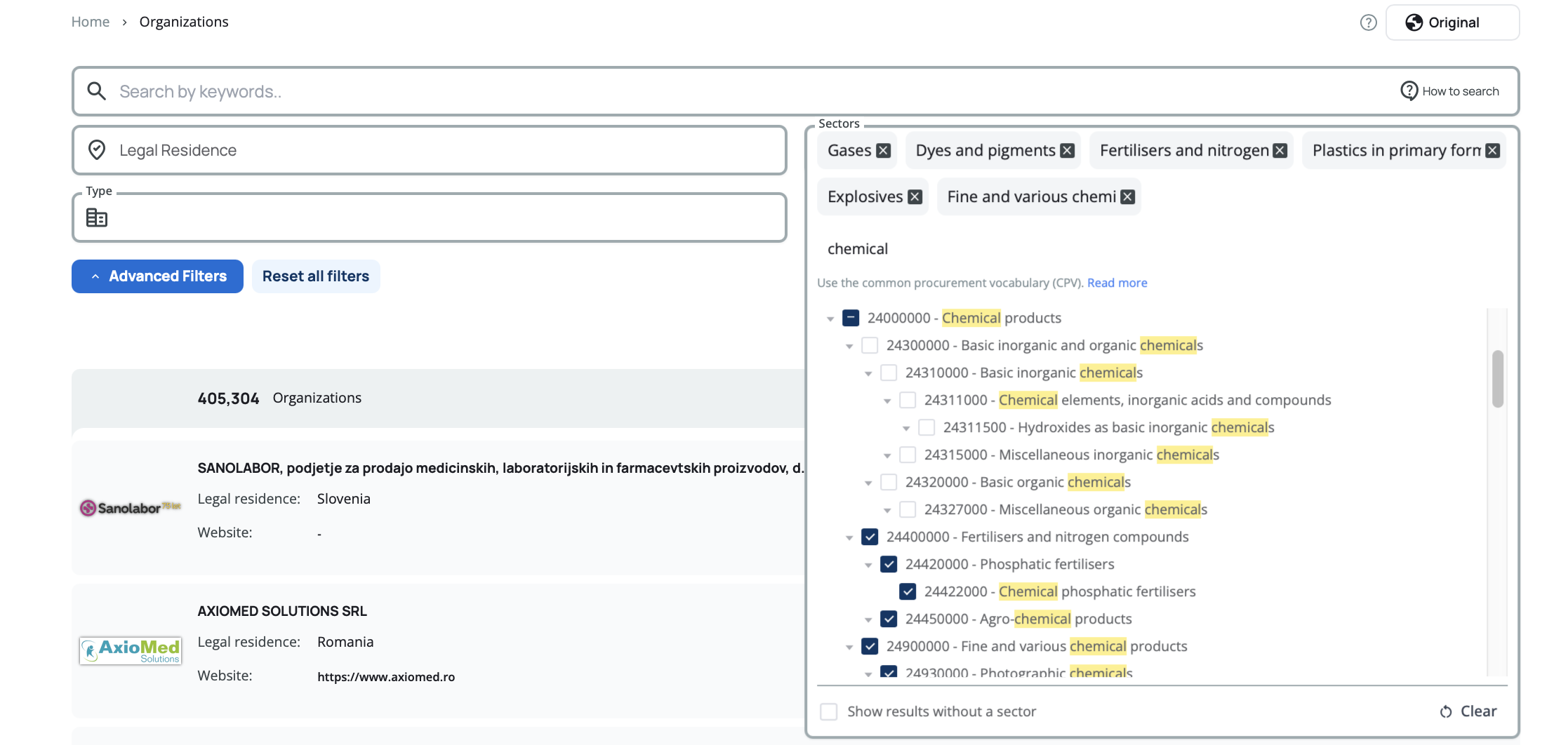
When you select a parent sector, all its sub-sectors are automatically included. Selected sectors appear as removable tags above the search field.
Some organizations don't have a sector assigned. Check the  checkbox to include organizations without a sector in your results.
Filter by sectors that match your business expertise to find organizations that frequently procure goods or services in your industry.
Type
Filter by organization type using the dropdown menu. You can select multiple types at once:
- Contracting Authority – Government bodies and public entities that issue tenders
- Buyer – Organizations that purchase goods or services
- Supplier – Companies that provide goods or services
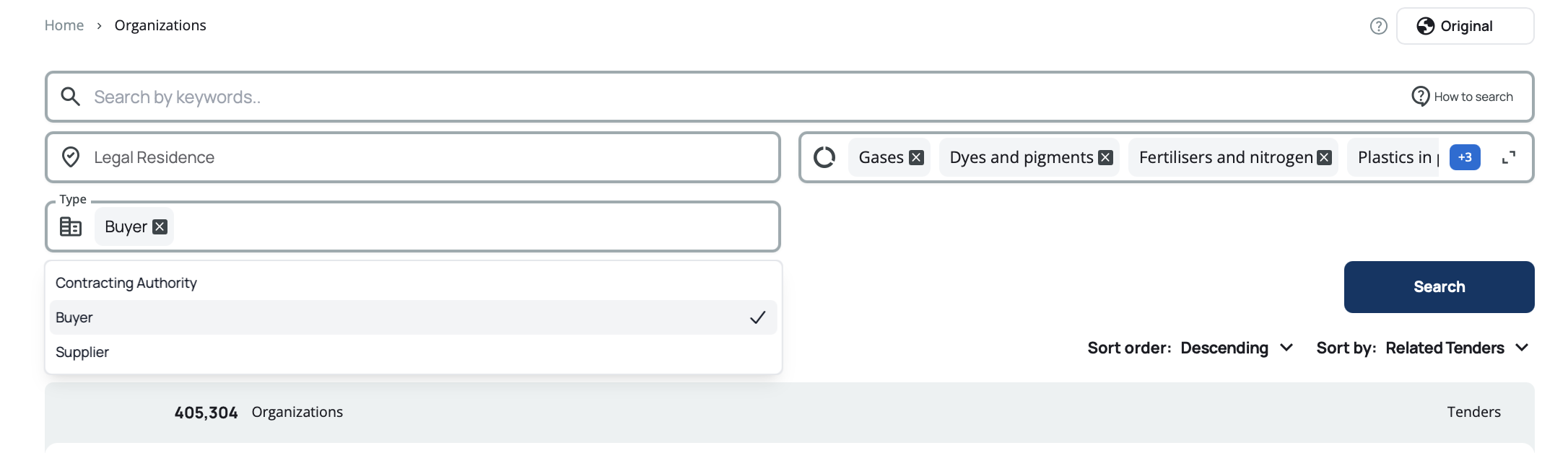
Selected types appear as removable tags above the search field.
An organization may appear in multiple categories. For example, a government agency might be both a Contracting Authority and a Buyer.
Combining Filters and Quick Actions
You can combine as many filters as you need. When you apply multiple filters, results will match all of your selected criteria. If your search returns no results, try removing some filters to broaden your search.
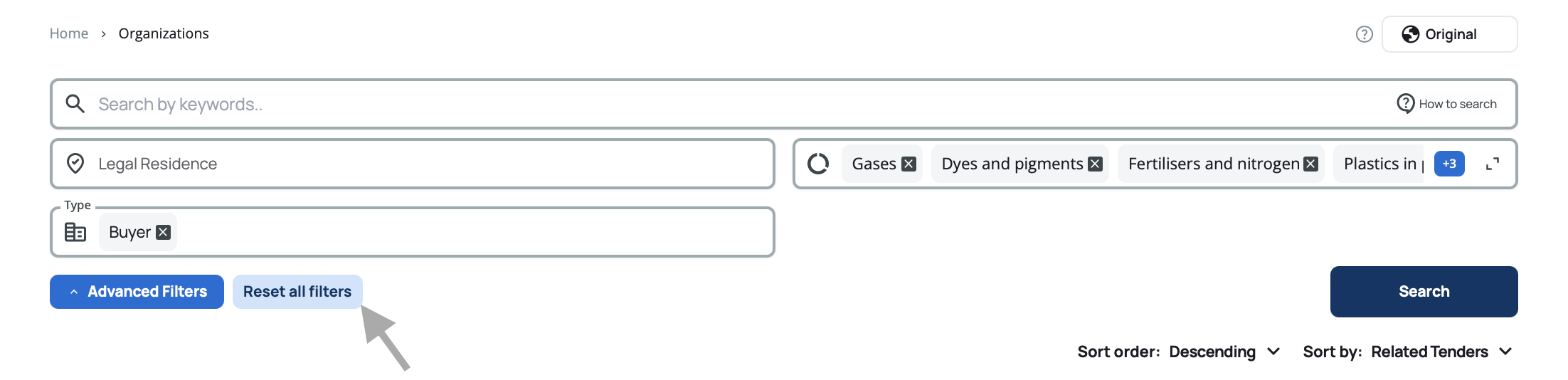
Once you've selected at least one filter, the Reset all filters button becomes active (turns blue):
Reset all filters – Clear all your selections and return to the default view with all organizations.
If you're not finding the organizations you need, try using broader filter criteria or fewer filters at once.
Understanding Search Results
After you search, you'll see a list of organizations matching your criteria. Each organization result displays key information to help you quickly identify relevant entities.
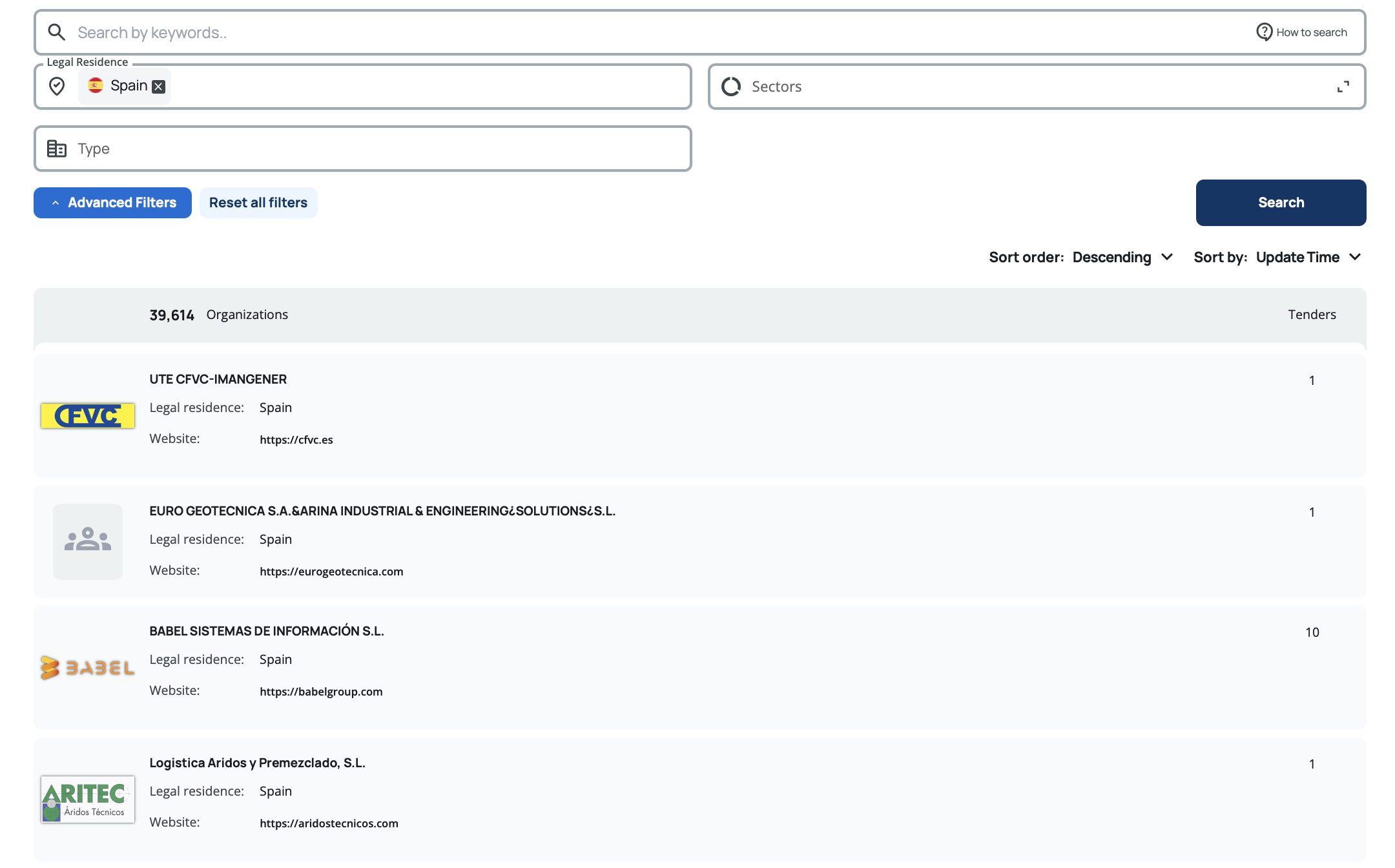
What You'll See
Organization Name – The official organization name. Click on it to open the full organization profile page.
Legal Residence – The country where the organization is registered. If no country is specified, a dash (-) is displayed. Clicking the country name opens the country information in a new tab.
Website – The organization's official website. If no website is available, a dash (-) is displayed. Clicking the link opens the website in a new tab.
Related Tenders – The number of tenders associated with this organization (where they appear as buyer, supplier, or contracting authority).
Some fields may appear empty or show a dash (-) if the information isn't available.
Sorting Your Results
You can change how results are sorted by clicking on column headers or using the sort dropdown. Your sorting preference will persist throughout your session.

Sort Options
By Update Time (Default) – Sorts by when organizations were last modified in our system. Descending shows the most recently updated organizations first. Ascending shows the oldest updates first.
By Country – Sorts alphabetically by legal residence. Descending goes Z to A, ascending goes A to Z.
By Name – Sorts alphabetically by organization name. Descending goes Z to A, ascending goes A to Z.
By Registration Number – Sorts alphabetically by registration number. Descending goes Z to A, ascending goes A to Z.
By Registration Type – Sorts alphabetically by registration type. Descending goes Z to A, ascending goes A to Z.
By Related Tenders – Sorts by the number of associated tenders. Descending shows organizations with the most tenders first. Ascending shows organizations with the fewest tenders first.
Sort by Related Tenders to find the most active organizations in your target market. Organizations with more tenders are typically more active buyers.
When you reset your filters, sorting automatically returns to the default (By Update Time, descending).
Pagination
When your search returns many results, you can control how they're displayed across multiple pages.
Results Per Page
Choose how many organizations to display on each page: 10, 20, or 50 results. You'll find buttons in the bottom right corner of the page. Click your preferred number and your selection will be remembered for your current session.

Navigating Pages
Use the pagination controls at the bottom of the results to move between pages. You can click page numbers directly or use the arrow buttons to go forward or backward.
