Bookmarks
Bookmarks let you save tenders for quick access later. This is useful when you want to keep track of interesting opportunities without creating formal alerts or saved searches.
How to Bookmark Tenders
You can bookmark tenders from two places:
From Search Results – Click the bookmark icon next to any tender in the search results list to save it.
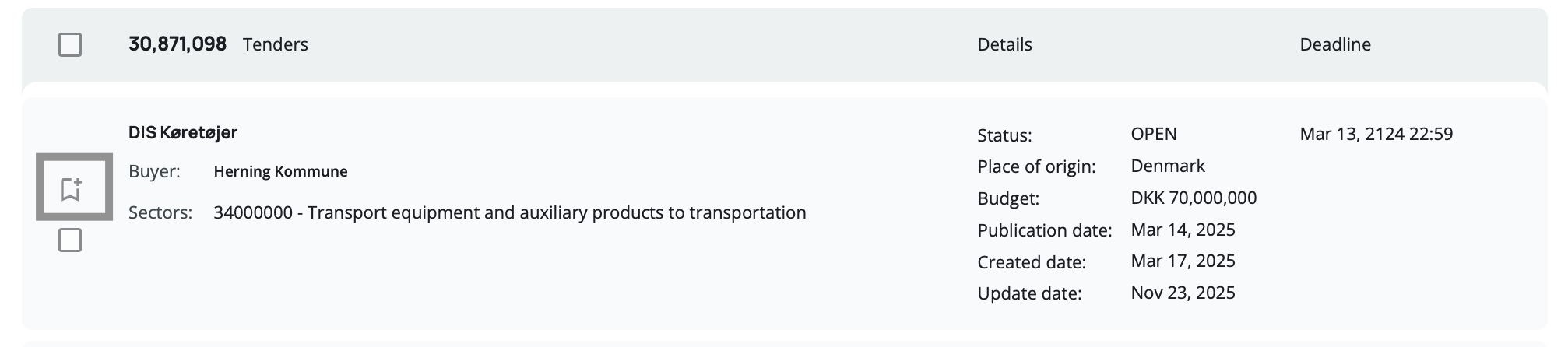
From Tender Details – When viewing a tender's full details page, click the bookmark icon to save it.
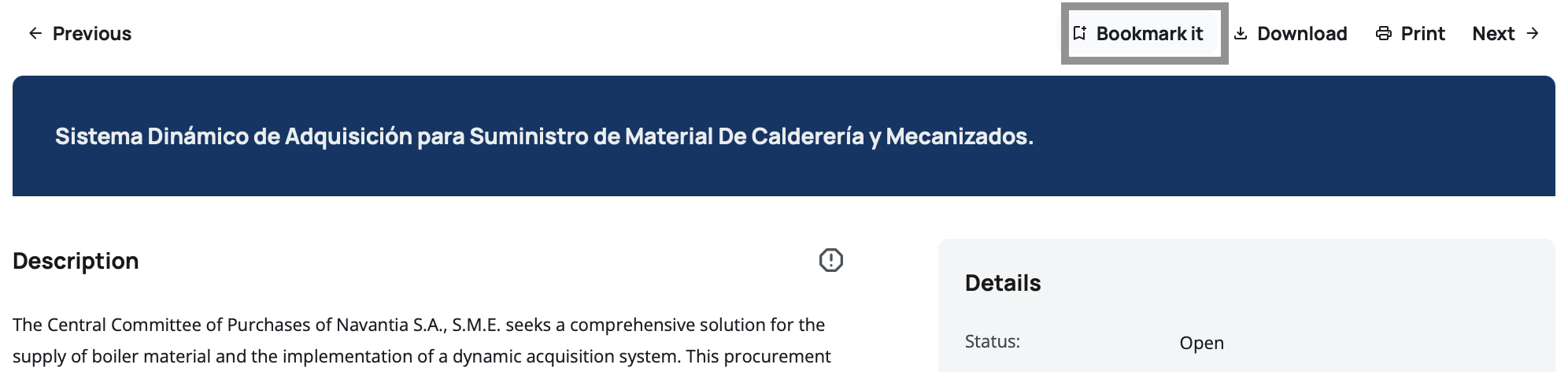
Click the bookmark icon again to remove a tender from your bookmarks.
There is a limit to how many tenders you can bookmark according to your plan. If you reach this limit, you'll need to remove some bookmarks before adding new ones.
Accessing Your Bookmarks
Your bookmarked tenders appear in the left panel of the tender search page, right above Saved Searches and Tender Alerts. Click Bookmarks to open the full list.
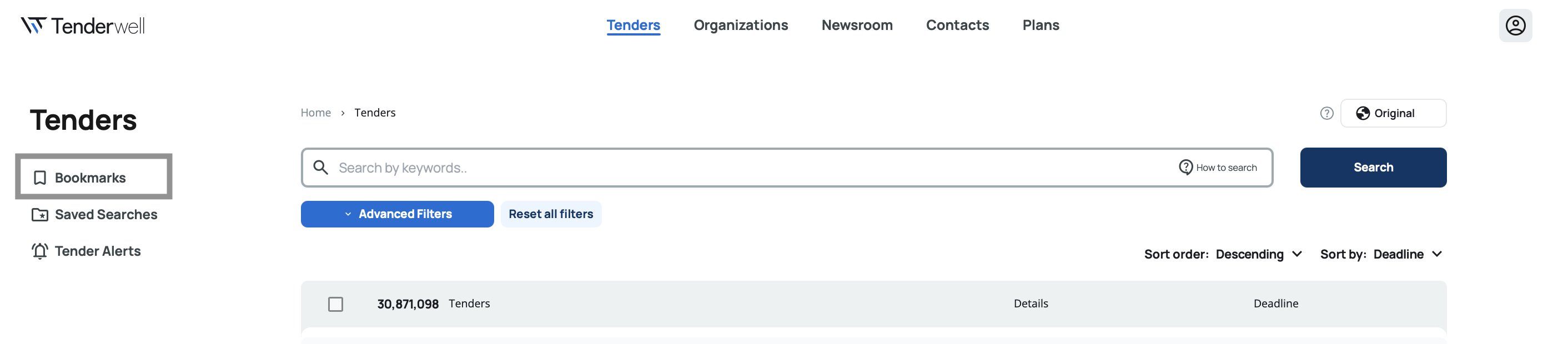
Bookmarks List
When you click on Bookmarks, a pop-up window opens showing all your bookmarked tenders in a table with the following columns:
Title – The tender title. Click it to open the full tender details.
Update Date – When the tender was last updated in our system.
Deadline – The tender submission deadline.
Status – The tender's current phase, color-coded for easy identification:
- Green: Open or Forecast
- Red: Closed or Cancelled
- Orange: Awarded
Actions – Remove the tender from your bookmarks by clicking the remove icon.
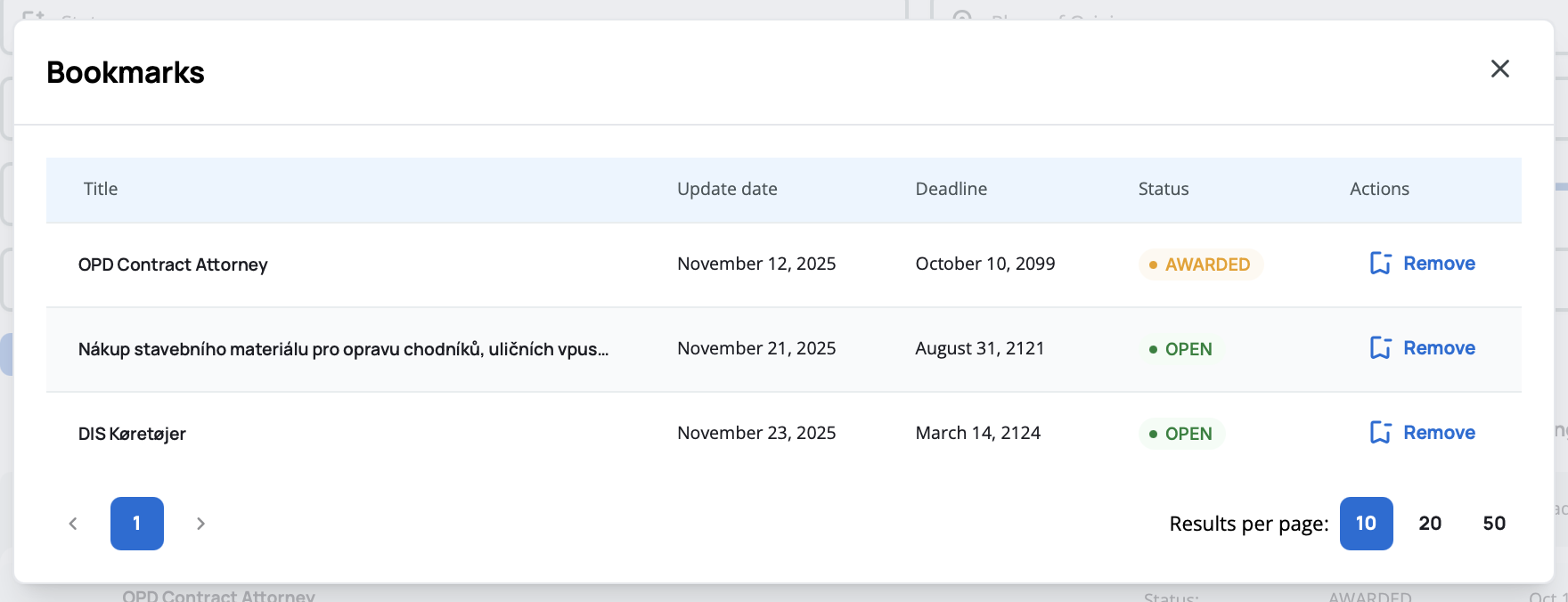
The bookmarks list is paginated, so you can navigate through multiple pages if you have many saved tenders.
Use bookmarks for tenders you want to review quickly. For long-term monitoring, consider using Tender Alerts instead.