Tender Details
When you click on a tender from the search results, you'll see a detailed page with comprehensive information about that specific opportunity. This page brings together all available data—from basic details to documents and awards—so you can evaluate whether the tender matches your business needs.
Page Overview
The tender details page displays all relevant information about a single tender in organized sections. Not all tenders will have every field—only available information is shown, keeping the page clean and focused.
Title and Description
The tender title appears at the top of the page, followed by the description section. For some tenders, you may see two types of descriptions:
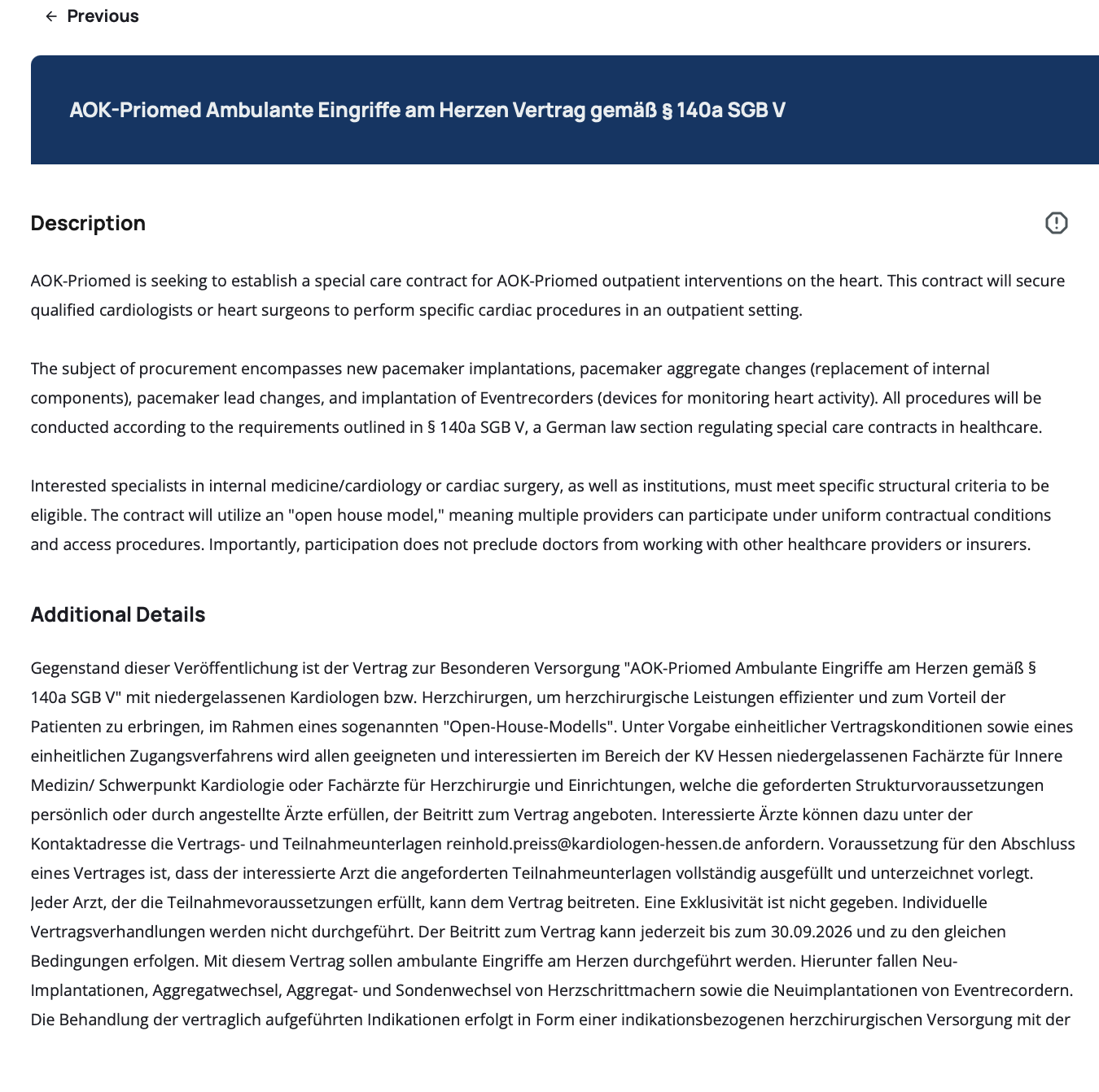
AI Summary – AI-generated summary of the tender. It includes the scope of the tender based on the original description and the tender documents.
Description – When available, this provides additional context or specific details about the tender provided by the original publisher.
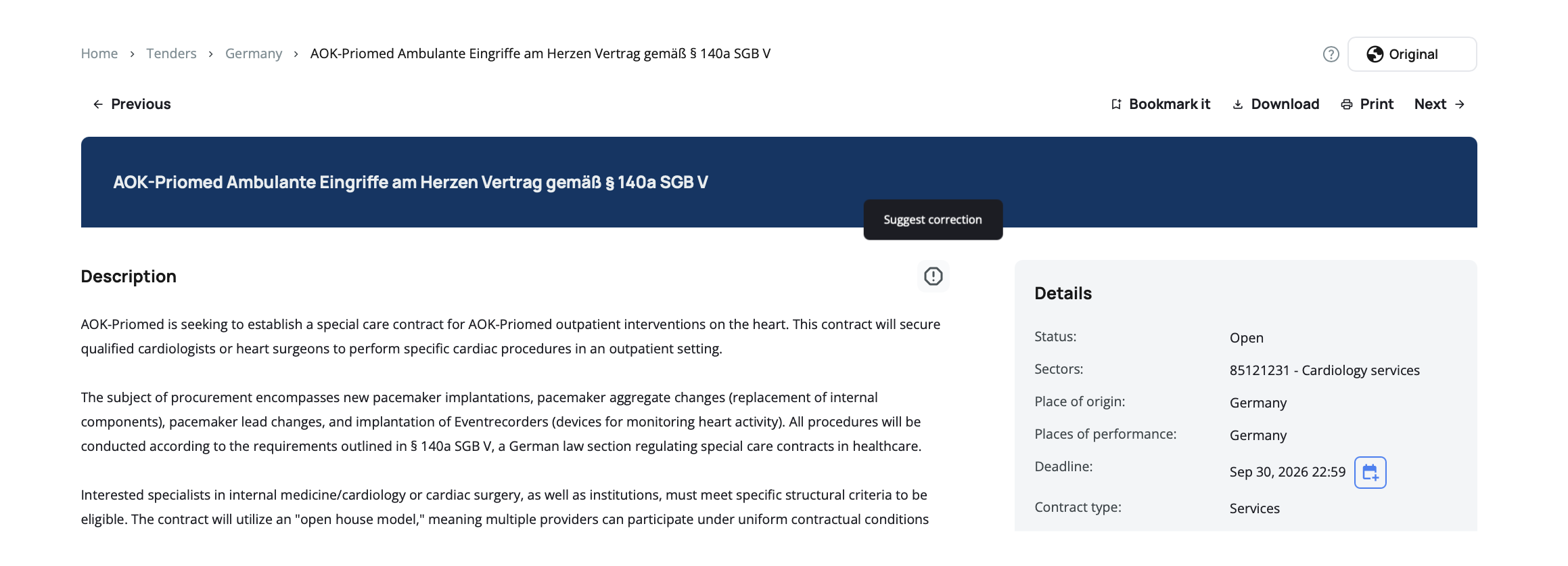
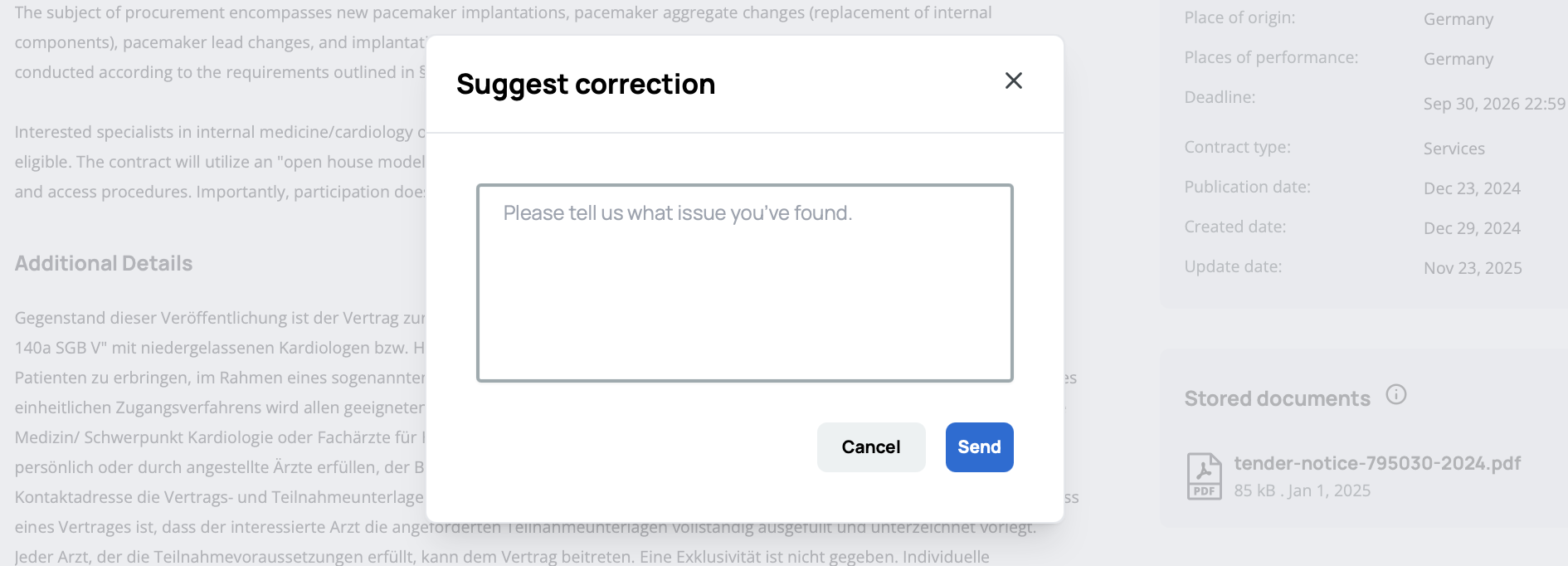
If you notice inaccurate information, you can click the Report  button to report incorrect data. Once submitted, the information will be hidden and your report will be reviewed.
Details Section
The details section on the right side of the page displays key information about the tender in a structured box:
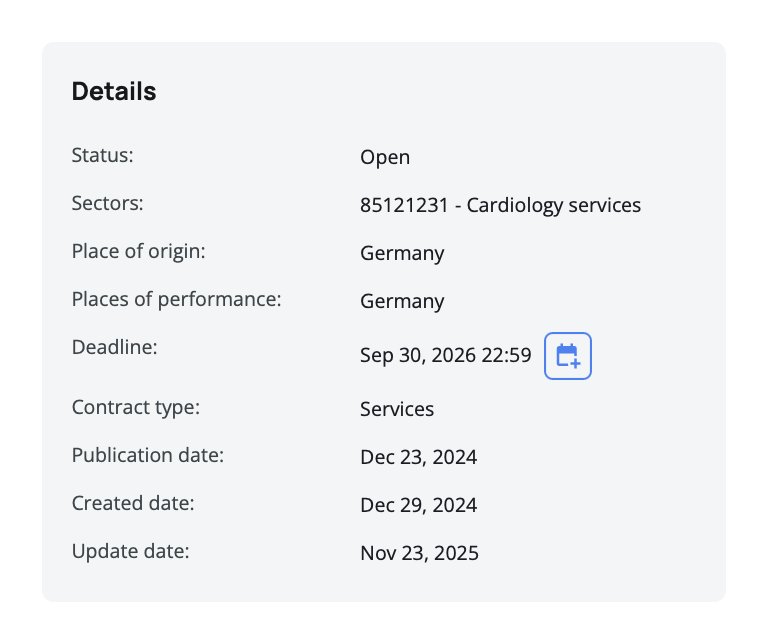
Status – Shows the current state of the tender. Each tender has one status:
- Forecast: Planned tender, not yet officially published
- Open: Actively accepting bids
- Closed: Submission deadline has passed
- Awarded: Contract awarded to a winner
- Cancelled: Tender cancelled by the issuing organization
The status helps you quickly identify which tenders you can still bid on and which are for reference only.
Sectors (CPV Codes) – Lists the Common Procurement Vocabulary codes that classify the tender's subject matter. Each code appears with its description (e.g., 45432110 - Floor-laying work). Multiple sectors may be listed, each on a separate line. These codes help you confirm the tender matches your business expertise.
Place of Origin – Shows the country where the tender was published or originates from (e.g., Spain).
Place(s) of Performance – Shows where the work will actually be performed. This may be one or multiple countries, depending on the contract scope.
Deadline – Displays the submission deadline date along with an Add to Calendar button. Clicking this button offers options to add the deadline to your preferred calendar: Google Calendar, Apple Calendar, Microsoft Outlook, or Outlook (Office 365).
Contract Duration – When available, it displays the contract duration using different formats, including duration values (days, months, years), start and end dates, or a single start/end date when only one date is provided.
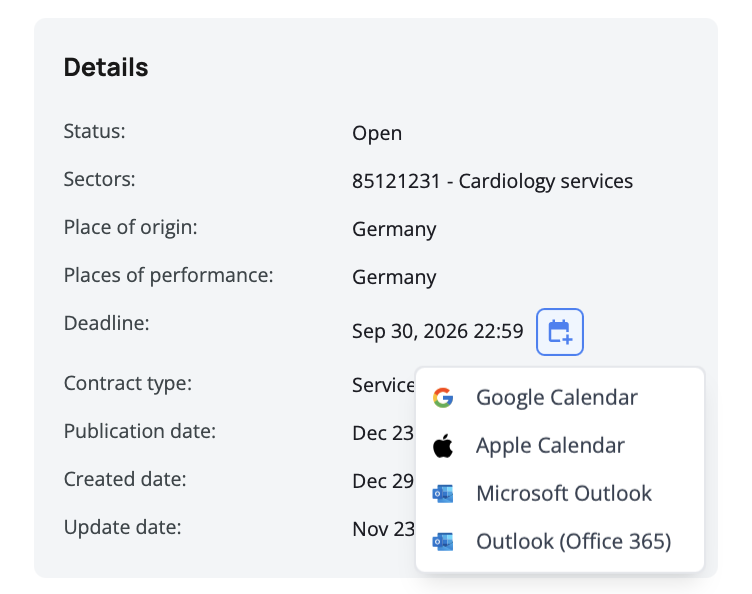
Always add important deadlines to your calendar. Missing a submission deadline means losing the opportunity, no matter how strong your bid might be.
Budget & Currency – Shows the estimated contract value in its original currency (e.g., EUR 120,301.05). Not all tenders disclose budget information—when unavailable, this field won't appear.
Contract Type – Lists the type of contract being procured, such as Works, Services, or Supplies. Multiple contract types may appear if the tender covers different categories.
Publication Date – The date when the tender was officially published or made available.
Create Date – The date when the tender record was created in Tenderwell's database.
Update Date – Shows when the tender information was last modified. This field only appears if the tender was updated after its initial creation, helping you identify recently changed information.
Check the update date regularly for tenders you're tracking. Changes might include extended deadlines, modified requirements, or additional clarifications.
Issuing Organization(s)
This section displays the organizations responsible for issuing the tender—buyers and contracting authorities. Each organization entry is divided into two parts:
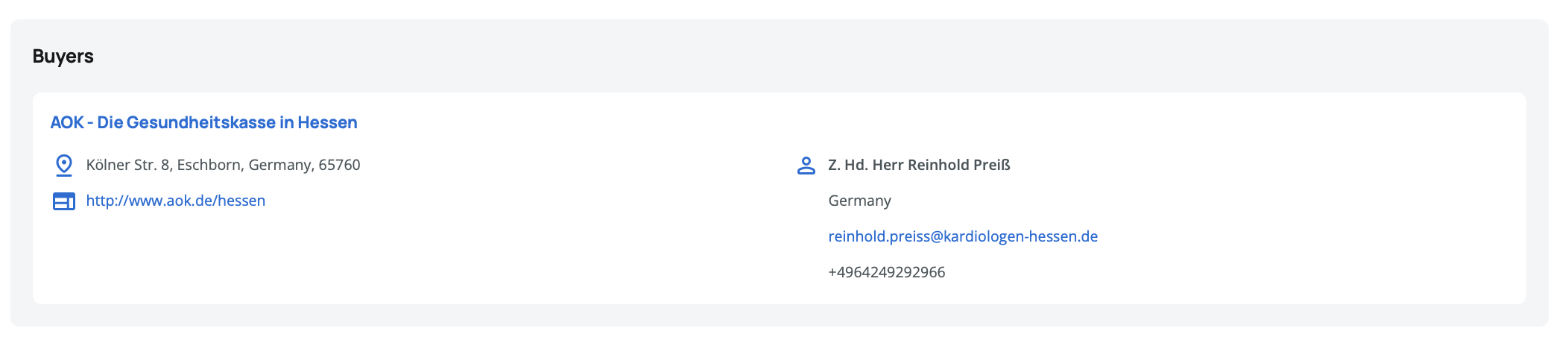
Organization Details (left side):
- Organization name (clickable link to the organization's profile)
- Address with country
- Phone
- Website
Contact Details (right side):
- Contact person name
- Address with country
- Phone
Clicking the organization name opens their profile page in a new tab, where you can see their tender history and additional information.
Review the issuing organization's profile to see their past tenders. This helps you understand their procurement patterns and requirements.
Documents
Tender documents are organized into two categories:
Stored Documents
Documents that have been downloaded and indexed in the system. Each document shows: file name, file type icon, file size, creation date.
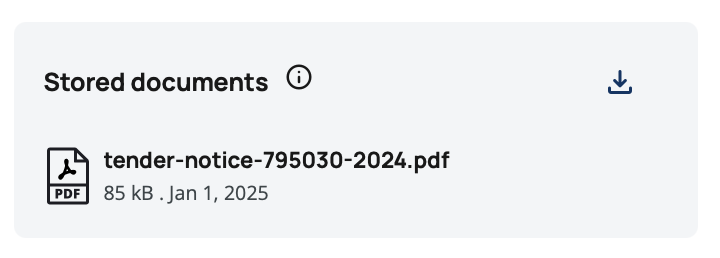
Indexed documents are searchable, meaning their content can be found through the tender search engine. You can download these documents directly for review.
External Documents
Documents hosted on third-party sources. These show the file name with a clickable link that redirects you to the external source where the document is hosted.
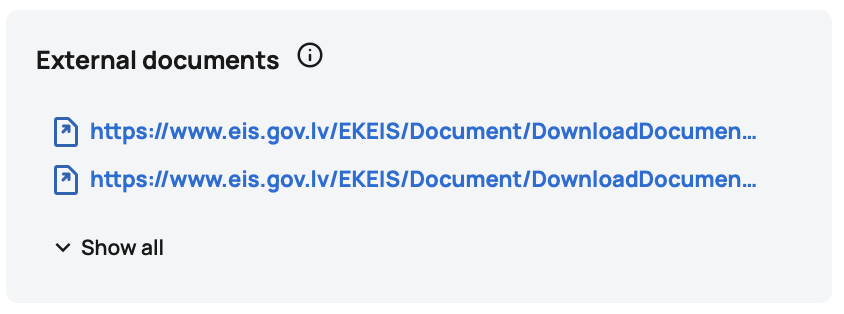
Documents access instructions
Sometimes we cannot download the tender documents directly from the issuing organization. In such cases, we provide instructions on how to access the documents.
Download all tender documents as soon as possible. Some external links may expire or become unavailable as the tender progresses.
Original URL
This section provides a direct link to the tender on its original publishing portal. Click the link to view the tender in its native format on the source website, which may include additional information or updates not yet reflected in Tenderwell.

Awards
When a tender is awarded, this section displays detailed information about the winning organization(s) and contract value. Each award shows:
- Winner organization name (clickable link to their profile)
- Organization details and contact information
- Contract amount
- Award publication date
- Award description
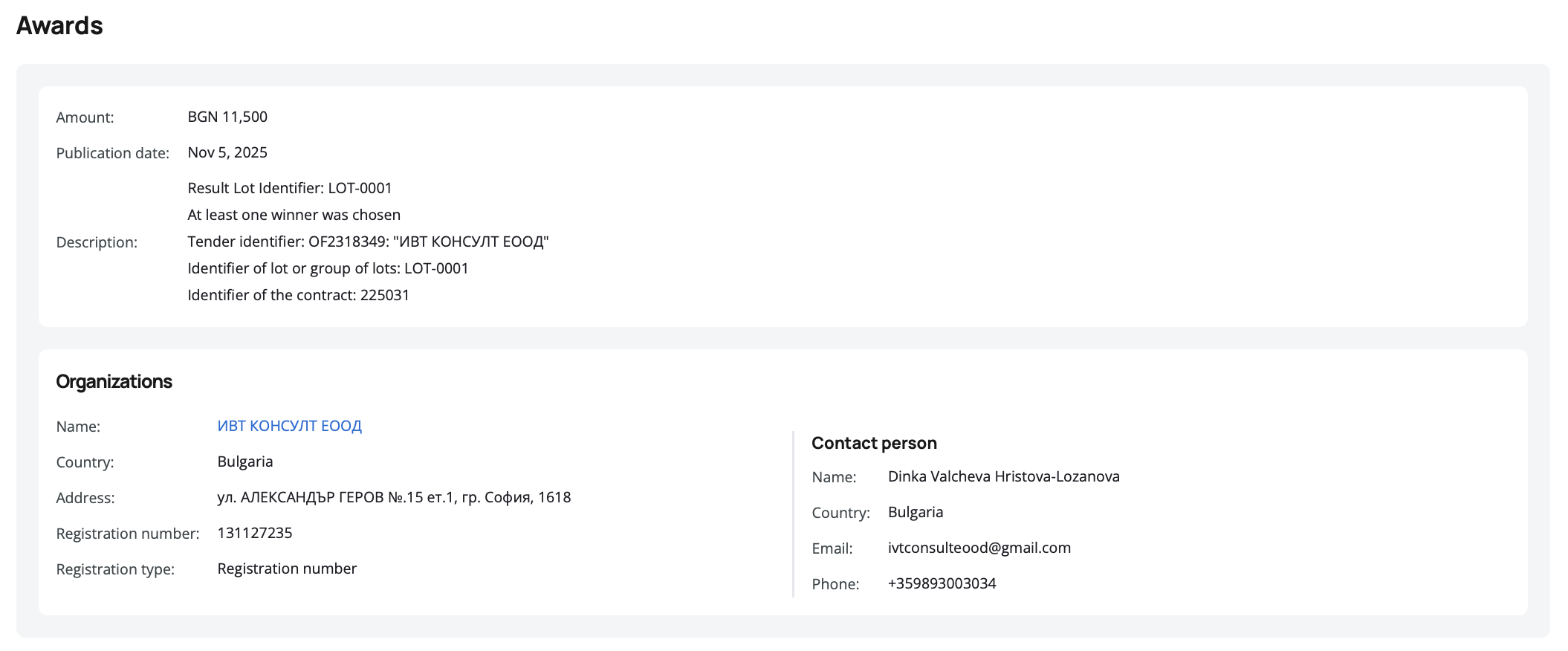
Some tenders may have multiple awards or multiple organizations linked to the same award, particularly for tenders divided into lots.
The Awards section only appears for tenders with awarded status. Open or closed tenders won't show this section.
Similar Tenders
At the bottom of the page, you'll find a list of similar tenders based on sector or country matching. The list prioritizes open tenders first so you can identify current opportunities.
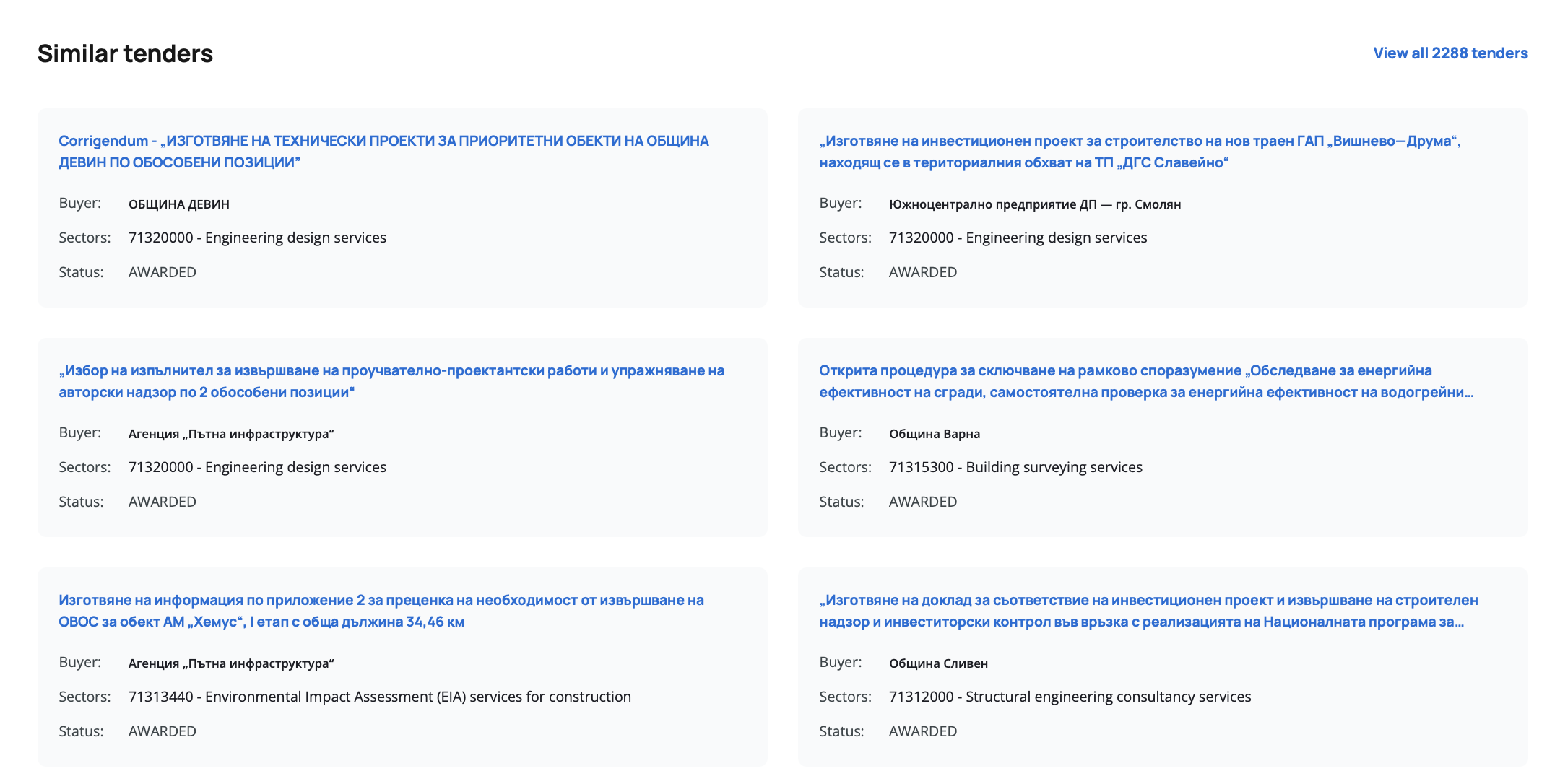
The first 10 similar tenders appear on the page, with a button to view all matching tenders in the main search form if more are available.
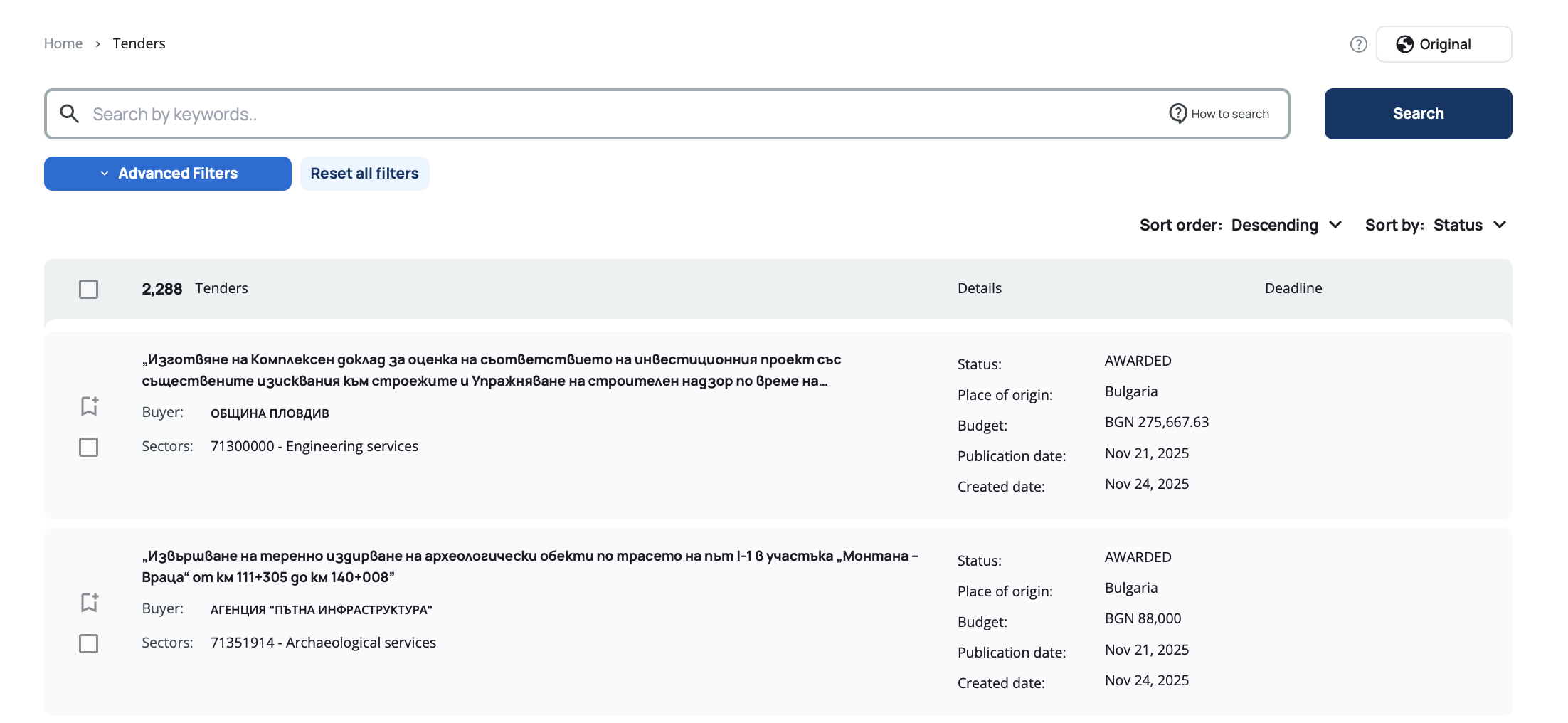
If no similar tenders are found, you'll see the message: "No similar tenders found."
Similar tenders help you discover related opportunities you might have missed in your searches. Review them regularly to expand your bidding pipeline.
Actions
The tender details page provides several actions to help you work with the tender information:
Bookmark Tender
Click the bookmark icon to save the tender to your bookmarks list. Clicking again removes the tender from your bookmarks.
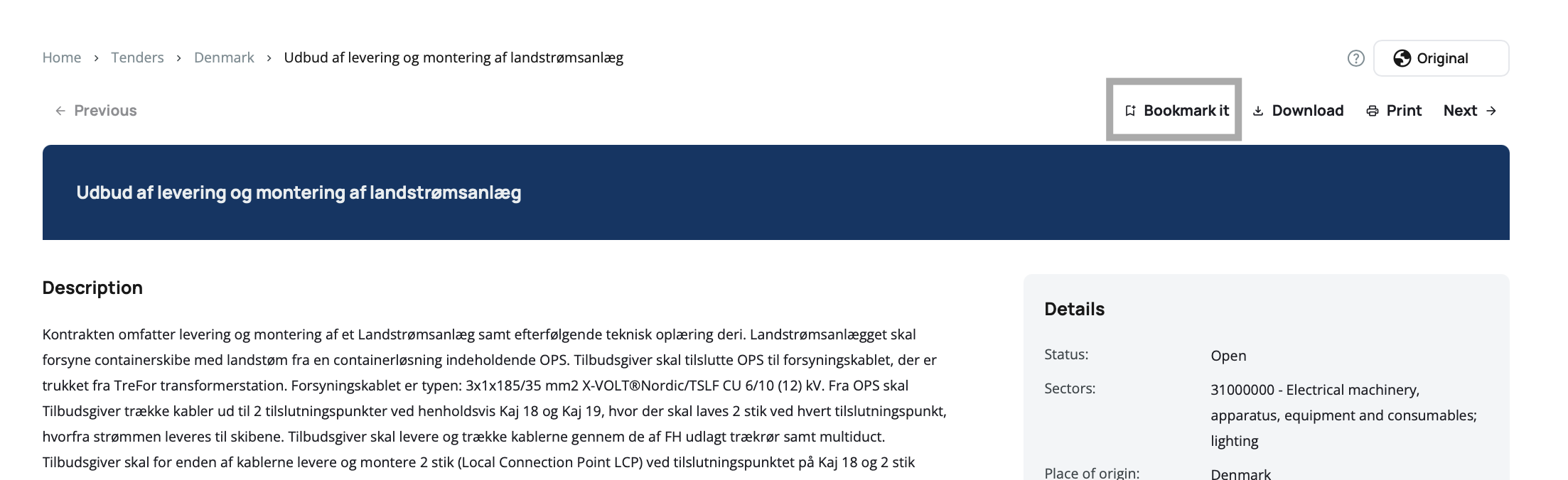
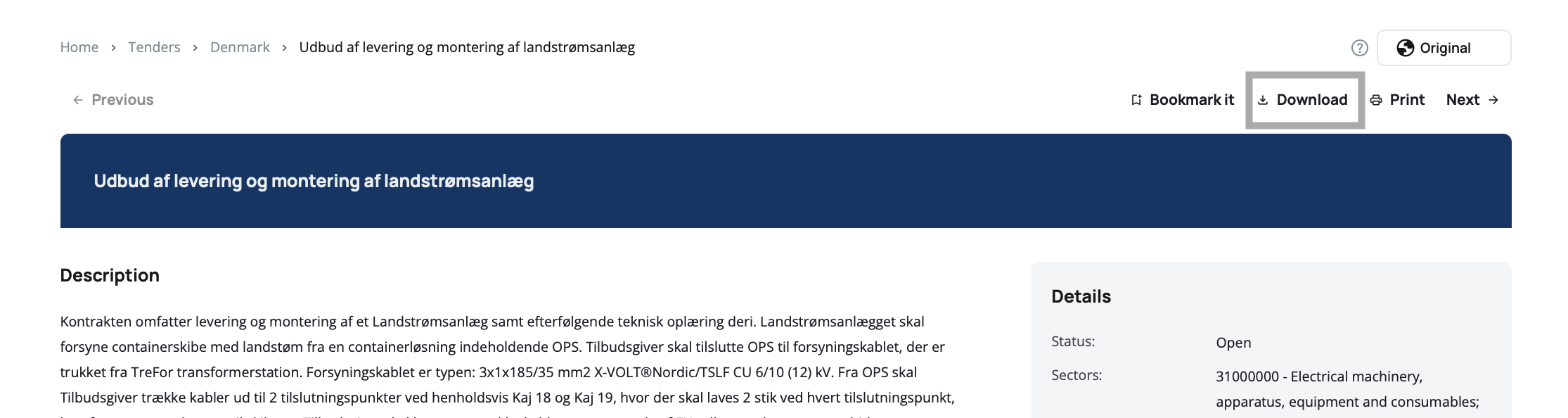
Download Tender
The Download button creates a PDF version of the tender with all available information preformatted for offline review or archiving.
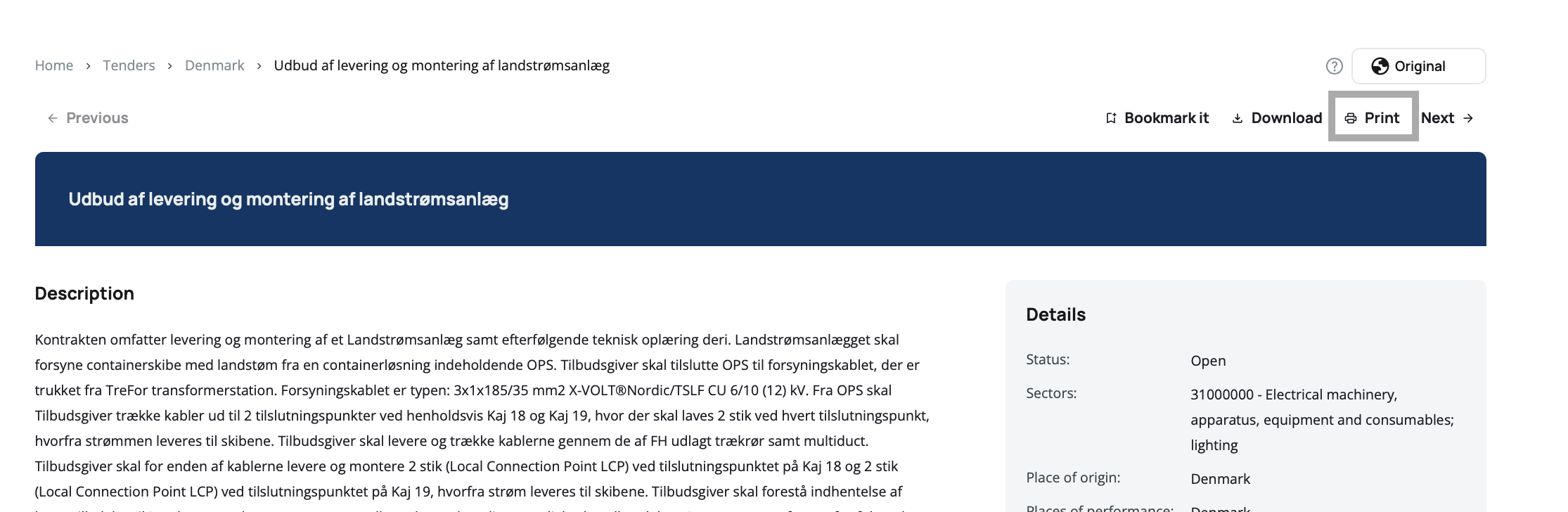
Print Tender
The Print button opens your browser's print dialog, allowing you to print the tender details or save them as a PDF through your browser's print-to-PDF feature.
Navigate Between Tenders
When viewing a tender from search results, you can quickly move between tenders using the navigation buttons:
Previous – Goes to the previous tender in your search results (disabled if you're viewing the first tender)
Next – Goes to the next tender in your search results (disabled if you're viewing the last tender)
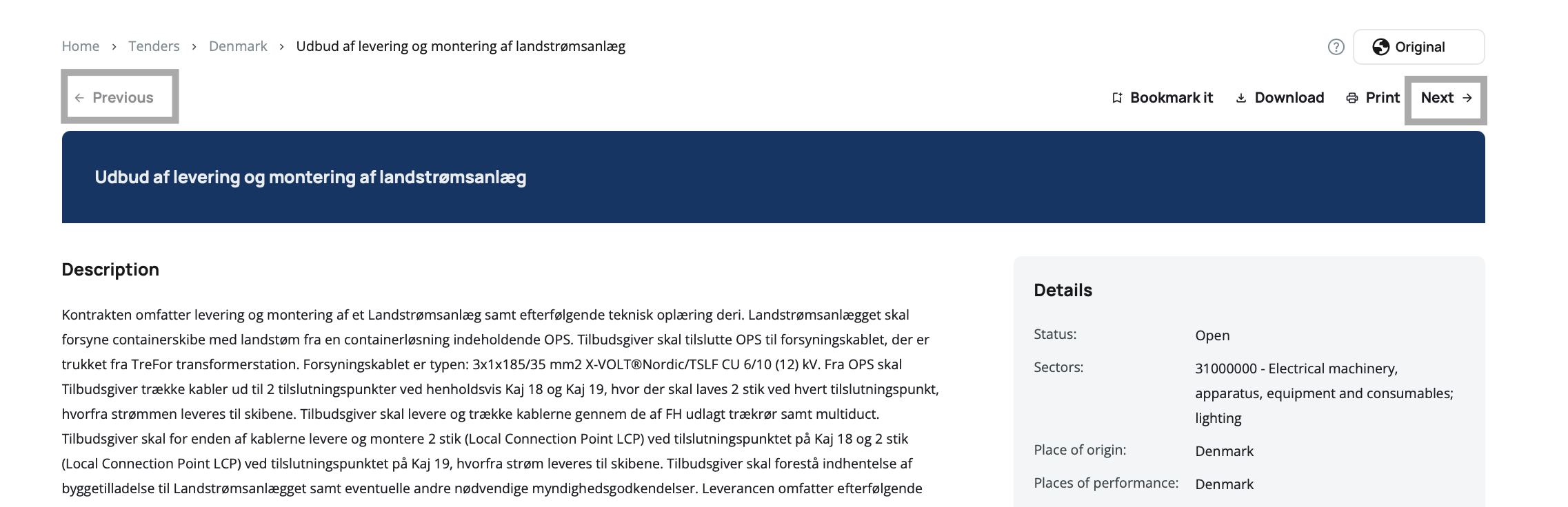
This lets you review multiple tenders efficiently without returning to the search results page each time.
Use the Previous/Next navigation to quickly scan through your search results. Bookmark interesting tenders as you go, then review your bookmarks in detail later.
Reporting Incorrect Information
If you notice inaccurate or incorrect information in tender details, you can report it using the Report button that appears next to certain fields.
When you click Report:
- The information is hidden from view
- A form appears where you can submit your feedback
- After submission, you'll see a confirmation message
- Your report is logged for review
Take a moment to report incorrect information when you notice inaccuracies. Your feedback helps improve the platform for everyone.