How to Book a Demo
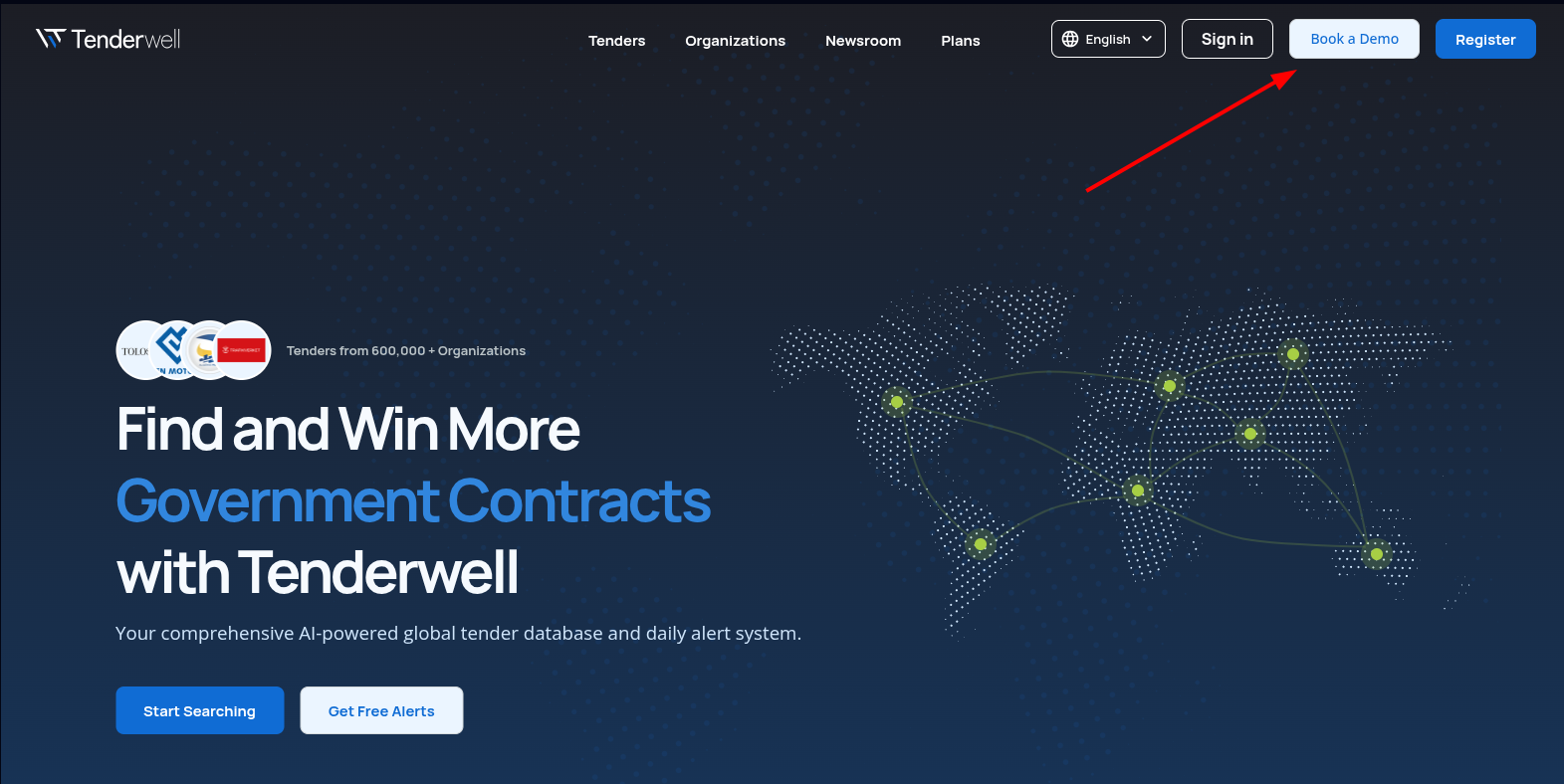
Booking a demo starts from the Tenderwell homepage. The Book a Demo button opens an embedded Calendly scheduler where you can choose a date, select a time, and enter your contact details.
The demo session is currently scheduled as a 30 min meeting. The scheduler also notes that web conferencing details are provided upon confirmation.
Open the Booking Scheduler
Open the Tenderwell homepage and click Book a Demo in the top navigation.
Choose a Date and Time
After clicking the button, Calendly opens on the same page. Select any available date and then choose one of the available time slots.
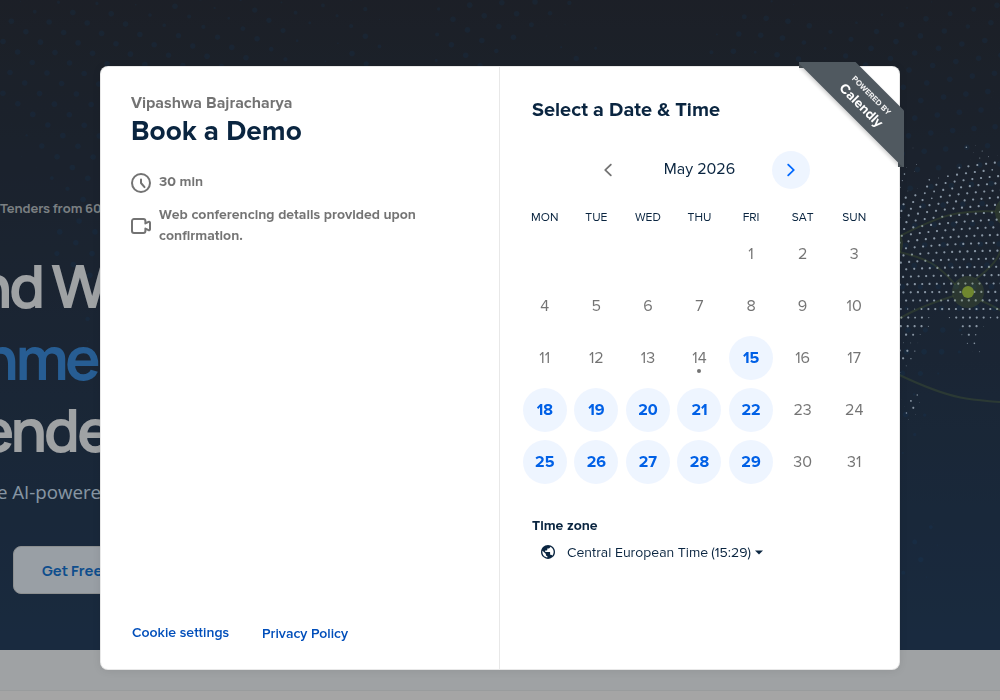
Availability depends on the host's calendar and the time zone currently selected in Calendly.
Enter Your Details
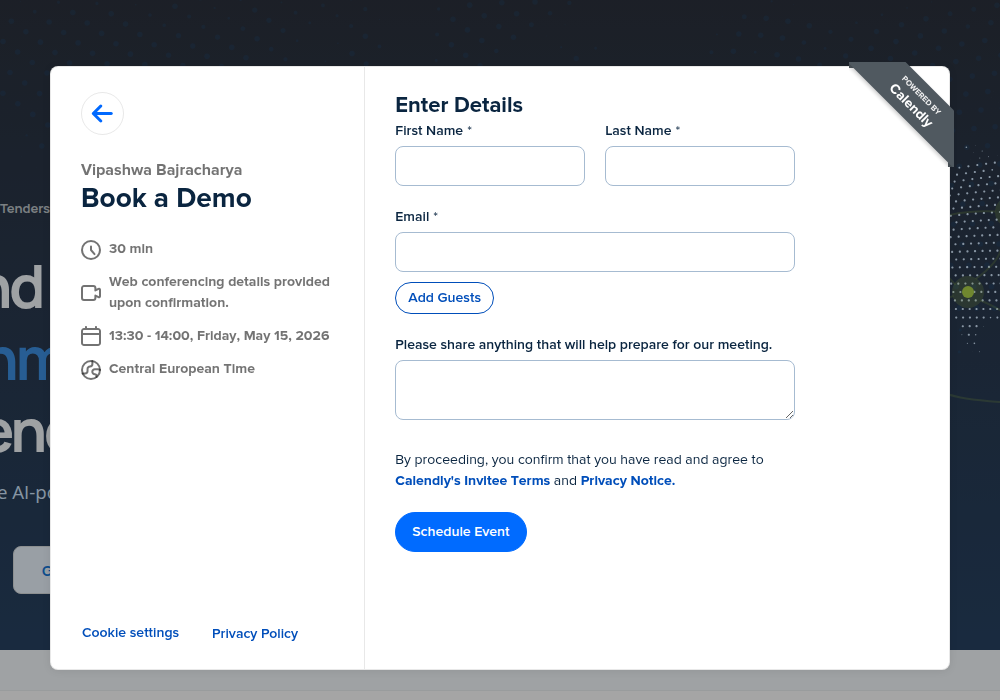
After choosing a time slot, click Next and complete the booking form. Calendly currently asks for:
- First Name
- Last Name
Depending on the live form configuration, you may also see optional fields such as guest emails or meeting notes.
Confirm the Booking
Click Schedule Event to submit the booking request. Calendly then proceeds to the booking confirmation step and provides the next details for the meeting.
Cancel or Reschedule
If you need to change the meeting after booking, use the cancellation or rescheduling details provided by Calendly after submission or contact support.