Team Management
All personal data shown in the screenshots below has been edited for privacy and demonstration purposes. Please note that you cannot create accounts with fake data—your email address must be verified to activate your account.
Teams allow you to collaborate with colleagues by inviting unlimited users to your team. As a team owner, you control who gets access to your shared subscription by activating or deactivating members. Each user has their own individual account with personal data and settings.
How Teams Work
When you create a team:
- You become the team owner – You control the subscription, billing, and who receives subscription access
- Unlimited invitations – You can invite as many colleagues as needed, regardless of your plan size
- Subscription seats are limited – Your plan defines how many members can have active subscription access
- You control subscription access – Toggle members ON to share your subscription, or OFF to give them free plan access
- Individual accounts – Each member has their own login, profile, bookmarks, saved searches, and tender alerts
- One subscription covers active members – Only the team owner pays for the plan; active members share the subscription benefits
- Plan limits apply per user – Each active member has their own allocation of bookmarks, tender alerts, and saved searches according to the shared plan
Team members are identified by their email address. Each user can only be part of one team at a time, though they can be invited to different teams using the same account.
Creating and Managing Your Team
Follow these steps to build and manage your team:
1. Sign In or Create an Account
Start by signing in to the platform or creating a new account if you don't have one yet. You become the team owner.
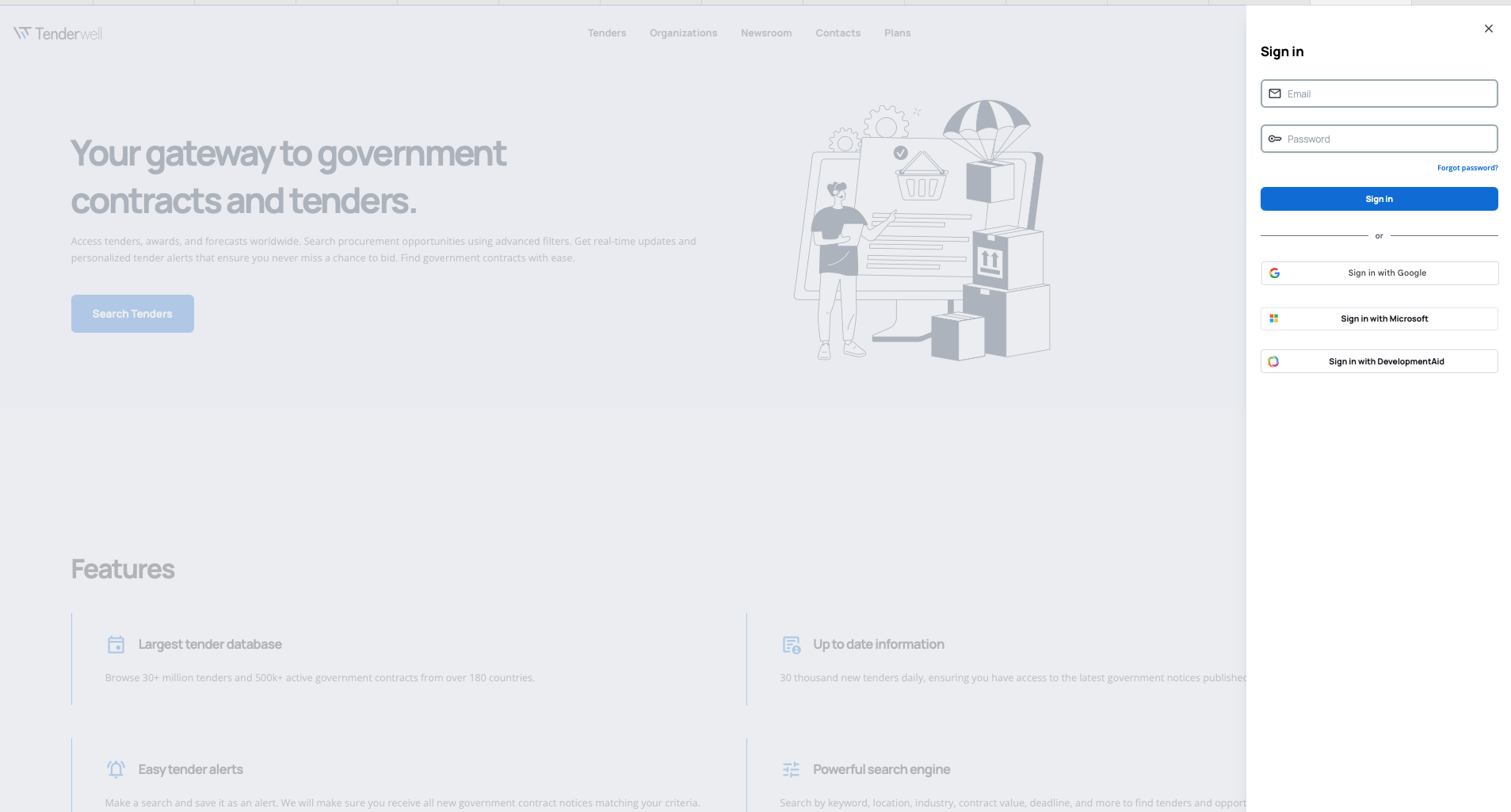
2. Access Your Profile
Click on your profile icon in the top navigation bar to access your user profile.

3. Navigate to the Team Section
In your profile, find and open the Team section where you can view current members and manage invitations.
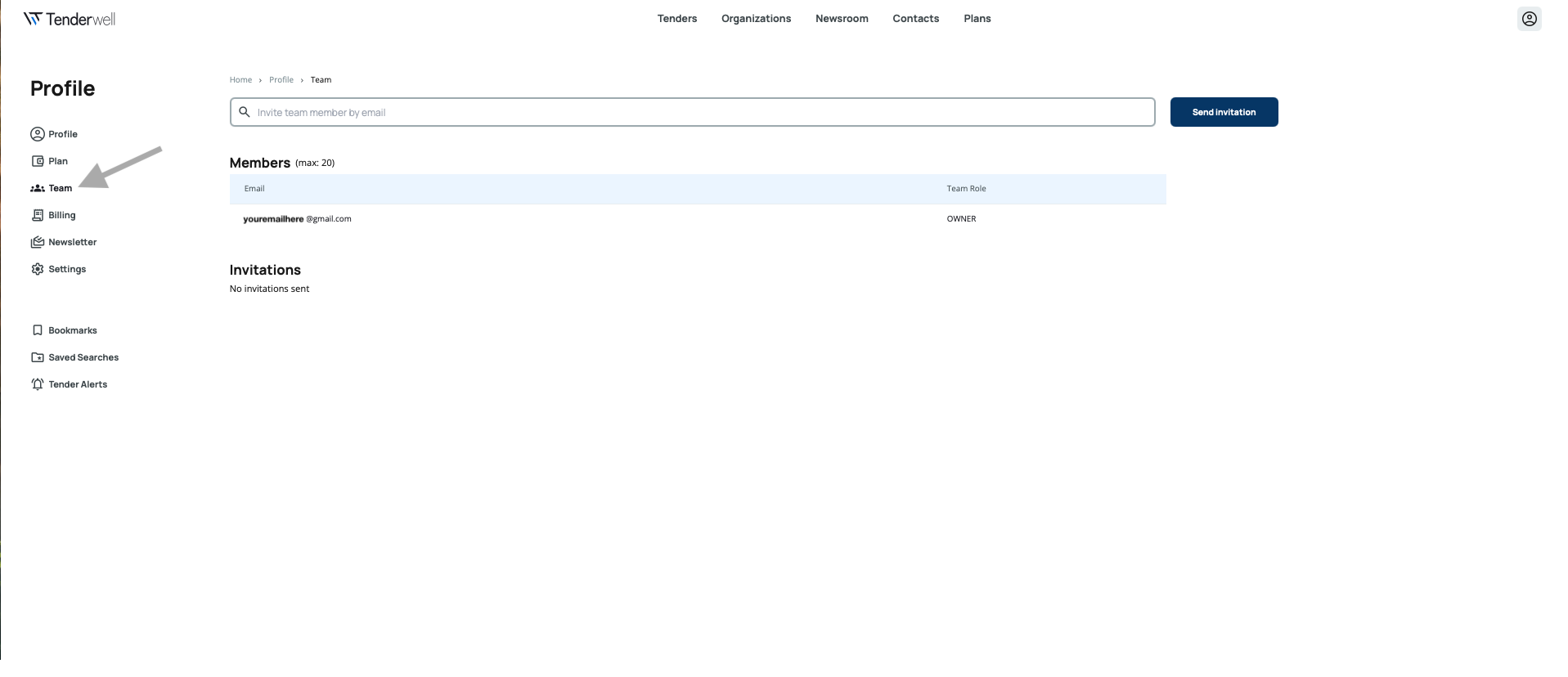
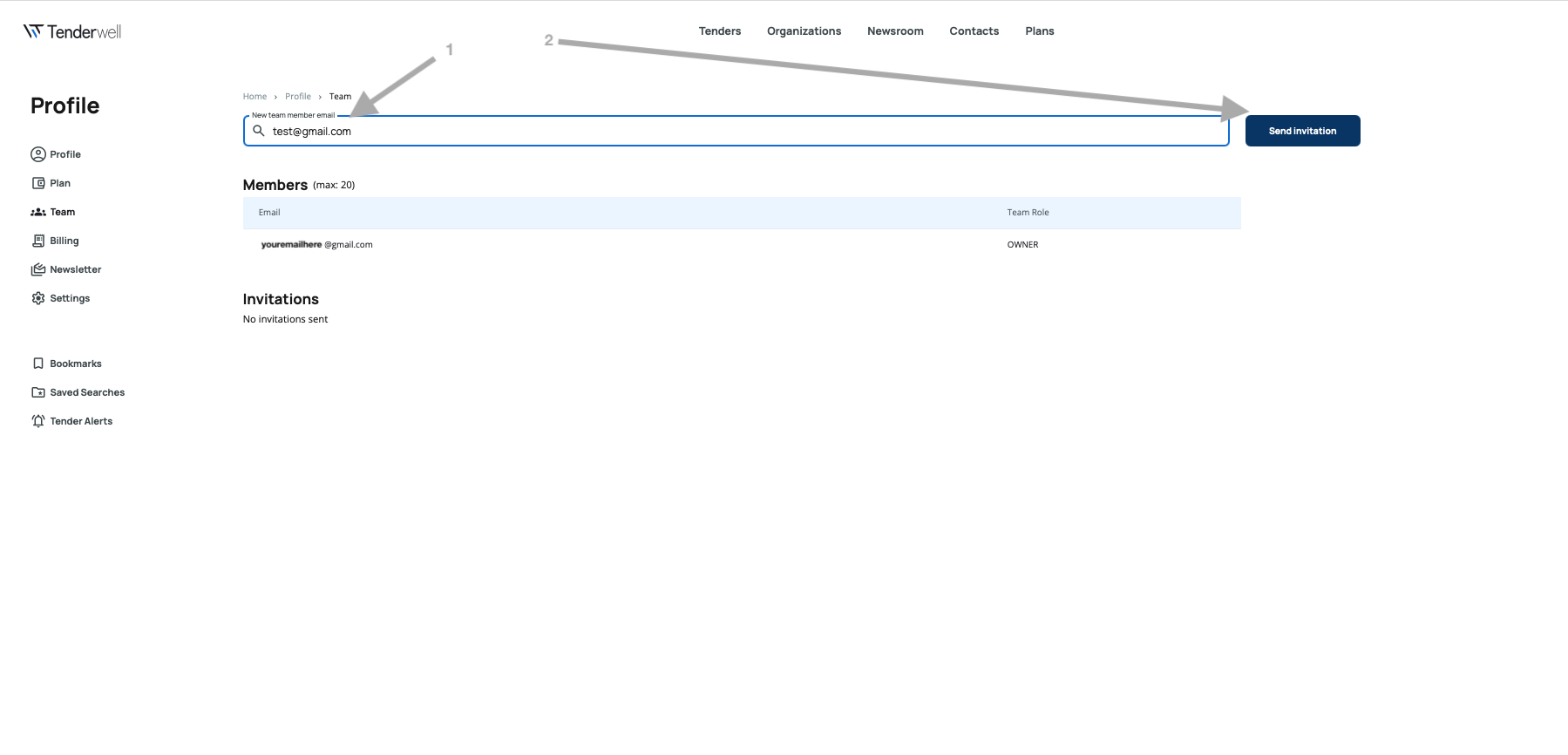
4. Invite Team Members
Enter the email address of the colleague you want to invite and click the Send button to send an invitation.
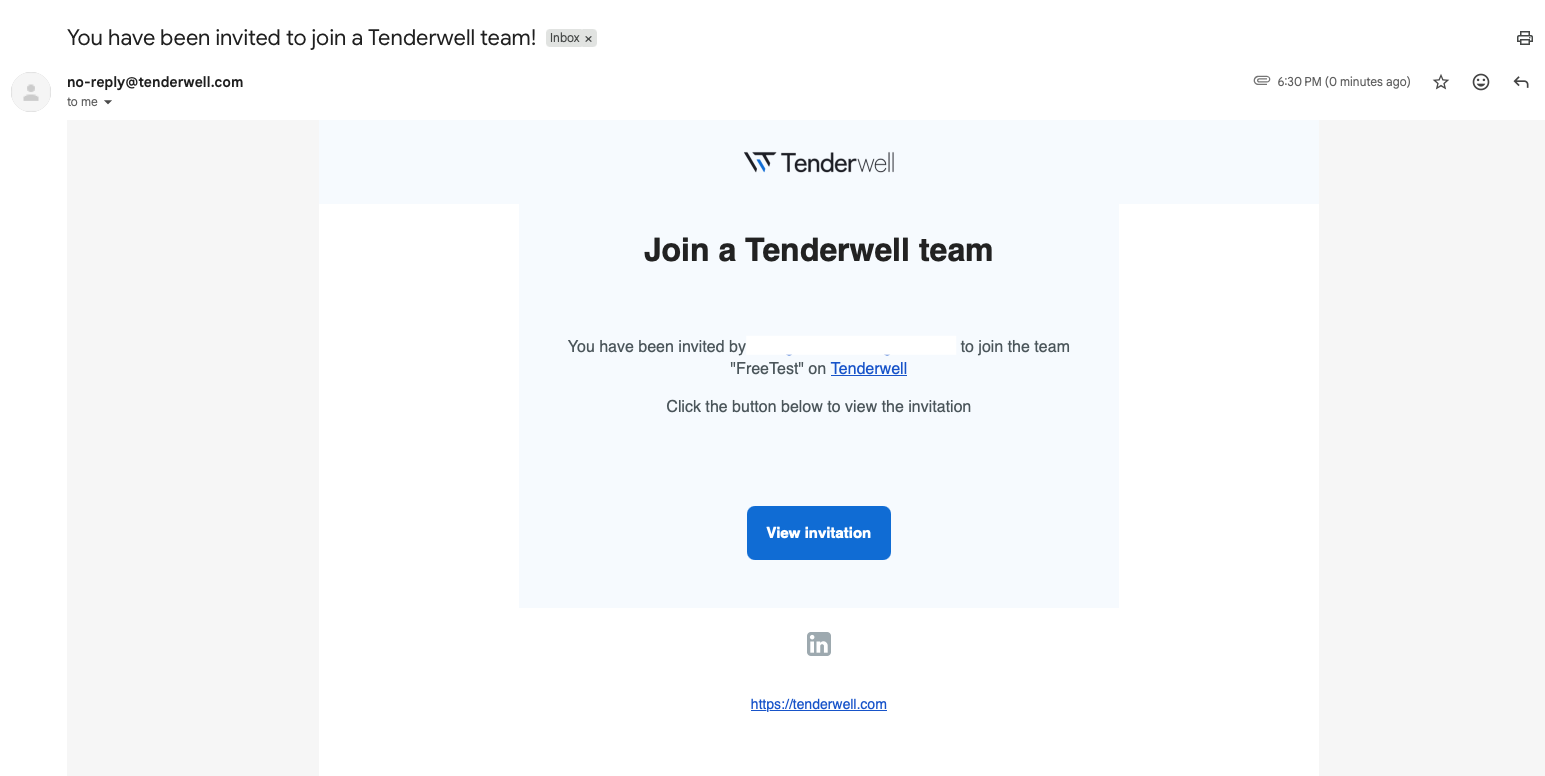
The invited person will receive an email with an invitation link.
5. Team Members Accept Invitations
Your invited colleagues need to follow the invitation link in their email. They'll be asked to:
- Register a new account (if they don't have one)
- Sign in (if they already have an account)
- Complete their profile information
Once they complete these steps, they'll have full access to the platform as part of your team.
6. Manage Your Members
The Team section displays a unified Members list showing everyone in your team, plus a separate Invitations section for pending invites.
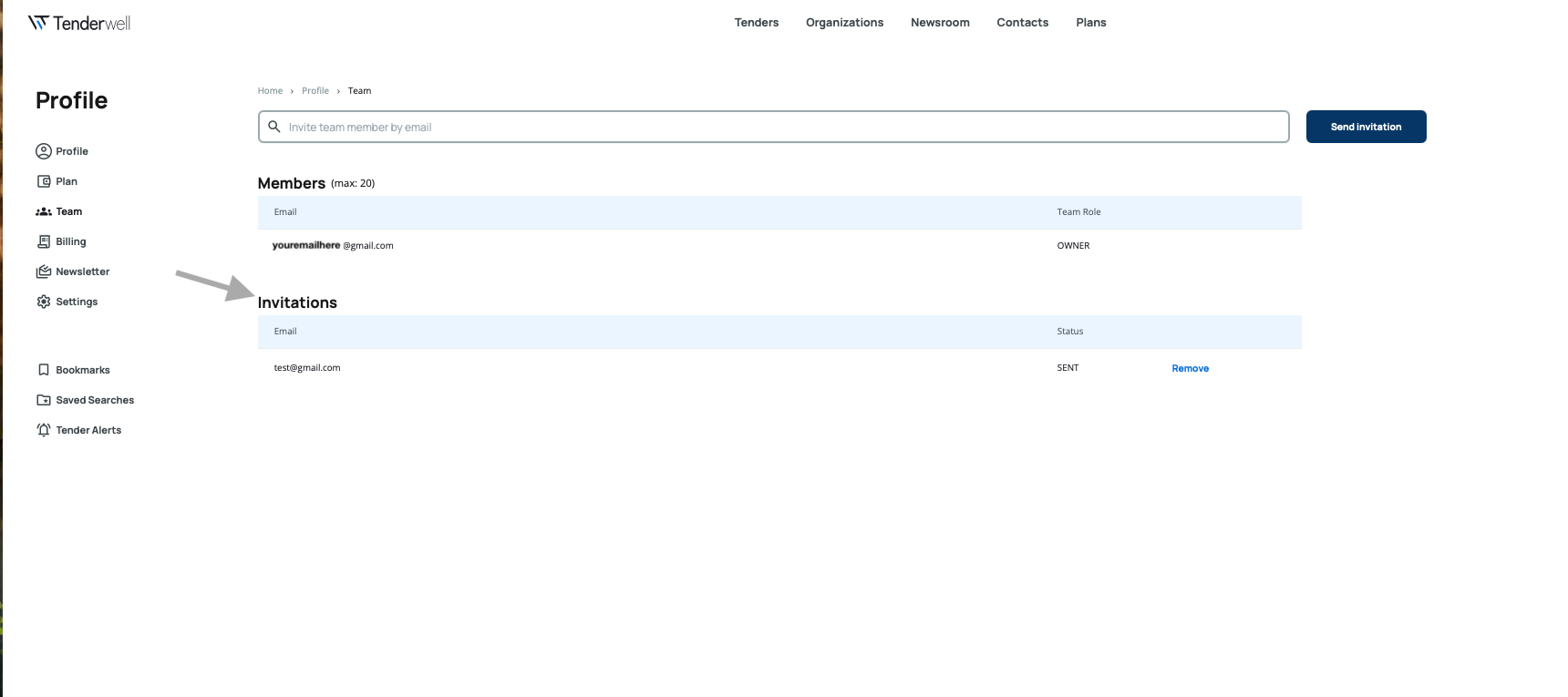
Members List:
- Team Owner – You (always has active subscription access)
- Active Members – Members with subscription access enabled (toggle ON)
- Free Plan Members – Members with subscription access disabled (toggle OFF, using free plan)
- Subscription Toggle – Control button next to each member to activate/deactivate their subscription access
Invitations Section:
- Email addresses of pending invitations
- Status (e.g., SENT)
- Option to remove pending invitations
When someone accepts an invitation, they appear in the Members list with their subscription toggle OFF by default. You can then activate them if subscription seats are available.
Each member has their own individual profile, personalized settings, and their own bookmarks, saved searches, and tender alerts. The plan is paid by the team owner only, and you control who shares the subscription benefits.
Subscription Access Control
As the team owner, you control who has access to your subscription using the subscription toggle next to each member.
Activating Members (Toggle ON)
When you activate a member:
- They gain access to your shared paid subscription plan
- They count toward your plan's team size limit
- They get the subscription's bookmarks, alerts, and saved searches limits
- Their data remains intact from any previous state
Deactivating Members (Toggle OFF)
When you deactivate a member:
- They switch to free plan access
- They no longer count toward your team size limit
- They can still use the platform with free plan features and limits
- All their data (bookmarks, alerts, saved searches) is preserved
Team Owner Status
As the team owner:
- Your subscription access is always ON as long as you have an active subscription
- You cannot toggle your own subscription access OFF
- You control subscription access for all other members
Plan limits such as bookmarks, tender alerts, and saved searches are allocated per user. Each active member has their own separate limits according to the shared subscription plan.
Team Ownership and Permissions
Team Owner
As the team owner, you have full control over:
- Subscription and billing – Purchasing plans, viewing invoices, and managing financial data
- Team management – Inviting unlimited members, controlling subscription access, and removing members
- Company details – Editing company name, address, VAT number, and other team-level information
- All platform features – Full access to all features according to your plan
Active Members
Active members (subscription toggle ON) have access to:
- Individual profiles – Their own profile information, preferences, and settings
- Personal data – Bookmarks, saved searches, and tender alerts (within shared plan limits)
- Full platform features – Search, view tenders and organizations, create alerts with subscription benefits
Free Plan Members
Free plan members (subscription toggle OFF) have:
- Free plan access – Can still use the platform with free plan features
- Individual profiles – Their own profile information and settings
- Personal data preserved – All bookmarks, alerts, and saved searches remain intact
- Limited features – Free plan restrictions apply to their usage
All members (active subscription or free plan) cannot:
- Edit team details (company name, address, VAT, etc.)
- Manage billing or subscription
- Invite or remove other team members
- Control their own or others' subscription access
- Access the team owner's personal data
Plan Limits and Team Size
Your subscription plan defines:
- Maximum active members – How many members can have subscription access simultaneously (toggle ON)
- Unlimited invitations – You can invite as many people as needed, regardless of plan size
- Per-user limits – Bookmarks, saved searches, and tender alerts for each active member
Free Plans
If you have a free plan:
- You cannot activate any members (no subscription seats available)
- You can still invite unlimited members
- All invited members will have free plan access
- You remain as the only team owner with free plan features
Premium Plans
Premium plans include team features with specific active member limits. Check your plan details to see how many members you can activate simultaneously.
Plan Expiration
If your premium plan expires:
- All members switch to free plan – Every member's subscription toggle automatically turns OFF
- Everyone gets free plan access – The team owner and all members switch to free plan features
- All data is preserved – Every member's bookmarks, alerts, and saved searches remain intact
- Members stay in your team – No one is removed from the Members list
- No functionality is blocked – Everyone can continue using the platform with free plan features
Renewing or Upgrading
When you purchase a new subscription:
- Subscription seats become available – You can activate members up to your new plan's limit
- Members remain in the list – Everyone stays in your Members list, ready to be activated
- You control who gets access – Toggle ON the members you want to share the subscription with
- All data remains intact – No member loses any data during renewal or upgrade
When upgrading to a plan with more seats, you can immediately activate additional members. When downgrading to fewer seats, you'll need to deactivate some members to comply with the new limit.
Removing Team Members
To remove a team member or cancel a pending invitation:
- Navigate to the Team section in your profile
- Find the member or invitation in the respective table
- Click the Remove option
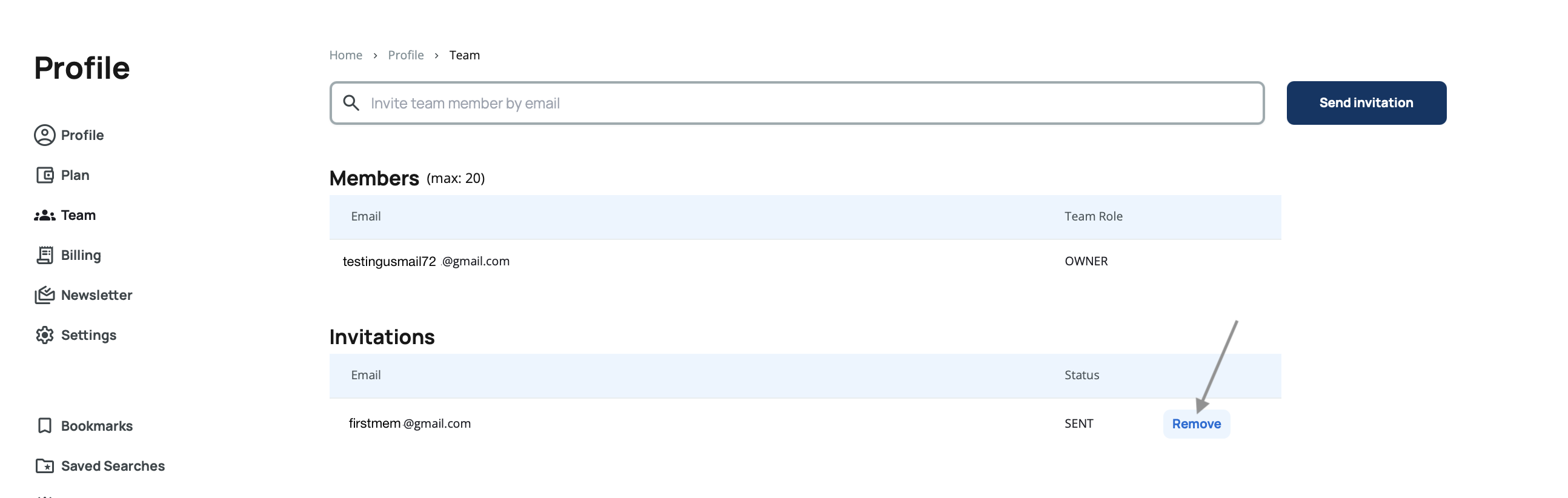
A confirmation dialog will appear to prevent accidental removal.
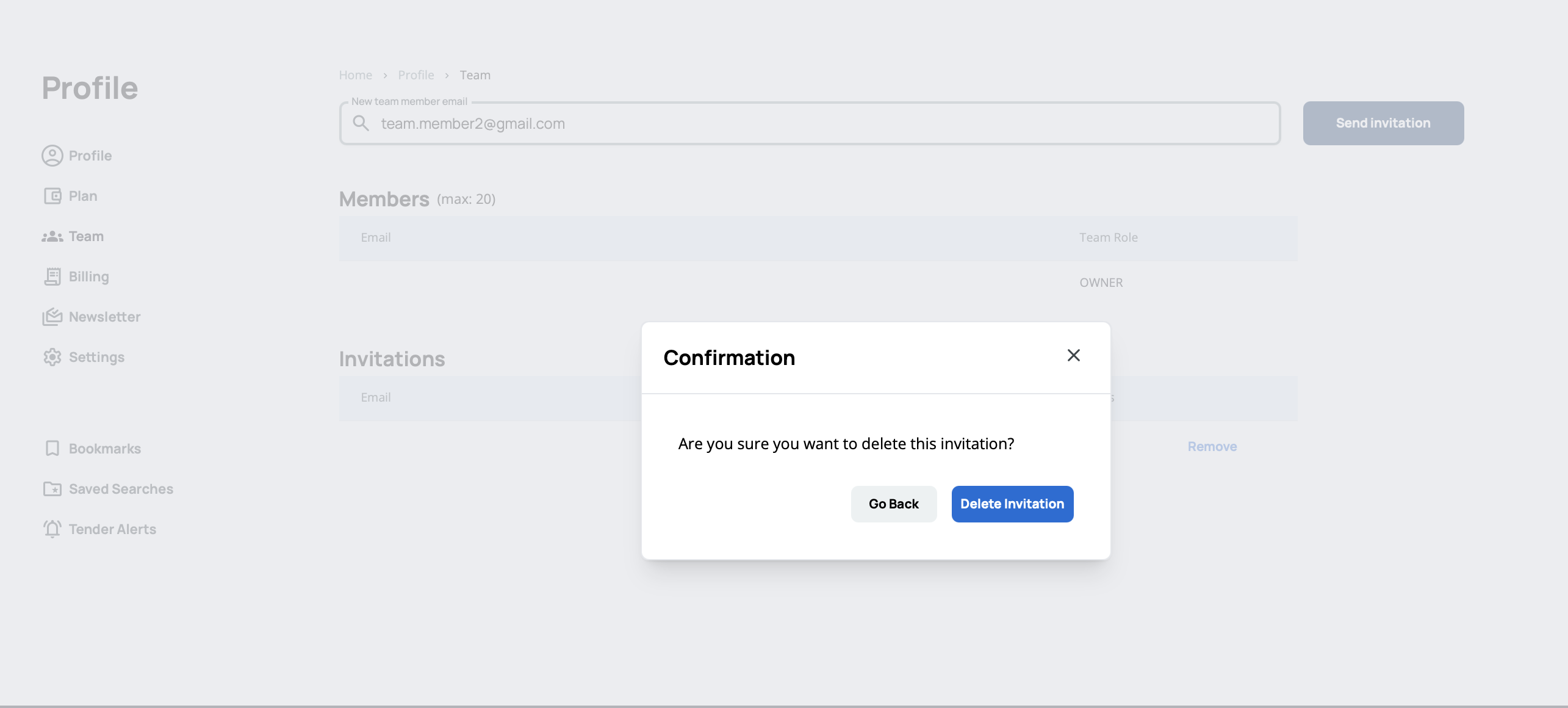
Removing a team member deletes their user account completely. They will need to create a new account (either by registering themselves or through a new invitation) if they want to use Tenderwell again.
Best Practices
- Choose your plan size carefully – Select a plan with enough subscription seats for your active team members
- Invite freely – Don't hesitate to invite colleagues; you control who gets subscription access later
- Monitor pending invitations – Follow up with colleagues who haven't accepted invitations after a few days
- Review active members regularly – Deactivate members who don't need subscription access to free up seats
- Communicate subscription changes – Inform your team when you deactivate members or when the plan expires
Deactivating members doesn't remove them from your team or delete their data. You can reactivate them anytime if subscription seats are available.
Common Questions
How many people can I invite?
You can invite unlimited people to your team, regardless of your plan size. Your plan only limits how many members can have active paid subscription access at the same time.
What's the difference between inviting and activating?
Inviting adds someone to your team. Activating (toggle ON) gives them access to your shared subscription. You control who gets subscription access after they accept the invitation.
What happens when a member's subscription is deactivated?
They switch to free plan access but remain in your team. All their data (bookmarks, alerts, saved searches) is preserved. They can still use the platform with free plan features.
Can a person be in multiple teams?
No, each user can only be part of one team at a time. However, they can be invited to a different team using the same email/account. If they accept the invitation to a different team, they will no longer be part of your team.
What happens to member data when I remove them?
When you remove a team member, their account is completely removed along with all their data (bookmarks, alerts, saved searches, etc.). If they want to use Tenderwell again, they will need to create a new account.
Can team members invite other people?
No, only the team owner can send invitations and manage team membership.
Do team members share bookmarks and saved searches?
No, each team member has their own individual bookmarks, saved searches, and tender alerts. These are not shared with other team members.
What happens if I downgrade to a plan with smaller team size?
You'll need to deactivate some members to comply with the new limit. Deactivated members switch to free plan but remain in your team with all their data intact.
What happens to data when my subscription expires?
All data is preserved for all members. Everyone automatically switches to free plan access but keeps their bookmarks, alerts, and saved searches. When you renew, you can reactivate members.