How to authenticate
Tenderwell offers multiple authentication options. The login method depends on your registration method. So if you registered with Google then you should also login with Google. The same applies for the other methods.
The authentication methods currently supported are: Tenderwell, Google, Microsoft and DevelopmentAid.
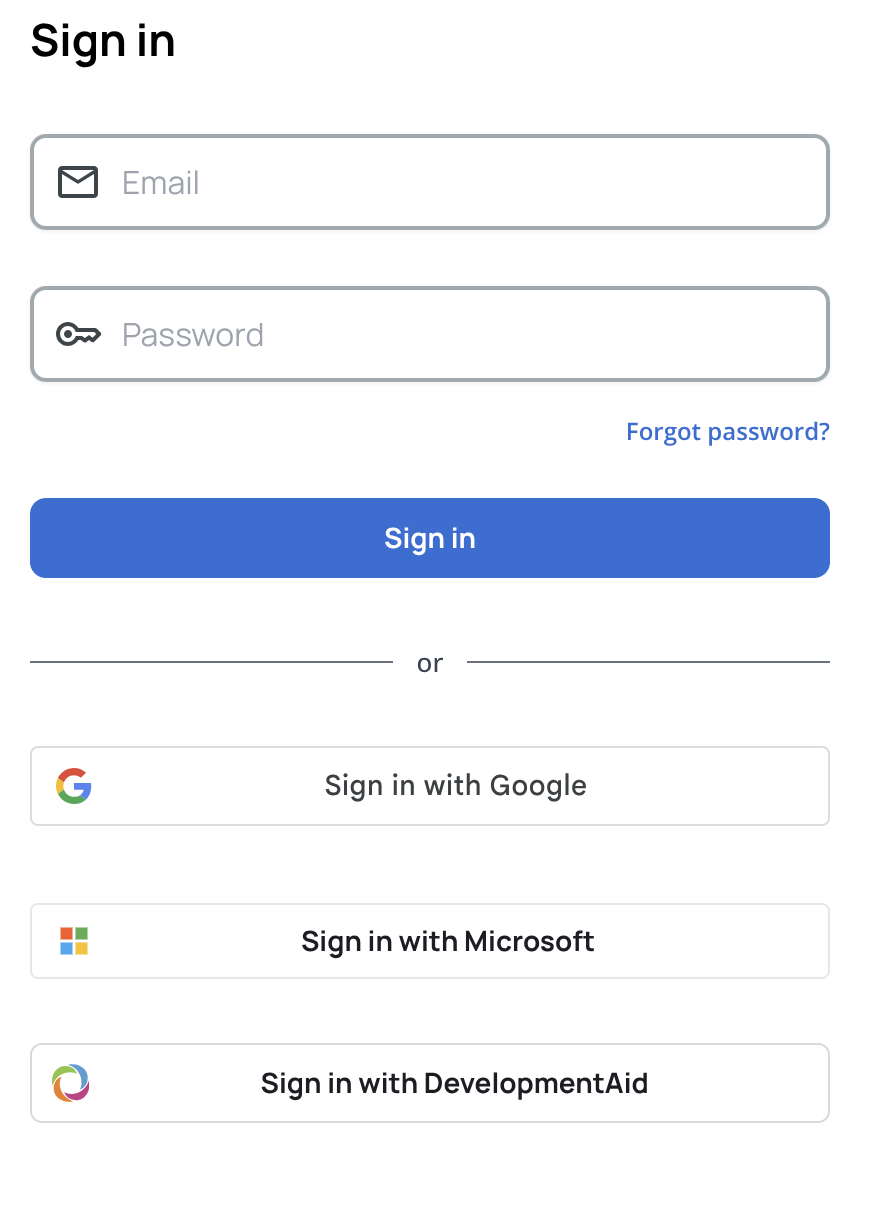
Tenderwell authentication
To login with Tenderwell, use your email address and password that you provided during registration.
The authentication uses Google's reCAPTCHA service to prevent automated login attempts and brute-force attacks. The reCAPTCHA service is normally invisible but in some cases it may require you to complete a challenge to verify that you are human.
Google authentication
To login with Google, click the "Login with Google" button on the login page. A new window will open where you can select your Google account or enter your Google credentials. After successful authentication, you will be redirected back to Tenderwell.
This authentication method uses OAuth 2.0 protocol to securely authenticate users without sharing their passwords with Tenderwell. The login is handled by Google and Tenderwell only receives an access token that confirms your identity.
Microsoft authentication
To login with Microsoft, click the "Login with Microsoft" button on the login page. A new window will open where you can select your Microsoft account or enter your Microsoft credentials. After successful authentication, you will be redirected back to Tenderwell.
This authentication method also uses OAuth 2.0 protocol to securely authenticate users without sharing their passwords with Tenderwell. The login is handled by Microsoft and Tenderwell only receives an access token that confirms your identity.
DevelopmentAid authentication
To login with DevelopmentAid, click the "Login with DevelopmentAid" button on the login page. A pop-up will appear where you can enter your DevelopmentAid credentials. This authentication is handled by DevelopmentAid.
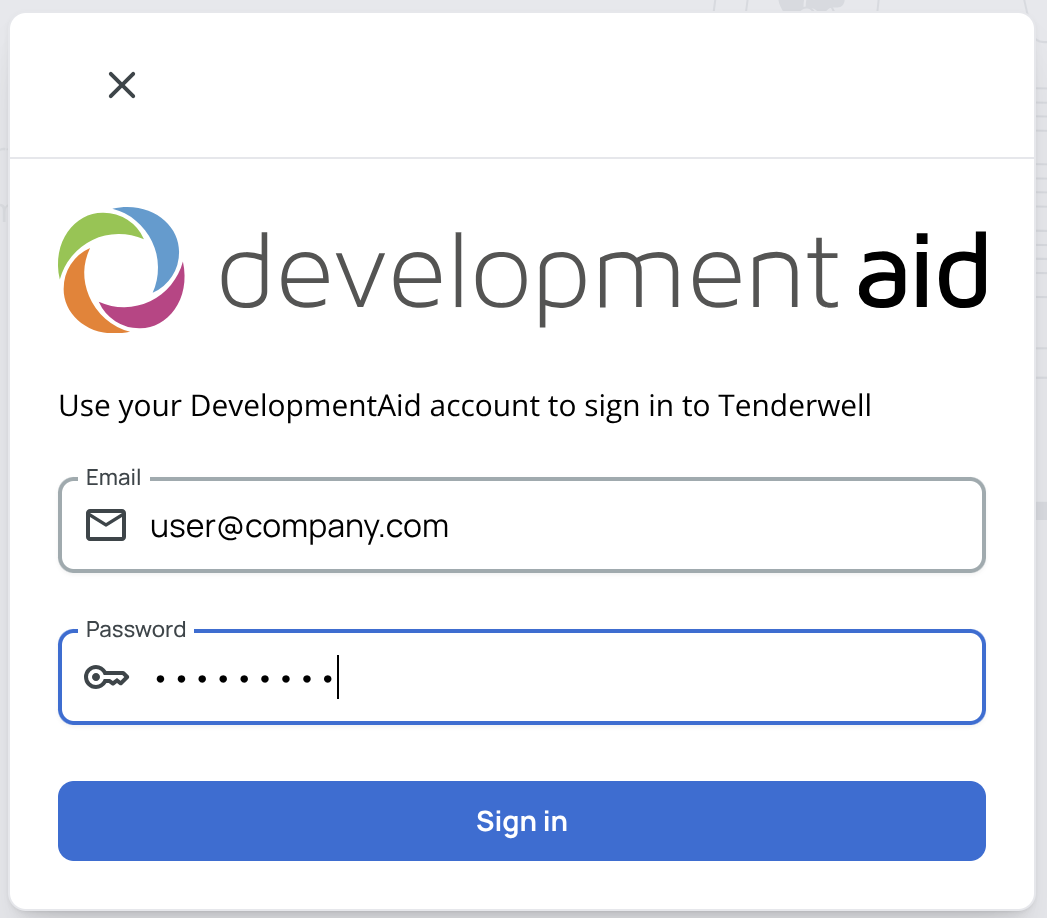
Tenderwell and DevelopmentAid have a partnership that allows users to authenticate using their DevelopmentAid accounts. Data is transferred securely between the two platforms to ensure your privacy and security.
When you first authenticate with DevelopmentAid, Tenderwell will create a new account for you using the information provided by DevelopmentAid. Subsequent logins will link to the same Tenderwell account.
If you have a DevelopmentAid account with a subscription which includes Tenderwell access, your Tenderwell account will automatically reflect that subscription.
Troubleshooting
If you encounter any issues while trying to authenticate, please try the following steps:
- Ensure you are using the correct login method (Tenderwell, Google, Microsoft, or DevelopmentAid).
- Check that your internet connection is stable.
- Clear your browser cache and cookies.
- Try logging in again with a different browser or device.
- If you're still having trouble, contact Tenderwell support with the following information:
- Open your developer console (F12 or right-click and select "Inspect").
- (1) Try to login again.
- (2) Dump the console logs and any network requests related to the authentication process.
- Send the generated .har file to support@tenderwell.com along with a description of the issue you're facing.
- Our team will investigate and get back to you as soon as possible.
To export a .har file, go to the "Network" tab in your developer console, click on the down arrow icon (Export HAR) and save the file to your computer. See the red circle in the image below for reference.
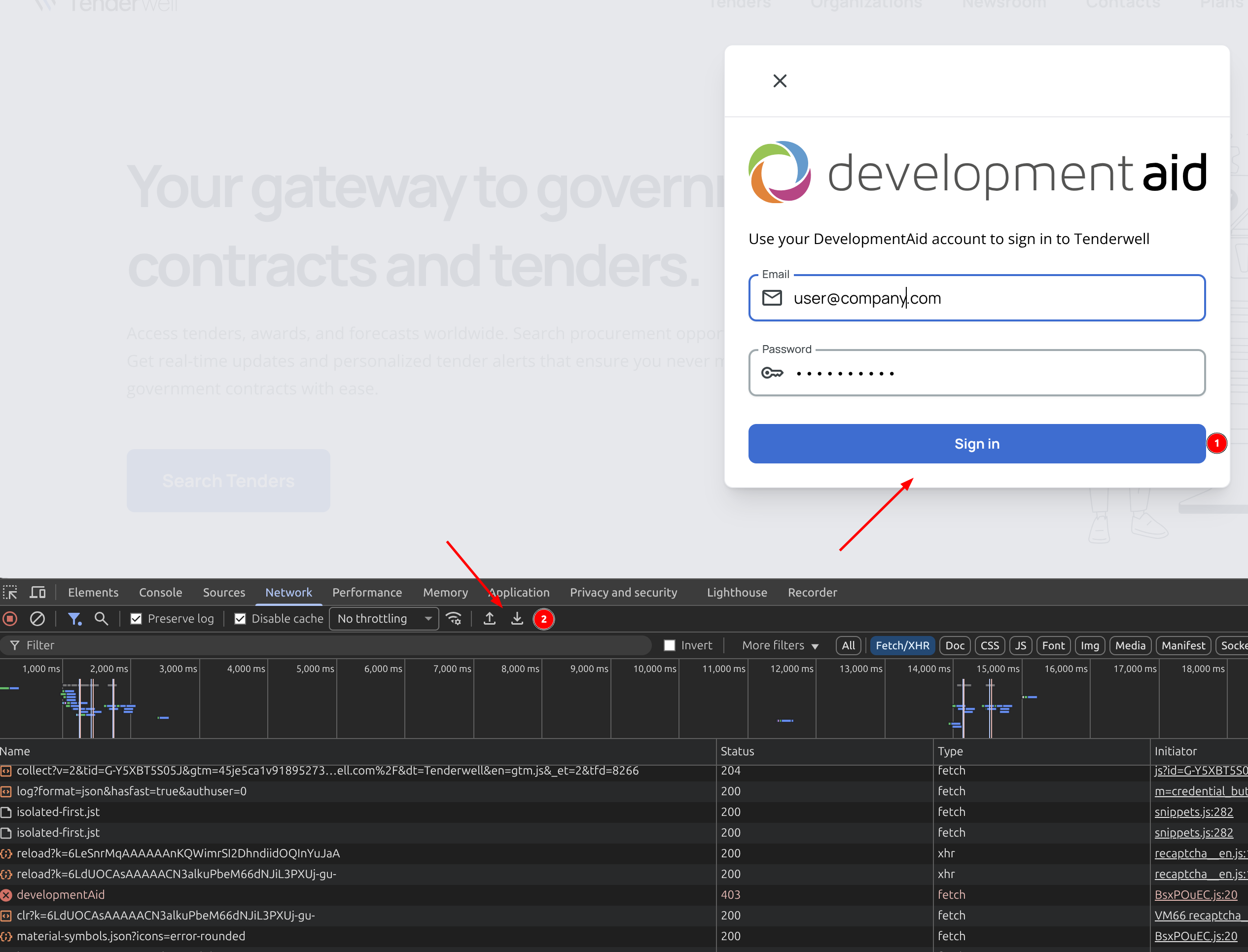
The .har file may contain sensitive information such as authentication tokens or personal data. Please review the file before sending it to ensure that you are comfortable sharing its contents with Tenderwell support. Some browsers such as Chrome automatically redact sensitive information when exporting .har files.